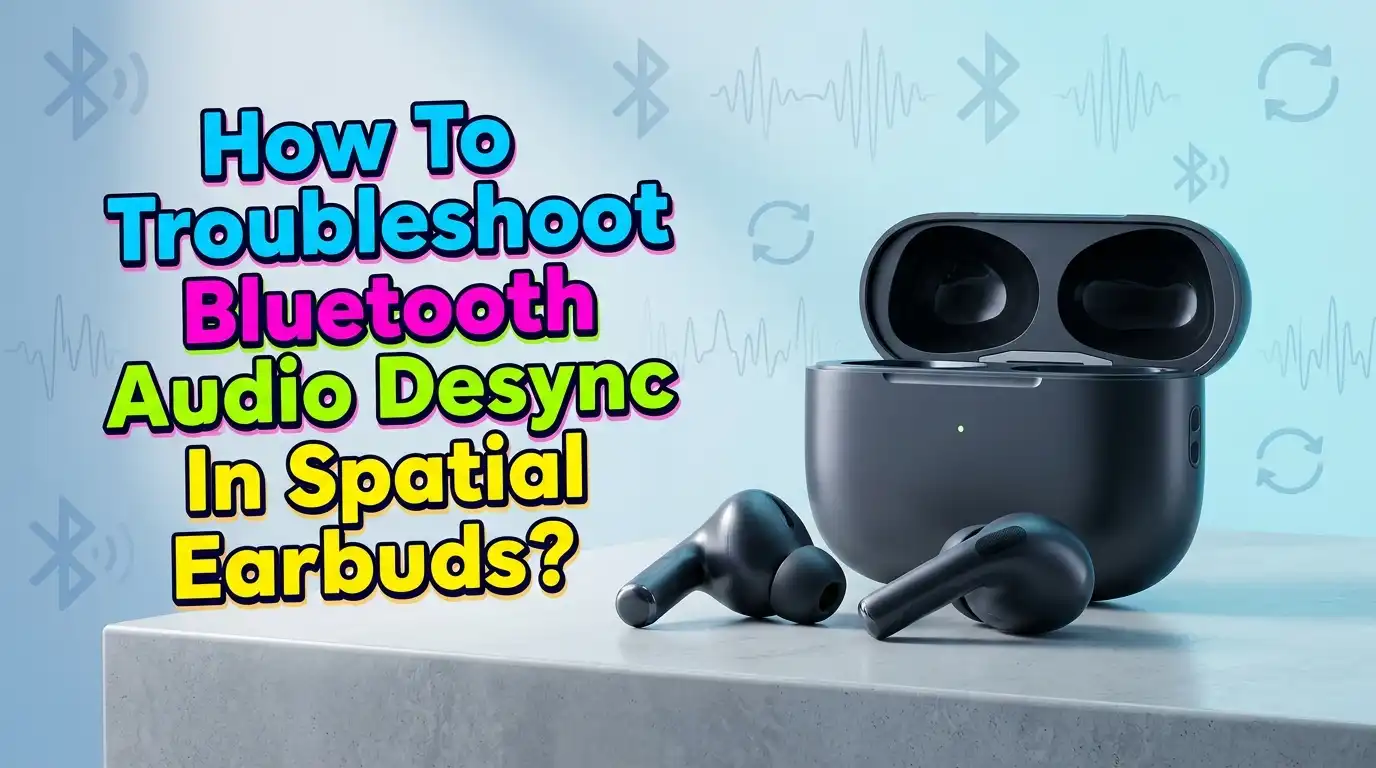
How To Troubleshoot Bluetooth Audio Desync In Spatial Earbuds?
Spatial earbuds promise an immersive listening experience with sound that moves around your head. But when audio falls out of sync with video, the magic breaks fast. You see lips move, then hear words a second later.
You watch an explosion, then hear the boom after the smoke clears. This desync problem frustrates millions of listeners every day, especially on streaming apps, games, and video calls.
The good news is that most Bluetooth audio desync issues have simple fixes. You do not need to throw away your earbuds or buy new ones.
Key Takeaways
- Restart and re-pair first. A simple disconnect, forget device, and fresh pairing solves nearly half of all sync issues caused by stale Bluetooth connections.
- Codecs control latency more than anything else. Switching to aptX Low Latency, aptX Adaptive, or LC3 can drop delay from 200 ms down to under 40 ms.
- Update everything. Outdated firmware on your earbuds and outdated drivers on your phone, laptop, or TV are the top hidden cause of drift after long listening sessions.
- Spatial audio with head tracking adds processing time. If sync drifts only during spatial mode, turning off dynamic head tracking or fixed spatial audio often fixes it instantly.
- Apps matter. Some apps like YouTube, Netflix, and Disney+ have built in audio offset sliders. Use them before blaming the earbuds.
- Distance and interference cause sudden drops. Keep your source device within 10 meters and away from microwaves, routers, and USB 3.0 ports.
Why Bluetooth Audio Desync Happens In Spatial Earbuds
Bluetooth was never built for perfect timing. It compresses audio, sends it wirelessly, and the earbuds decode it on the other side. Each step adds a few milliseconds of delay. With spatial audio, your earbuds also process head tracking data and apply 3D sound effects. This extra work pushes latency higher, sometimes past 250 ms.
Your eyes can detect lip sync errors above 45 ms. So even a small delay feels wrong during videos. Codec mismatch, weak signal, low battery, and outdated firmware all make the problem worse. Spatial earbuds also rely on tight left and right channel timing. If one bud lags behind the other, the 3D effect collapses.
Knowing the cause helps you pick the right fix. Most desync falls into three buckets: connection problems, software bugs, or processing overload. The next sections cover each one in detail.
Restart Your Earbuds And Source Device First
The fastest fix is also the most ignored one. A simple restart clears memory leaks, dropped packets, and stuck audio buffers. Place both earbuds back in the case, close the lid, and wait 30 seconds. Then reopen the case and reconnect. On your phone or laptop, toggle Bluetooth off and back on.
If the problem still shows up, reboot the source device fully. Power cycling clears the audio stack and resets the Bluetooth radio. This step alone fixes desync in many cases, especially after long streaming sessions.
Pros: Takes under one minute. Works on every device. No settings to change.
Cons: The fix may not last if a deeper bug exists. You might need to repeat it daily until you find the root cause.
Try this method before anything else. It saves time and rules out temporary glitches.
Forget The Device And Re Pair From Scratch
Bluetooth pairing data can get corrupted over time. Old connection profiles cause stuttering, drift, and lag that no restart will fix. The cleanest reset is to forget the earbuds completely and start fresh.
Open your Bluetooth settings, find your spatial earbuds, and tap forget or remove. Then put the earbuds in pairing mode, usually by holding the case button for five to ten seconds until a light flashes. Pair them again as if they were brand new. Many users report instant sync improvement after this single step.
Pros: Clears bad pairing data. Often restores full latency performance. Works across all platforms.
Cons: You lose custom names and saved settings. You may need to set up spatial audio again in the companion app.
This method works best when desync started after a software update or device switch.
Update Your Earbuds Firmware
Earbud makers release firmware updates to fix bugs, improve codec support, and reduce latency. Running old firmware is one of the most common reasons spatial audio drifts out of sync. Apple, Sony, Samsung, Bose, and others push updates several times a year.
Open the companion app for your earbuds, such as the Sony Headphones Connect app, Samsung Galaxy Wearable, or Bose Music. Look for a firmware section. Place the earbuds in the case, keep them near your phone, and let the update finish without interruption. Updates can take 10 to 30 minutes.
Pros: Fixes known bugs at the source. Often improves sound quality and battery life too. Free.
Cons: Updates sometimes introduce new problems. You cannot roll back easily if the new version performs worse.
Always update when a fix is available. Check release notes to see if sync issues are mentioned.
Switch To A Lower Latency Bluetooth Codec
Codecs decide how audio gets compressed and sent over Bluetooth. Different codecs have very different latency numbers. SBC, the default codec, can lag up to 220 ms. AAC drops it to around 150 ms. aptX Low Latency cuts delay to under 40 ms, and the new LC3 codec used in Bluetooth LE Audio sits near 30 ms.
On Android, open Developer Options and find Bluetooth Audio Codec. Pick aptX, aptX HD, aptX Adaptive, or LDAC if your earbuds support them. On Windows, check the manufacturer settings panel. iPhones use AAC and do not allow codec switching, but they pair best with AirPods over Apple’s own protocol.
Pros: Massive latency drop. Better lip sync. Works for movies and games.
Cons: Both your source and earbuds must support the same codec. Some codecs reduce battery life on the earbuds.
Match codecs on both ends for the cleanest result.
Turn Off Dynamic Head Tracking In Spatial Audio
Dynamic head tracking moves the soundstage as you turn your head. It feels amazing, but it adds processing time on top of regular Bluetooth latency. Many users notice that desync only appears when head tracking is on.
On iPhone, open the Control Center, hold the volume slider while wearing your AirPods, and tap Spatial Audio. Choose Fixed instead of Head Tracked, or turn it off completely. On Android with Galaxy Buds or Pixel Buds, open the companion app and find the spatial audio toggle. Switch off head tracking.
Pros: Reduces processing load. Often fixes drift that builds up during long videos. Saves battery too.
Cons: You lose the immersive head tracked effect. Movies feel flatter without the moving soundstage.
Try fixed spatial audio as a middle ground. You still get 3D sound without the lag.
Adjust Audio Sync Settings Inside The App
Many video apps include their own audio offset slider. YouTube, VLC, MX Player, Plex, and Disney+ let you nudge audio earlier or later by milliseconds. This trick works even when the underlying Bluetooth lag cannot be removed.
In VLC, press the J or K key to shift audio by 50 ms steps. In Plex, open the playback settings and find Audio Offset. On smart TVs, look in the audio menu for Lip Sync or A/V Sync, usually adjustable from 0 to 250 ms. Start with a small offset and test on a talking head video so you can see lip movement clearly.
Pros: Precise control per app or per video. No need to change Bluetooth settings.
Cons: Settings reset between apps and sessions. You must adjust each platform separately.
This method is perfect when only one app shows desync.
Reduce Bluetooth Interference Around You
Bluetooth shares the 2.4 GHz band with Wi Fi, microwaves, and many smart home devices. Interference causes packets to drop, which forces re sends and creates lag spikes. If sync gets worse in the kitchen or near your router, interference is likely the cause.
Move closer to your source device, ideally within three meters. Keep your phone in your front pocket or on the table in front of you, not behind your body. Step away from microwaves, baby monitors, and USB 3.0 devices. USB 3.0 ports leak strong noise on the 2.4 GHz band and disrupt Bluetooth more than people realize.
Pros: Costs nothing. Fixes random stutter and drift. Improves call quality too.
Cons: Not a permanent solution if your home has constant interference. You stay tied to short range.
Test in different rooms to find your best signal zone.
Disable Battery Saver And Background Apps
Battery saver modes throttle Bluetooth performance to save power. Your phone may slow down audio processing, causing buffer underruns and desync. Background apps that use the microphone or network can also steal Bluetooth bandwidth.
On Android, open Settings, then Battery, and turn off adaptive battery for your media apps. On iPhone, disable Low Power Mode while watching videos. Close apps you are not using, especially video callers, voice assistants, and screen recorders. These apps reserve Bluetooth resources even in the background.
Pros: Frees up system resources. Often fixes sudden lag spikes. Improves overall audio smoothness.
Cons: Drains battery faster. Some apps need to run in the background for notifications.
Use this fix during long movie sessions or gaming, then re enable battery saver later.
Update Bluetooth Drivers On Your Computer
If you mostly hear desync on a laptop or desktop, the issue often sits in the Bluetooth driver. Old drivers do not handle modern codecs well and can cause growing lag during long sessions.
On Windows, open Device Manager, expand Bluetooth, right click your adapter, and choose Update Driver. Visit your laptop maker’s support page for the latest official driver, since Windows Update sometimes installs older versions. Intel, Realtek, and MediaTek all release updates every few months. On Mac, system updates handle Bluetooth firmware automatically.
Pros: Fixes deep system level lag. Adds support for newer codecs. Improves stability.
Cons: Wrong drivers can break Bluetooth completely. Always create a restore point first.
Check for driver updates every two months if you use Bluetooth audio daily.
Check For Single Earbud Lag Or Channel Drift
Sometimes only one earbud lags behind the other. This breaks the spatial effect because 3D positioning depends on tight timing between left and right. The cause is usually a low battery in one bud or a weak link between the case and that single earbud.
Place both earbuds in the case for a full charge cycle. Then test by playing a stereo test track on YouTube. Listen carefully for any echo or doubled sound. If one bud still lags, reset the earbuds using the manufacturer’s reset method, often a long press on the case button.
Pros: Restores true stereo and spatial imaging. Quick to test and fix.
Cons: Hardware faults cannot be solved this way. If lag persists, the earbud may need warranty service.
Channel drift gets worse with battery age, so newer earbuds rarely show this issue.
Try A Different Source Device To Isolate The Problem
If nothing else works, swap your source to figure out where the bug really lives. Pair your earbuds with a different phone, tablet, or laptop. Play the same video and check for desync.
If sync is perfect on the new device, the original source has the issue. The problem could be its Bluetooth chip, its operating system, or a specific app. If the new device also shows desync, the earbuds themselves are the cause. This is the moment to contact support or claim warranty.
Pros: Quickly tells you whether to fix the phone or the earbuds. Saves wasted troubleshooting time.
Cons: Requires a second device. Not always practical for casual users.
This step is the cleanest way to end the guessing game.
When To Contact Support Or Replace Your Earbuds
If you have tried every method above and desync still appears across multiple devices, the earbuds may have a hardware fault. Bluetooth chips can fail, batteries lose capacity, and antennas can crack from drops.
Contact the manufacturer with your purchase date and a clear description. Mention the steps you already tried, including firmware updates, codec changes, and resets. Most brands offer a one or two year warranty that covers Bluetooth performance issues. Apple, Sony, and Samsung often replace faulty units within a week.
Pros: Brings a permanent fix when software cannot help. Often free under warranty.
Cons: You go without your earbuds during the repair. Out of warranty replacements can be costly.
Replacement is the last step, but it is the right call when nothing else works.
Frequently Asked Questions
Why does my spatial audio drift out of sync after 10 minutes?
This happens because Bluetooth clocks on the source and earbuds slowly fall out of step. Most fixes involve a fresh pairing, a firmware update, or switching to a low latency codec. Disabling head tracking also helps.
Does Bluetooth 5.3 fix audio desync in spatial earbuds?
Yes, Bluetooth 5.3 with LE Audio and the LC3 codec lowers latency to about 30 ms. But both your source device and your earbuds must support it. Older phones still use Bluetooth 5.0 or 5.1, which keep the lag higher.
Why is the audio fine on music but lags on video?
Music players buffer audio without needing to match a visual track. Video apps must keep audio aligned with frames, so even small delays become obvious. Use the in app audio offset slider to fix it.
Can I use spatial earbuds for gaming without lag?
Wired or USB dongle modes give the lowest latency for gaming. Bluetooth gaming modes on some earbuds drop latency to around 60 ms, which is acceptable for casual play but not for competitive shooters.
Will resetting my earbuds delete my settings?
Yes, a full factory reset clears pairings, custom EQ, and touch control settings. You will need to set them up again in the companion app, but spatial audio profiles usually rebuild within a minute.

Hi, I’m Lola Griffin 👩💻, the voice and creator behind ResizerBox. I’m a passionate tech enthusiast who loves exploring the latest gadgets, smart devices, and trending Amazon electronics. Through my reviews, I share honest insights, real-world testing experiences, and practical buying advice to help readers make confident tech choices.