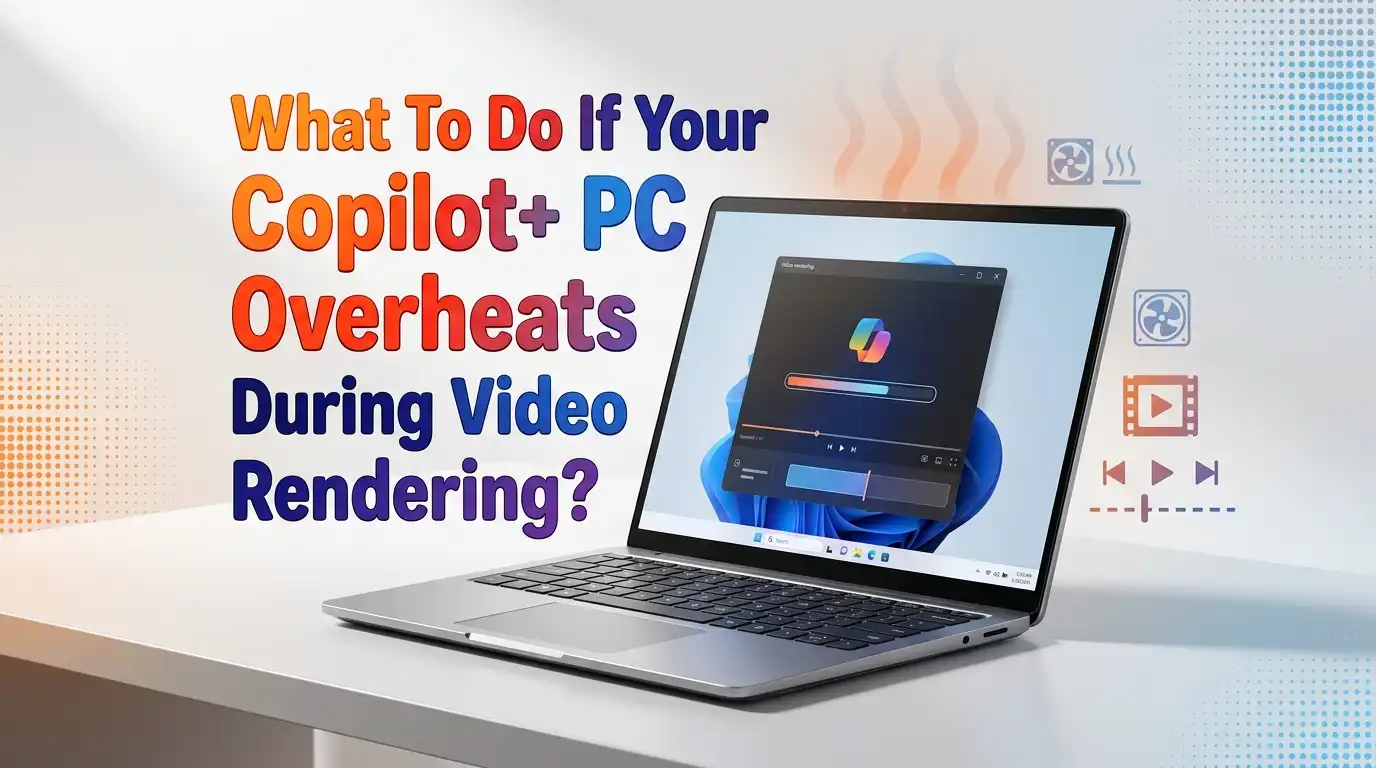
What To Do If Your Copilot+ PC Overheats During Video Rendering?
Video rendering pushes your Copilot+ PC to its limits. The CPU, GPU, and NPU all fire up at once. Heat builds fast, fans spin loud, and sometimes your laptop slows down or shuts off mid export. This is frustrating, especially when you have a deadline.
The good news? Most overheating problems have simple fixes. You don’t need to be a tech expert. You just need the right steps.
Copilot+ PCs use efficient ARM chips like the Snapdragon X Elite, but heavy video work can still raise temperatures past safe limits. Thermal throttling kicks in around 90°C, which slashes your render speed in half.
In a Nutshell:
- Check your surface and airflow first. Place your Copilot+ PC on a hard, flat surface like a desk. Soft beds, blankets, and laps block the bottom vents and trap heat fast.
- Update Windows and your video editor. Many Copilot+ PC heat issues come from old drivers or apps running through emulation. Native ARM64 apps run cooler and faster than x64 versions.
- Lower your render settings. Drop the resolution preview, disable hardware effects you don’t need, and render in shorter chunks. This reduces sustained CPU and GPU load dramatically.
- Clean the vents every few months. Dust is the number one silent killer of laptop cooling. A quick blast of compressed air can drop temperatures by 5 to 10 degrees Celsius.
- Use a cooling pad or laptop stand. Lifting the chassis even one inch off the desk improves airflow under the device. Active cooling pads with fans push fresh air directly into the intake.
- Switch to Best Power Efficiency mode in Windows Settings if your render does not need raw speed. Heat output drops sharply, and battery life improves at the same time.
Why Copilot+ PCs Heat Up During Rendering
Copilot+ PCs run on Snapdragon X Elite, X Plus, Intel Core Ultra Series 2, or AMD Ryzen AI 300 chips. These processors are power efficient compared to older laptops. Still, video rendering is one of the heaviest jobs you can throw at any computer.
When you export a 4K video, the CPU encodes frames, the GPU handles effects, and sometimes the NPU runs AI features like auto subtitles or scene detection. All three engines fire at once. This creates a steady wave of heat inside a thin laptop chassis.
Thin and light Copilot+ PCs have small cooling systems. They are tuned for everyday work, not hours of sustained rendering. So when heat builds faster than the fans can push it out, the chip slows down on purpose to protect itself. This is called thermal throttling, and it is the main reason your render takes longer than expected.
Check Your Workspace and Airflow First
The fastest fix costs nothing. Look at where your laptop sits right now. Is it on a couch, a pillow, or a bed? Soft surfaces block the air intake holes on the bottom of the chassis. Heat then has nowhere to escape.
Move your Copilot+ PC to a hard, flat surface. A wooden desk, a glass table, or a metal tray all work great. Make sure nothing covers the side vents either. Keep at least four inches of free space around the laptop.
Room temperature matters too. If your room is above 28°C (82°F), your laptop has to work twice as hard to dump heat. Turn on a fan, open a window, or move to a cooler room.
Pros: Free, instant, and effective.
Cons: Does not fix dust, dried thermal paste, or software issues. You may need to combine this step with others.
Update Windows and Your Video Editing App
Microsoft pushes regular updates that improve power and thermal management on Copilot+ PCs. Open Settings, go to Windows Update, and install everything pending. Reboot after updates finish. Driver updates from Qualcomm, Intel, or AMD often include thermal fixes.
Next, check your video editor. Apps like DaVinci Resolve, CapCut, Adobe Premiere Pro, and Filmora now have native ARM64 versions for Snapdragon X chips. Native apps run directly on the processor without the Prism translation layer. They use less power, finish faster, and produce less heat.
If you are still running an x64 version through emulation, your CPU works much harder than needed. Visit the official site of your editor and download the ARM64 build.
Pros: Free, big performance and heat gains, often doubles render speed.
Cons: Some plugins do not work yet on ARM64 versions. Check plugin compatibility first.
Use Native ARM Codecs and Hardware Encoders
Your Copilot+ PC has a built in hardware video encoder. The Snapdragon X Elite supports H.264, H.265, and AV1 encoding directly on the chip. Intel Core Ultra and AMD Ryzen AI chips also have dedicated media engines.
In your video editor, look for export settings labeled Hardware Acceleration, GPU Encoding, or Snapdragon Hardware Encoder. Turn this on. The dedicated encoder block runs cooler than software encoding because it does not load the main CPU cores.
Software encoding, sometimes called CPU encoding, gives slightly better quality but generates a lot more heat. For most YouTube, Instagram, or client delivery work, hardware encoding looks great and finishes much faster.
Pros: Cuts render time by 50 to 70 percent and lowers temperatures sharply.
Cons: Quality is slightly lower at very low bitrates. Not all editors expose this option clearly.
Adjust Windows Power Mode for Cooler Performance
Windows 11 on Copilot+ PCs has three power modes. Open Settings, click System, then Power. You will see Best Power Efficiency, Balanced, and Best Performance.
Best Performance pushes the chip to its highest clocks and creates the most heat. If your render is short, this mode finishes faster despite the heat. But for long renders, Balanced or Best Power Efficiency keeps temperatures lower and avoids thermal throttling.
Sometimes a slower, steadier render finishes before a fast, throttled one. Test both modes on a short clip and compare total time. You may be surprised.
Pros: One click change, no cost, easy to reverse.
Cons: Pure render speed drops on the most efficient mode. You trade peak speed for sustained speed.
Close Background Apps Before You Render
Background apps steal CPU cycles and add heat. Open Task Manager with Ctrl + Shift + Esc. Look at the Processes tab and sort by CPU usage. End any heavy app you do not need.
Common culprits include Chrome with many tabs, OneDrive syncing large files, Microsoft Teams, Spotify, and antivirus scans. Pause cloud sync and close your browser before you hit Render.
Also check the system tray near the clock. Many apps run quietly there. Right click each one and choose Quit if you do not need it during the export.
Pros: Frees memory and CPU, lowers heat by a real amount.
Cons: You have to remember to close things every time. Some users set up a clean rendering profile to make this faster.
Clean Dust From Your Vents Regularly
Dust is the slow killer of laptop cooling. Over months, lint and pet hair build up inside the heat sink fins. Even a small layer cuts airflow by 30 percent or more.
Buy a can of compressed air from any electronics or office store. Power off your Copilot+ PC and unplug it. Hold the can upright and give short bursts into the vents on the sides and bottom. Do this outdoors or over a trash can because the dust flies everywhere.
Do not stick anything inside the vents. Do not vacuum the laptop because static can damage parts. For deep cleaning, take it to a service center every two years.
Pros: Drops temperatures by 5 to 10°C, very cheap, easy to do.
Cons: You must repeat every three to six months. Opening the chassis voids most warranties.
Use a Laptop Cooling Pad or Stand
A cooling pad is one of the best long term investments for video editors. A simple stand lifts the laptop one to two inches, which doubles the air intake area. Active pads add fans that push cool air directly into the bottom vents.
Place your Copilot+ PC on the pad before you start rendering. Plug the pad into a USB port if it has fans. You can drop sustained temperatures by 8 to 15°C this way.
Passive aluminum stands also work well because aluminum pulls heat away from the chassis. They are silent and need no power.
Pros: Big cooling drop, helps wrist posture, works for every laptop you own.
Cons: Active pads add USB cable clutter and a small fan noise. Passive stands work less than active ones.
Render in Shorter Segments
Long renders cause heat to build steadily over time. A two hour export can push your chip into throttling territory after the first 20 minutes. Once throttling starts, the rest of the render runs slow.
Try splitting your timeline into shorter segments of 5 to 10 minutes each. Render each segment separately and join them later in the editor. Between segments, your laptop has time to cool down.
Some editors have a Smart Render or Render In to Out feature that only re renders changed sections. Use this when possible to save heat and time.
Pros: Avoids deep throttling, keeps quality high, useful for long projects.
Cons: Adds steps to your workflow. Joining segments needs careful keyframe alignment.
Lower Preview and Project Resolution
Your video editor often shows a live preview while rendering. High resolution previews load the GPU on top of the export work. This doubles the heat output for no real benefit.
In your editor, find the Preview Resolution setting. Drop it to Quarter or Eighth resolution while rendering. Turn off the preview window entirely if your editor allows it.
You can also use proxy files. Proxies are low resolution copies of your footage that edit smoothly and render with less load. Most modern editors create proxies automatically.
Pros: Big heat reduction, faster timeline scrubbing, no quality loss in final export.
Cons: Setting up proxies takes time the first time. Preview looks blurry while editing.
Monitor Temperatures With Free Tools
You cannot fix what you cannot see. Free apps like HWiNFO64 (ARM64 version), Core Temp, and the built in Task Manager show real time CPU temperatures. Open the tool while you render and watch the numbers.
Healthy temperatures sit between 60°C and 80°C during heavy load. Anything above 90°C means thermal throttling is happening or about to start. If you see numbers in the high 90s, stop the render and apply the fixes in this guide.
Track your temperatures before and after each change. This shows you which fix gave the biggest improvement on your specific machine.
Pros: Free, gives data to make decisions, helps spot failing fans early.
Cons: Some tools do not fully support Snapdragon X chips yet. Reading numbers takes a little practice.
Consider External GPU or Cloud Rendering
If you render long videos every day, your Copilot+ PC may not be the right tool for the heaviest jobs. Thin laptops are built for portability, not eight hour rendering marathons.
External GPU enclosures connect over USB4 or Thunderbolt and add desktop class graphics power. Note that ARM Copilot+ PCs have limited eGPU support right now, so check compatibility before buying.
Cloud rendering services like Frame.io, Puget Render Farm, and similar platforms upload your project and render it on powerful servers. Your laptop stays cool because it does almost no work.
Pros: Solves the heat problem permanently for heavy users. Frees your laptop for other tasks.
Cons: eGPUs cost a lot and ARM support is partial. Cloud services charge per render and need fast internet.
When to Get Professional Service
Sometimes the problem is hardware. If your fans rattle, click, or stay silent during heavy load, the cooling system may be failing. Dried thermal paste between the chip and heat sink also causes runaway heat after two or three years of use.
Take your Copilot+ PC to an authorized service center if you notice random shutdowns, burning smells, or temperatures above 95°C even after every fix. Do not open the chassis yourself unless you are confident, because most warranties end the moment the bottom cover comes off.
For Surface devices, Microsoft offers in warranty repair and replacement. For other brands, check with the manufacturer first.
Pros: Fixes deep hardware issues, restores like new performance.
Cons: Costs money if out of warranty. You lose your laptop for a few days.
Frequently Asked Questions
Is it normal for my Copilot+ PC to get hot during video rendering?
Yes, some heat is normal. Surface temperatures of 40 to 45°C and internal chip temperatures up to 85°C are expected during heavy renders. If you feel pain when touching the keyboard, or the laptop shuts off, that is too hot.
Will overheating damage my Copilot+ PC long term?
Modern chips protect themselves with thermal throttling and shutdown. Short overheating events do not cause damage. But repeated extreme heat over years can shorten battery life and dry out thermal paste faster.
Why does my Snapdragon X Elite laptop run cooler than my old Intel laptop?
Snapdragon X chips use ARM architecture and are very power efficient. They produce less heat per task than older x86 chips. Native ARM64 apps run especially cool. But emulated x64 apps still create extra heat.
Should I undervolt my Copilot+ PC?
Most Copilot+ PCs do not allow undervolting through standard tools. The chip already runs at optimal voltages from the factory. Stick with the software fixes in this guide instead.
How often should I clean the vents on my laptop?
Every three to six months for normal use. If you have pets or work in dusty places, clean monthly. A quick five minute job with compressed air keeps temperatures stable for years.
Can I use my Copilot+ PC on my lap during rendering?
Not safely. Your legs block the bottom vents and trap heat. Use a hard surface or a lap desk with airflow channels. Long laptop on lap use can also cause skin irritation from the heat.

Hi, I’m Lola Griffin 👩💻, the voice and creator behind ResizerBox. I’m a passionate tech enthusiast who loves exploring the latest gadgets, smart devices, and trending Amazon electronics. Through my reviews, I share honest insights, real-world testing experiences, and practical buying advice to help readers make confident tech choices.