
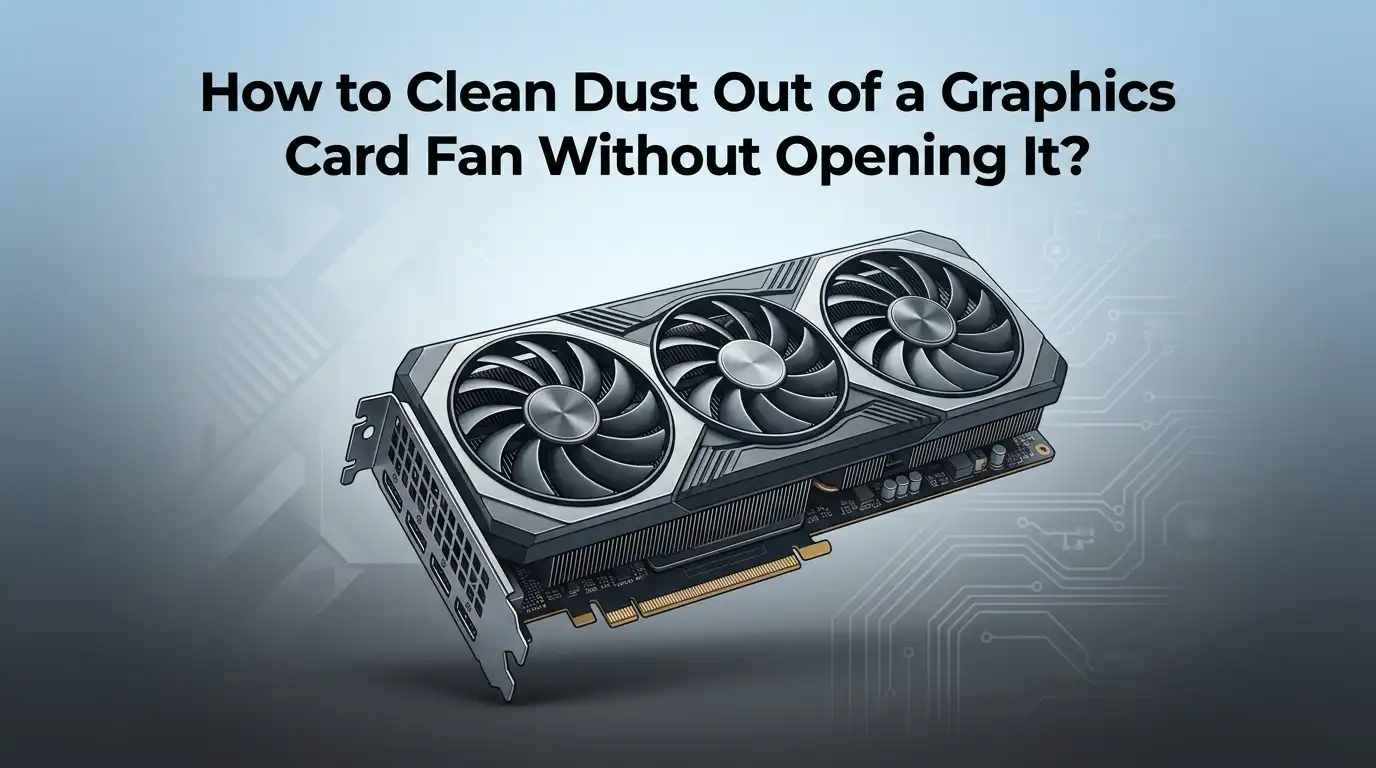
How to Clean Dust Out of a Graphics Card Fan Without Opening It?
Dust is the silent enemy of every gaming PC. It sneaks into your case, sticks to fan blades, and slowly chokes your graphics card. Over time, this buildup raises temperatures, causes loud fan noise, and can even shorten the life of your GPU.
The good news is you do not have to dismantle your card to fix this. You can clean a graphics card fan without unscrewing a single part, and you can do it in under thirty minutes.
This guide walks you through every safe method, tool, and trick used by experienced PC owners. You will learn what works, what to avoid, and how to keep your GPU running cool for years.
In a Nutshell
- Power down completely: Always shut off your PC and unplug it from the wall before you touch any part inside the case. Static electricity and live power can damage your GPU instantly.
- Use the right tools: A can of compressed air, a soft brush, a microfiber cloth, and a vacuum with reverse airflow are your best friends. Avoid household vacuums that suck directly on the card.
- Hold the fans still: Spinning fans by force with air pressure can generate voltage and damage the fan motor or the GPU board. Use a finger, a zip tie, or a toothpick to lock blades in place.
- Short bursts only: Use quick, controlled bursts of air at an angle. Long blasts cause moisture and frost buildup that can harm electronics.
- Clean every three to six months: Regular light cleaning prevents heavy dust buildup. Pet owners and smokers should clean more often, every two months works well.
- Watch GPU temperatures: After cleaning, monitor your card with software to confirm temps have dropped. A drop of five to fifteen degrees Celsius is a normal result.
Why Dust Buildup Hurts Your Graphics Card
Dust acts like a blanket on your GPU. It coats fan blades, clogs heatsink fins, and traps heat against the cooler. When heat cannot escape, the GPU runs hotter, the fans spin faster, and performance drops.
High temperatures push the card into thermal throttling, which means it lowers its own speed to protect itself. This results in lower frame rates in games and slower video rendering. Long term, the constant heat stress wears down capacitors and solder joints.
A dusty fan also wobbles. The extra weight on the blades pulls on the bearings, causing rattling, buzzing, or grinding noises. Cleaning the fan restores balance and quiets your system right away.
Signs Your GPU Fan Needs Cleaning
You do not need a thermometer to know when your card is dirty. The signs show up during normal use. Loud fan noise even on the desktop is one of the first red flags.
Other clues include higher than normal GPU temperatures, sudden frame rate drops in games you used to run smoothly, and the case feeling unusually warm. If you peek through your side panel and see grey fluff on the fan blades, that is your answer.
System crashes during gaming or video editing are also linked to overheating. Software like MSI Afterburner or HWMonitor shows real time temps. If your card sits above 80 degrees Celsius under load, dust is likely the cause.
Tools You Need Before You Start
Gather your supplies before you open the case. This keeps the cleaning quick and prevents you from leaving your PC half open while you search the house.
You will need a can of compressed air or a battery powered electric duster, a soft antistatic brush like the kind used for cameras, a clean microfiber cloth, cotton swabs, and a small flashlight. Optional but helpful tools include a pair of nitrile gloves, a plastic toothpick, and a vacuum cleaner with a reverse blow setting.
Avoid using metal tools, paper towels that shed lint, or wet rags. Never use a regular household vacuum directly on the card because the suction nozzle builds static charge that can fry sensitive components on the GPU board.
Safety Steps to Take First
Safety comes before speed. Skipping these steps puts both you and your hardware at risk.
First, shut down your PC completely and unplug the power cable from the wall. Hold the power button for five seconds after unplugging to drain leftover charge from the capacitors. Move the tower to a well lit, open area like a table near a window or in a garage.
Touch a metal part of the case or wear an antistatic wrist strap to ground yourself. Static electricity is invisible but can kill your GPU in one zap. Open the side panel and let the dust settle for a minute before you start blowing air. Wear a dust mask if you are sensitive to allergens, because cleaning kicks up a lot of particles.
Method One: Using Compressed Air the Right Way
Compressed air is the most popular and safest method. The trick is using it correctly so you do not damage the fan bearings.
Hold the can upright to prevent liquid propellant from spraying out. Keep the nozzle about three to four inches away from the fan. Lock each fan blade in place with your finger or a plastic toothpick. Then deliver short, two second bursts at an angle across the blades and through the heatsink fins.
Move from one fan to the next, then blow air through the back of the card to push dust out the front. Work outward so dust leaves the GPU instead of going deeper.
Pros: Fast, cheap, no liquids touch the card, widely available.
Cons: Cans get cold quickly and can release moisture, propellant can be wasteful, and aggressive use can damage fan bearings if blades are not held still.
Method Two: Electric Air Blowers and Dusters
Electric blowers have become a favorite among PC builders. They produce a steady stream of clean, dry air without the cold burst of canned products.
Brands like rechargeable electric dusters can run for thirty minutes on one charge. They push air at speeds of around 60 to 100 miles per hour, which is more than enough to dislodge dust from a GPU fan. Use the same technique as with compressed air: hold blades still and aim at angles.
Pros: Reusable, no propellant, no moisture risk, environmentally friendly, strong airflow.
Cons: Higher upfront cost, needs charging, some models are loud, and the powerful airflow can spin fans too fast if you forget to hold the blades.
The investment pays off over time if you clean your PC regularly.
Method Three: Soft Brushes for Stubborn Dust
Sometimes air alone will not lift sticky dust. Humidity, pet dander, and kitchen grease can bond particles to the fan blades.
Use a soft antistatic brush, a clean makeup brush, or a camera lens brush to gently sweep the blades. Hold each fan still and brush in one direction. Then follow up with a quick burst of air to clear the loose dust away.
For tight spots between fan housing and heatsink fins, a dry cotton swab works well. Avoid pressing hard or twisting the brush, since broken bristles can fall into the card.
Pros: Reaches sticky residue, gentle on components, no chemicals needed, very precise control.
Cons: Slower than air methods, brushes can shed if low quality, and it takes patience to clean every blade. Pair this method with compressed air for the best result.
Method Four: Vacuum With Reverse Blow Function
Many modern handheld vacuums include a reverse mode that blows air instead of sucking. This makes them safe alternatives to compressed air.
Never use suction mode directly on the GPU, because the nozzle creates static charge that can short circuit the board. In blow mode, hold the vacuum six inches away and direct the airflow across the fan blades while holding them still.
Some users place the vacuum nozzle near the back of the case to catch dust as it gets blown out of the GPU. This dual approach keeps dust from settling on other components.
Pros: Reusable, strong airflow, often already in the house, captures dust in the bag.
Cons: Risk of static damage if used wrong, can be too powerful for delicate fans, and suction mode is unsafe, so users must be careful which setting they choose.
Method Five: Combining Air and Cotton Swabs
For a deeper clean without opening the card, combine multiple tools. This method tackles both loose dust and grime stuck to the blades.
Start with compressed air to blow out the loose particles. Then dip a cotton swab in 90 percent or higher isopropyl alcohol, squeeze out the excess, and gently wipe each fan blade. The alcohol evaporates fast and lifts oily residue.
Finish with one more pass of air to dry everything. Wait at least fifteen minutes before powering on the PC to make sure no moisture remains.
Pros: Deep cleans without removing the cooler, removes oily film, restores fan balance, low cost.
Cons: Time consuming, requires steady hands, and using the wrong alcohol concentration leaves residue. Stick to high purity isopropyl alcohol only, never water or household cleaners.
How to Clean the Back and Sides of the GPU
Dust does not just collect on the front of the fans. The backplate, side vents, and PCIe slot area also trap particles that block airflow.
Tilt the case so you can see the back of the GPU. Use compressed air to blow through the vent slots on the I/O bracket and any cutouts on the backplate. This pushes dust trapped between the heatsink and PCB out the front.
A soft brush helps clean the edges of the card where it meets the motherboard. Be careful around the power connectors and capacitors, and never tug on cables. A flashlight makes it easier to spot hidden dust clumps in shadowed corners.
Testing Your GPU After Cleaning
Cleaning is only half the job. You also want to confirm that your work paid off.
Plug your PC back in, boot it up, and open monitoring software like MSI Afterburner, HWMonitor, or GPU Z. Note the idle temperature first. A clean card usually idles between 30 and 45 degrees Celsius.
Then run a game or a benchmark for ten minutes and check the load temperature. A drop of five to fifteen degrees compared to before cleaning is a great result. Listen for fan noise too. The fans should spin more quietly and ramp up less often during normal use.
If temperatures are still high, dust deeper inside the heatsink may need a full disassembly clean.
How Often Should You Clean Your GPU Fan
Frequency depends on your environment. A clean, air conditioned room with no pets keeps dust low. A carpeted room with pets and smokers fills a GPU fast.
For most users, cleaning every three to six months keeps temperatures stable. Heavy gaming setups and mining rigs may need monthly attention. Homes with cats, dogs, or smokers should expect to clean every six to eight weeks.
A good habit is to glance through the side panel once a month. If you see grey fuzz on the fan blades, it is time. Preventive care like dust filters on case intakes cuts cleaning frequency in half and protects every component, not just the GPU.
Mistakes to Avoid While Cleaning
Some habits do more harm than good. Knowing what not to do is just as important as knowing the right steps.
Never let fans spin freely while blowing air. Spinning fans generate small electric currents that can damage the GPU. Never use water, glass cleaner, or kitchen sprays. These leave residue and conduct electricity.
Avoid holding the compressed air can sideways or upside down because the propellant comes out as freezing liquid. Do not bend or pull on the fan blades, since they are made of thin plastic that cracks easily. Finally, never plug the PC back in while it is still wet or cold from cleaning. Patience here saves money on repairs.
Frequently Asked Questions
Can I clean my GPU fan with a hair dryer?
No, you should not use a hair dryer. Hair dryers blow hot air that can warp plastic fan blades and melt thermal pads. They also generate static electricity. Stick with compressed air or an electric duster instead.
Is it safe to use a leaf blower on my PC?
Small electric leaf blowers can work, but most are too powerful and push dust deeper into the heatsink. They also kick up debris from the floor that lands inside the case. A handheld electric duster is a much safer choice.
How long does cleaning a GPU without opening it take?
Most users finish in fifteen to thirty minutes. This includes powering down, gathering tools, cleaning each fan, and letting the card dry. Add another ten minutes if you use isopropyl alcohol on the blades.
Will cleaning my GPU void the warranty?
External cleaning with air and brushes does not void any standard warranty. Warranties are usually voided only when you remove the cooler, break a seal, or repaste the chip. Dust removal from outside is always safe.
Why is my GPU fan still loud after cleaning?
Loud fans after cleaning often mean worn bearings or failing fan motors. Old thermal paste can also cause the card to run hot, making fans spin fast. If cleaning does not help, consider repasting or replacing the fan unit.
Can dust permanently damage my graphics card?
Yes, over time. Long term heat from heavy dust degrades capacitors, solder joints, and the GPU die itself. Regular cleaning keeps the card healthy and can add years to its useful life.

Hi, I’m Lola Griffin 👩💻, the voice and creator behind ResizerBox. I’m a passionate tech enthusiast who loves exploring the latest gadgets, smart devices, and trending Amazon electronics. Through my reviews, I share honest insights, real-world testing experiences, and practical buying advice to help readers make confident tech choices.