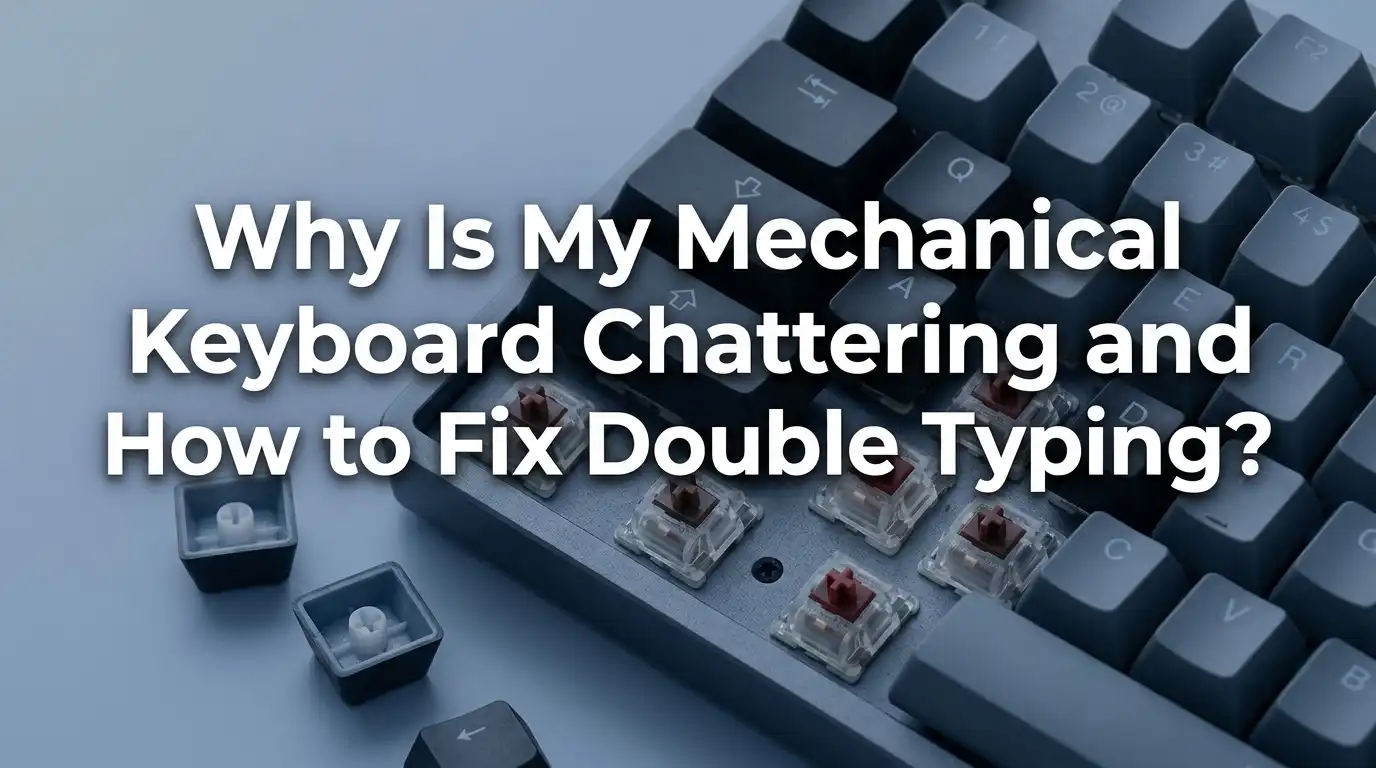
Why Is My Mechanical Keyboard Chattering and How to Fix Double Typing?
You press the letter “a” once, but your screen shows “aa”. You hit the spacebar, and suddenly two spaces appear. This frustrating glitch is called keyboard chatter, and it can ruin your typing flow in seconds.
The good news is that you can fix it at home in most cases. This guide walks you through every cause and every working solution, from quick cleaning tricks to advanced firmware tweaks.
By the end, your keyboard should feel crisp and reliable again, without any unwanted double inputs.
Key Takeaways
- Key chatter happens when a single physical press registers as two or more digital signals, usually because the metal contacts inside the switch bounce or wear down over time.
- Dust and debris are the most common cause of sudden chatter, and a simple cleaning with compressed air or isopropyl alcohol fixes the issue in many cases.
- Software fixes like Keyboard Chatter Blocker can filter out duplicate inputs without you having to open the keyboard, making this a beginner friendly first step.
- Firmware adjustments through QMK or VIA let you increase the debounce time, which is the delay the keyboard uses to confirm a real keypress. Raising it from 5ms to 10ms often solves chatter permanently.
- Hot swappable keyboards make switch replacement easy, while soldered boards require more skill. If cleaning and software fail, swapping the faulty switch is the final reliable fix.
- Prevention matters more than repair. Keeping your desk clean, washing your hands before typing, and using a dust cover extends switch life significantly.
What Is Keyboard Chatter and Why Does It Happen
Keyboard chatter is the technical name for double typing. When you press a key once, the keyboard sends two or more signals to your computer. The result looks like “helllo” instead of “hello”.
Inside every mechanical switch are two metal leaves that touch when you press down. These contacts should connect cleanly, but physical bounce can make them tap together rapidly. Your computer then reads each tap as a separate keypress.
Manufacturers add a small delay called debounce time to filter out this noise. When debounce fails or the contacts get dirty, chatter appears. Understanding this mechanism helps you pick the right fix for your specific problem.
Common Causes Behind Double Typing Problems
Several issues can trigger chatter, and identifying the right one saves you hours of trial and error. The first cause is dust and debris. Tiny particles land on the metal contacts and create unstable connections.
The second cause is switch aging. After millions of keypresses, the metal leaves lose their springiness. Cherry MX switches are rated for 50 million presses, but lower quality switches may fail much sooner.
Other causes include moisture damage from spills, oxidation on the contacts, faulty soldering joints, low debounce settings in firmware, and even defective switches straight from the factory. Knowing which problem you face determines whether you need a cloth, a screwdriver, or new switches.
How to Identify Which Keys Are Chattering
Before fixing anything, you need to know exactly which keys misbehave. Open a text editor and type slowly. Press each key once and watch the screen. Note every key that produces double letters.
A better method is using an online key tester like keyboardtester.com or keyboardchecker.com. These tools show every keypress as a colored block. Chatter appears as rapid double registers that you can see clearly on the screen.
You can also use Keyboard Chatter Blocker in detection mode. It logs every suspicious double input and tells you which keys need attention. Write the affected keys down. This list becomes your roadmap for the rest of the troubleshooting process.
Quick Software Fix Using Keyboard Chatter Blocker
If you do not want to open your keyboard, software is your easiest starting point. Keyboard Chatter Blocker is a free open source tool for Windows. It sits in your system tray and rejects any keypress that arrives too quickly after the previous one.
You set a threshold in milliseconds, usually between 30ms and 50ms. Any duplicate press within that window gets blocked. The program also keeps statistics, so you can see which keys chatter most often.
Pros: Free, no hardware skills needed, works on any keyboard, gives you data on faulty keys.
Cons: Windows only, may block fast legitimate double presses in gaming, runs in the background and uses memory, only treats the symptom and not the root cause.
Cleaning the Affected Switch With Compressed Air
Cleaning is the cheapest physical fix and works in roughly half of all chatter cases. Start by unplugging the keyboard. Pull off the keycap of the affected key using a keycap puller. The switch stem is now exposed.
Hold the switch down with one finger to expose the internal contacts. With your other hand, blast short bursts of compressed air into the open switch. Rotate the can and aim from different angles. Dust often hides under the leaf contacts where you cannot see it.
Pros: Cheap, fast, no risk to electronics, no disassembly needed.
Cons: Does not work for oxidation or worn contacts, requires a can of air, may push debris deeper if done incorrectly, only a temporary fix if your room is dusty.
Using Isopropyl Alcohol to Clean Switch Contacts
When air alone fails, isopropyl alcohol takes the cleaning one step deeper. Buy 99 percent pure isopropyl alcohol from a pharmacy or electronics store. Lower percentages contain water and can cause corrosion.
Unplug the keyboard. Remove the keycap. Place one or two drops of alcohol directly into the top of the switch while holding the stem down. Press the switch rapidly fifty to one hundred times to work the liquid across the contacts. Let it air dry for at least fifteen minutes before plugging back in.
Pros: Removes oils, oxidation, and stubborn residue, very low cost, works on most switch types.
Cons: Risky if you use the wrong alcohol concentration, voids warranty on some keyboards, takes time to dry, may damage lubed switches by washing out the lubricant.
Adjusting Debounce Time in QMK Firmware
If your keyboard runs QMK firmware, you can fix chatter at the source. Open the config.h file for your keyboard in the QMK source code. Find the line that defines DEBOUNCE and change it from 5 to 8 or 10 milliseconds.
Save the file, compile the firmware, and flash it to your board using QMK Toolbox. The longer debounce window forces the firmware to wait until the contact is fully stable before registering a press.
Pros: Permanent fix, no hardware work, no extra software running, free.
Cons: Requires technical knowledge of QMK, adds slight input lag of a few milliseconds, not available on every keyboard, mistakes can brick the firmware if you do not back up first.
Changing Debounce Settings Through VIA Configurator
VIA offers a much friendlier interface than raw QMK for keyboards that support it. Download VIA from the official caniusevia website. Plug in your keyboard and open the app. If your board is detected, you can remap keys and sometimes adjust debounce directly.
For boards without built in debounce sliders, you may need Vial, a fork of VIA with more features. Vial exposes the debounce setting under the advanced tab on supported keyboards. Raise the value gradually and test after each change.
Pros: Graphical interface, no coding, instant changes, easy to revert.
Cons: Only works on VIA or Vial compatible keyboards, debounce slider not always exposed, may need firmware update first, less control than raw QMK editing.
Replacing a Faulty Switch on a Hot Swappable Keyboard
When cleaning and firmware tweaks fail, the switch itself is dead. Hot swappable keyboards let you replace switches in under a minute. You will need a switch puller tool and a spare switch of the same type.
Unplug the keyboard. Remove the keycap. Place the switch puller over the switch and squeeze the two clips on the top and bottom. Pull straight up. Insert the new switch by lining up the two metal pins with the holes on the PCB and pressing down firmly. Test the key immediately.
Pros: Fast, no soldering, permanent fix, lets you try different switch types.
Cons: Only works on hot swap boards, bent pins ruin the new switch, you need to keep spare switches on hand, slightly higher cost per repair than cleaning.
Soldering a New Switch on a Standard Keyboard
If your keyboard is not hot swappable, you will need to solder. This requires a soldering iron, solder wick or a desoldering pump, and replacement switches. Beginners should practice on a scrap board first.
Open the keyboard case and expose the PCB. Heat the two solder joints under the faulty switch and remove the old solder using wick or a pump. Lift the switch out from the front. Push the new switch into place. Solder the two pins from the back with fresh solder. Trim excess leads.
Pros: Permanent, works on any mechanical keyboard, gives you full control.
Cons: Requires equipment and skill, risk of damaging the PCB with too much heat, voids warranty, takes thirty minutes or more per switch.
Preventing Future Chatter With Good Habits
Prevention saves you from repeating these fixes every few months. Keep your desk clean and wipe it down weekly. Wash your hands before long typing sessions because skin oils transfer to keycaps and seep into switches over time.
Use a dust cover when the keyboard is not in use. Avoid eating or drinking directly over the keys. Crumbs and liquid are the top killers of mechanical switches. If you live in a humid area, consider a small desiccant pack near your keyboard to reduce moisture.
For heavy typists, rotating your most used keys with less used ones every year can extend overall keyboard life. These small habits cost nothing and add years to your investment.
When to Send Your Keyboard for Warranty or Replacement
Sometimes the best fix is letting the manufacturer handle it. If your keyboard is less than two years old and chatters out of the box, contact the seller or brand directly. Most reputable brands offer one to two year warranties.
Document the issue with a short video showing the double typing on a key tester website. This proof speeds up the claim process. Do not open the case or solder anything before contacting support, as this voids most warranties immediately.
If the keyboard is older or out of warranty, weigh repair cost against replacement. Budget keyboards often cost less to replace than fix. Premium boards with quality PCBs are usually worth repairing because the rest of the build will last many more years.
Frequently Asked Questions
Why did my keyboard suddenly start double typing after years of working fine?
The most likely cause is switch contact wear or accumulated dust under the leaves. After heavy use, the metal contacts lose tension and bounce more than before. Try cleaning with compressed air and isopropyl alcohol first, then raise the debounce time if the problem persists.
Can a virus or malware cause keyboard chatter?
Pure chatter is almost always a hardware issue, not malware. However, keylogger malware or buggy macro software can sometimes cause repeated keystrokes. Run a virus scan and disable any third party keyboard utilities to rule this out before opening your keyboard.
Does increasing debounce time add noticeable input lag?
For everyday typing and most games, raising debounce from 5ms to 10ms is not noticeable. Competitive esports players at the top level may feel a tiny difference. For 99 percent of users, the trade off is more than worth it.
Will Keyboard Chatter Blocker work on Mac or Linux?
The original Keyboard Chatter Blocker is Windows only. Mac users can try Karabiner Elements with a custom rule to filter rapid double presses. Linux users can write a script using xdotool or interception tools to achieve the same result.
How long should a mechanical keyboard switch last?
Quality switches like Cherry MX, Gateron, and Kailh are rated for 50 to 100 million presses. In real life, that means five to ten years of heavy daily use. Cheap unbranded switches may start chattering after only one or two years.
Is it normal for a brand new keyboard to chatter?
No, brand new chatter usually means a factory defect. Contact the seller for a return or warranty replacement before trying any DIY fix. Opening the keyboard yourself almost always voids the warranty.
Can I fix chatter without any tools or software?
Sometimes yes. Try rapidly pressing the chattering key fifty to one hundred times in a row. This can dislodge small dust particles and reseat the contacts. It is not a guaranteed fix, but it costs nothing and works often enough to try first.

Hi, I’m Lola Griffin 👩💻, the voice and creator behind ResizerBox. I’m a passionate tech enthusiast who loves exploring the latest gadgets, smart devices, and trending Amazon electronics. Through my reviews, I share honest insights, real-world testing experiences, and practical buying advice to help readers make confident tech choices.