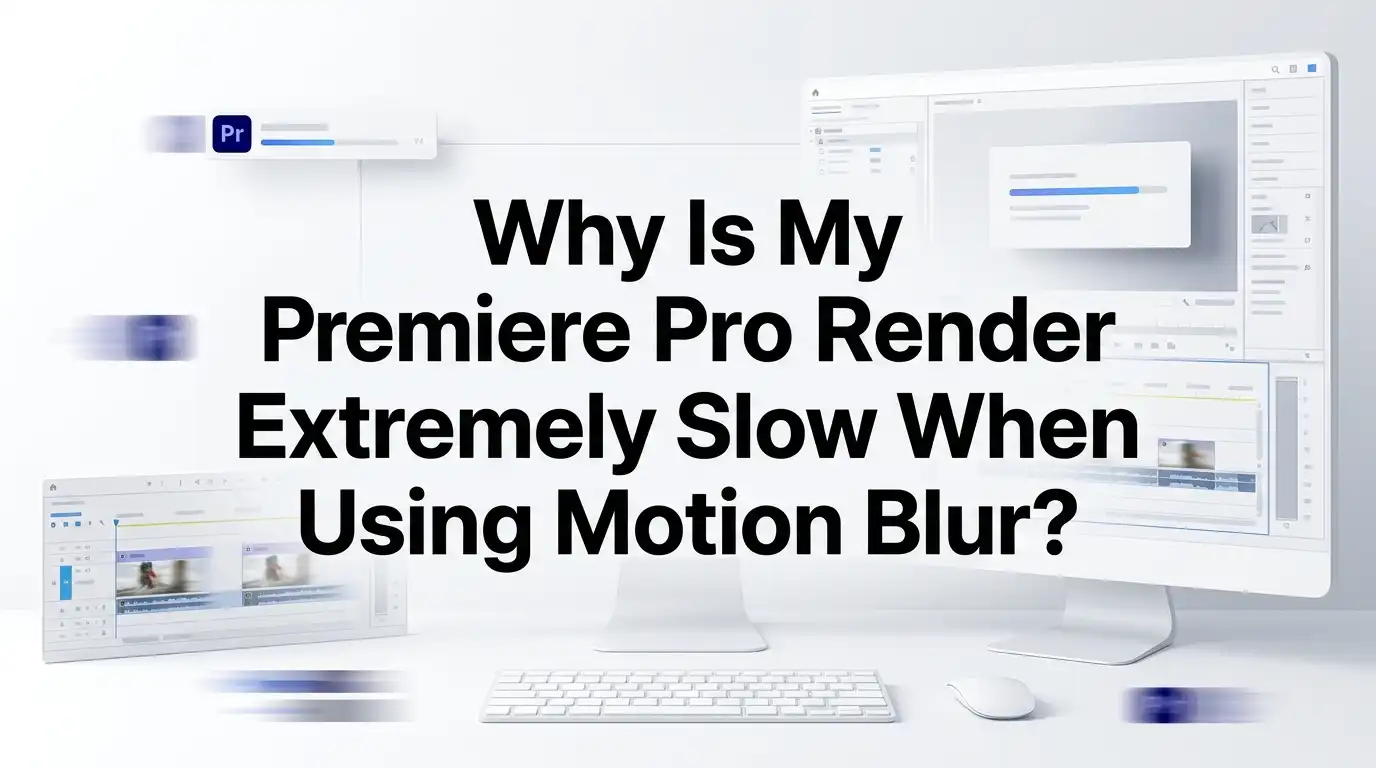
Why Is My Premiere Pro Render Extremely Slow When Using Motion Blur?
Motion blur makes your edits look smooth and cinematic. But it can also bring your render to a crawl. You hit export, and suddenly a 30 second clip needs 20 minutes to finish.
Sound familiar? You are not alone. Motion blur is one of the heaviest effects in Premiere Pro. It forces your computer to calculate many extra frames for every second of footage.
The good news is simple. You can fix this. Most slow render problems come from a handful of settings, hardware choices, and workflow habits. Once you know where to look, you can cut your render time in half or more.
In a Nutshell:
- Motion blur is sample based. Premiere calculates many sub frames per frame to create the blur. More samples mean more math and more render time. This is the core reason your export crawls.
- GPU acceleration matters most. Switch your renderer to Mercury Playback Engine GPU Acceleration. The CPU only path is far slower for blur heavy effects like Transform and Directional Blur.
- The Transform effect with shutter angle is a known speed killer. A 360 degree shutter angle looks great but doubles the work. Lower it when you can.
- Proxies and pre rendered previews save you. Render in to out before export, or build proxies. This lets Premiere reuse work instead of recalculating blur each time.
- Hardware encoding speeds up the final step. Enable NVIDIA NVENC, AMD VCE, or Intel Quick Sync during export to offload encoding from the CPU.
- Clean your system. Clear the media cache, update GPU drivers, and close background apps. Small fixes add up to big speed gains.
What Motion Blur Actually Does to Your Render
Motion blur copies how a real camera works. A real camera shutter stays open for a tiny moment. Anything that moves during that moment looks blurred. Premiere fakes this by rendering several positions of a moving object inside a single frame. Then it blends them together.
This blending is the problem. For one frame of output, Premiere may render eight, sixteen, or thirty two hidden frames. It then averages them. So your computer does many times the work of a normal frame. The blur quality you pick directly controls how many samples are used.
Think of it like taking many photos and stacking them. More photos give a smoother blur but cost more time. This is why a clip with no blur exports fast, but the same clip with heavy blur takes much longer. Understanding this trade off helps you make smart choices later.
Check Your Renderer Setting First
The single most important fix is your renderer. Open File, then Project Settings, then General. Look at the Video Rendering and Playback dropdown. You want it set to Mercury Playback Engine GPU Acceleration. Pick CUDA for NVIDIA cards or OpenCL or Metal for AMD and Apple machines.
If the box shows Software Only, that is your culprit. Software only mode forces your CPU to calculate every blur sample alone. This is painfully slow for motion blur.
Pros of GPU acceleration: much faster renders, smoother playback, and better effect handling. Your blur heavy timeline becomes usable again. Cons: it needs a supported graphics card and current drivers. Old or unsupported cards may grey out the option.
If GPU mode is missing, your card may not be on Adobe’s supported list, or your drivers are out of date. Fix drivers first, then recheck this setting. This one change often solves most of the slowdown.
Update Your Graphics Card Drivers
Your GPU drivers are the bridge between Premiere and your hardware. Old drivers break that bridge. They can force Premiere to fall back to slow CPU rendering even when GPU mode is on.
Go to the NVIDIA, AMD, or Intel website. Download the latest Studio or stable driver for your exact card. Studio drivers are tuned for creative apps like Premiere Pro. Game ready drivers can work too, but Studio drivers are safer for editing.
After you install, restart your computer. Then reopen Premiere and recheck the renderer setting. Sometimes a fresh driver re enables GPU acceleration that was greyed out before.
Pros of updating: better stability, faster blur rendering, and fewer crashes. You also unlock newer hardware encoding features. Cons: a bad driver release can sometimes cause new bugs. If a new driver breaks something, roll back to the previous stable version. Keep a note of which driver worked well for you.
Lower the Motion Blur Sample Count and Shutter Angle
The Transform effect and the new motion blur tools use a shutter angle value. A higher angle means a longer fake shutter, which means more blur and more samples. Many editors set this to 360 degrees because it looks dramatic. But 360 degrees is the heaviest setting possible.
Try lowering it to 180 degrees. This is the classic film standard. It looks natural and cuts your render math nearly in half. For fast cuts and quick moves, even 90 degrees can look great.
Some blur effects also let you set a samples or quality value. Lower this number while editing, then raise it only for the final export if needed.
Pros of lowering values: faster renders and smoother previews. You keep most of the visual benefit. Cons: very fast motion may look slightly less smooth at low angles. Test a short section first. Find the lowest setting that still looks good to your eye. This balance saves huge amounts of time.
Avoid the Transform Effect Trap
The Transform effect is loved for one reason. It adds motion blur to position, scale, and rotation animations. But it has a hidden cost. When you enable its built in motion blur, Premiere often cannot fully accelerate it on the GPU. This pushes work back to the CPU.
You will notice choppy playback and slow renders the moment you check the Use Composition’s Shutter Angle box. This single feature is one of the most common reasons editors report sudden slowdowns.
Try this instead. Animate using the standard Motion controls when you do not need blur. Only use Transform on the specific clips that truly need blur. Do not stack Transform on every clip out of habit.
Pros of Transform: beautiful built in motion blur with no extra plugins. It is simple to apply. Cons: heavy render cost and frequent CPU fallback. Use it with purpose. Apply it to hero shots, not your entire timeline. This keeps your project fast.
Render In to Out Before Exporting
Premiere lets you pre render your timeline. This is one of the best tricks for blur heavy projects. Set your work area or in and out points over the section with motion blur. Then go to Sequence, then Render In to Out, or press Enter.
Premiere builds preview files for those frames. Once the timeline bar turns green, those blur calculations are already done and saved. When you export, Premiere can reuse these previews instead of recalculating the blur from scratch.
For this to work well, check Use Previews in your export settings. Match your preview codec to a high quality format like ProRes or GoPro CineForm for best results.
Pros: faster final export and instant smooth playback during editing. You see your blur in real time. Cons: rendering previews takes upfront time and disk space. A small quality dip can happen if your preview codec is low quality. For most work, this trade is well worth it.
Use a Proxy Workflow for Smooth Editing
Proxies are smaller, lighter copies of your footage. They make editing fast, especially with high resolution clips and heavy effects. Premiere edits the small proxy, then swaps in the full file at export.
To create proxies, right click your clips, choose Proxy, then Create Proxies. Pick a light codec and let Media Encoder build them. Then toggle the Proxy button in your program monitor to switch between proxy and full quality.
Proxies do not speed up your final export by themselves. But they make the editing of blur heavy timelines smooth and responsive. You stop fighting laggy playback while you place keyframes and adjust blur.
Pros: smooth scrubbing, fast preview, and less frustration on big projects. 4K and 6K footage becomes easy to handle. Cons: building proxies takes time and storage upfront. You also need to manage the proxy files. For long form work with lots of motion blur, proxies are a strong choice.
Enable Hardware Encoding During Export
Rendering and encoding are two different jobs. Rendering builds the frames and the blur. Encoding compresses those frames into your final file. Encoding can be slow if your CPU does it alone. Modern GPUs and chips can do it much faster.
In the Export settings, scroll to the Encoding Settings area. Set Performance to Hardware Encoding if it is available. This uses NVIDIA NVENC, AMD VCE, or Intel Quick Sync to handle the compression.
For H.264 and HEVC exports, this can speed up your final step by a large margin. Some users report exports up to several times faster with hardware encoding turned on.
Pros: much faster export and lower CPU load. Your computer stays usable during export. Cons: hardware encoding can give slightly lower quality at the same bitrate compared to software encoding. For most online and client work, the difference is hard to see. Raise your bitrate a little if you want extra quality.
Turn Off Maximum Render Quality and Bit Depth When Not Needed
Two export checkboxes quietly slow you down. They are Maximum Render Quality and Maximum Bit Depth. Both live in your export settings. They improve sharpness and color smoothness, but they cost a lot of render time.
Maximum Render Quality helps most when you scale footage to a different frame size. If your sequence and export match the source size, you often do not need it. Maximum Bit Depth matters for heavy color work, but not for a simple social media clip.
For blur heavy projects, turning these off can give a big speed boost. Test your export with them off first. Only turn them on if you see a clear quality problem.
Pros of turning them off: faster renders and lower memory use. Your blur sections finish much sooner. Cons: scaled footage may show slight aliasing without Max Render Quality. Smooth gradients may band without Max Bit Depth. Match the setting to the job, not to habit.
Clear Your Media Cache and Free Up Disk Space
Premiere stores temporary files in a media cache. Over time this cache grows huge. A full or messy cache slows down everything, including your blur renders. A clean cache helps Premiere read and write files faster.
Go to Edit, then Preferences, then Media Cache. Click Delete next to Remove Media Cache Files. Choose to delete unused files. Then restart Premiere so it rebuilds a fresh, clean cache.
Also check your scratch disk. Put your media cache and preview files on a fast SSD, not a slow spinning drive. A nearly full drive forces slow read and write speeds.
Pros: faster reads, fewer glitches, and smoother render performance. This is a free fix that costs only a few minutes. Cons: the first playback after clearing is slower because Premiere rebuilds the cache. This is normal and temporary. Make cache cleaning a regular habit, maybe once a week on busy projects.
Close Background Apps and Manage Memory
Motion blur renders need lots of RAM and CPU power. Every open program steals some of those resources. A browser with many tabs, a game launcher, or a chat app all eat memory that Premiere needs.
Close everything you do not need before you render. Then open Edit, then Preferences, then Memory. Lower the amount of RAM reserved for other apps. This gives Premiere more memory to work with.
There is also an Optimize Rendering dropdown in the same Memory panel. Set it to Memory if you use Max Render Quality or work with heavy blur and many layers. This stops crashes on big jobs.
Pros: more stable renders and faster blur processing. Premiere stops competing for resources. Cons: you cannot multitask much during the render. On a low RAM machine, gains may be small. Adding more physical RAM is the deeper fix if you constantly run out. For now, a clean system helps a lot.
Match Your Sequence Settings to Your Footage
A mismatch between your footage and your sequence forces Premiere to work harder. If your sequence is 4K but your footage is 1080p, Premiere scales every frame. Add motion blur on top, and the render load doubles.
Check your sequence settings under Sequence, then Sequence Settings. Match the resolution and frame rate to your main footage where possible. When you start a new project, drag a clip onto the New Item button to auto create a matching sequence.
Frame rate matters too. Slow motion clips and conformed frame rates can interact badly with motion blur and slow your render. Keep your speed changes clean and your frame rates consistent.
Pros: less scaling work, faster renders, and fewer artifacts. Your blur calculates on native frames. Cons: sometimes you truly need a mixed resolution timeline, like adding 1080p b roll to a 4K project. In that case, accept the small cost and use proxies. Match settings whenever the project allows.
Upgrade Hardware as a Last Resort
Sometimes the software is fine, but the hardware is the limit. Motion blur leans hard on both the GPU and the CPU. If your machine is old, no setting will fully fix the slowdown. This is the point where an upgrade gives the biggest jump.
A modern GPU with plenty of VRAM handles blur effects far better. Aim for a card with at least 8GB of VRAM for 4K blur work. A faster multi core CPU helps with the parts that still run on the processor. More RAM, ideally 32GB or more, stops memory bottlenecks.
A fast NVMe SSD for your cache and media also speeds reads and writes.
Pros: every project gets faster, not just blur renders. You future proof your editing for years. Cons: hardware costs money, and upgrades take research. Try every software fix in this guide first. Only buy new parts when you have proven the software is not the problem. Often, the free fixes are enough.
Frequently Asked Questions
Why does motion blur slow down my render so much?
Motion blur is sample based. Premiere renders many hidden sub frames for each visible frame, then blends them. This multiplies your render work. A higher shutter angle or sample count means even more frames to calculate, so the render takes much longer.
Does GPU acceleration speed up motion blur in Premiere Pro?
Yes, in most cases. Mercury Playback Engine GPU Acceleration moves many blur calculations off the CPU and onto your graphics card. This is far faster. But some effects, like the Transform effect with shutter angle, may still fall back to the CPU.
Should I use the Transform effect for motion blur?
Use it with care. The Transform effect gives lovely built in blur, but it often runs on the CPU and slows things down. Apply it only to clips that truly need blur. For other animations, use the standard Motion controls instead.
What shutter angle is best for motion blur?
180 degrees is the classic film standard and looks natural. It also renders faster than 360 degrees. For fast cuts, try 90 degrees. Start low and raise it only if the blur looks too weak for your shot.
Will hardware encoding lower my video quality?
Hardware encoding can give a slightly lower quality than software encoding at the same bitrate. The difference is usually hard to see. For most online and client work, the speed gain is worth it. Raise your bitrate a little if you want extra quality.
Do proxies make my final export faster?
Not directly. Proxies make editing smooth and responsive, which helps a lot with blur heavy timelines. At export, Premiere uses the full resolution files. To speed up the export itself, use pre rendered previews and hardware encoding instead.
How often should I clear my media cache?
Clear it when renders feel slow or Premiere acts buggy. On busy projects, once a week is a good habit. Always delete only the unused cache files, and restart Premiere afterward so it builds a fresh, clean cache.

Hi, I’m Lola Griffin 👩💻, the voice and creator behind ResizerBox. I’m a passionate tech enthusiast who loves exploring the latest gadgets, smart devices, and trending Amazon electronics. Through my reviews, I share honest insights, real-world testing experiences, and practical buying advice to help readers make confident tech choices.