
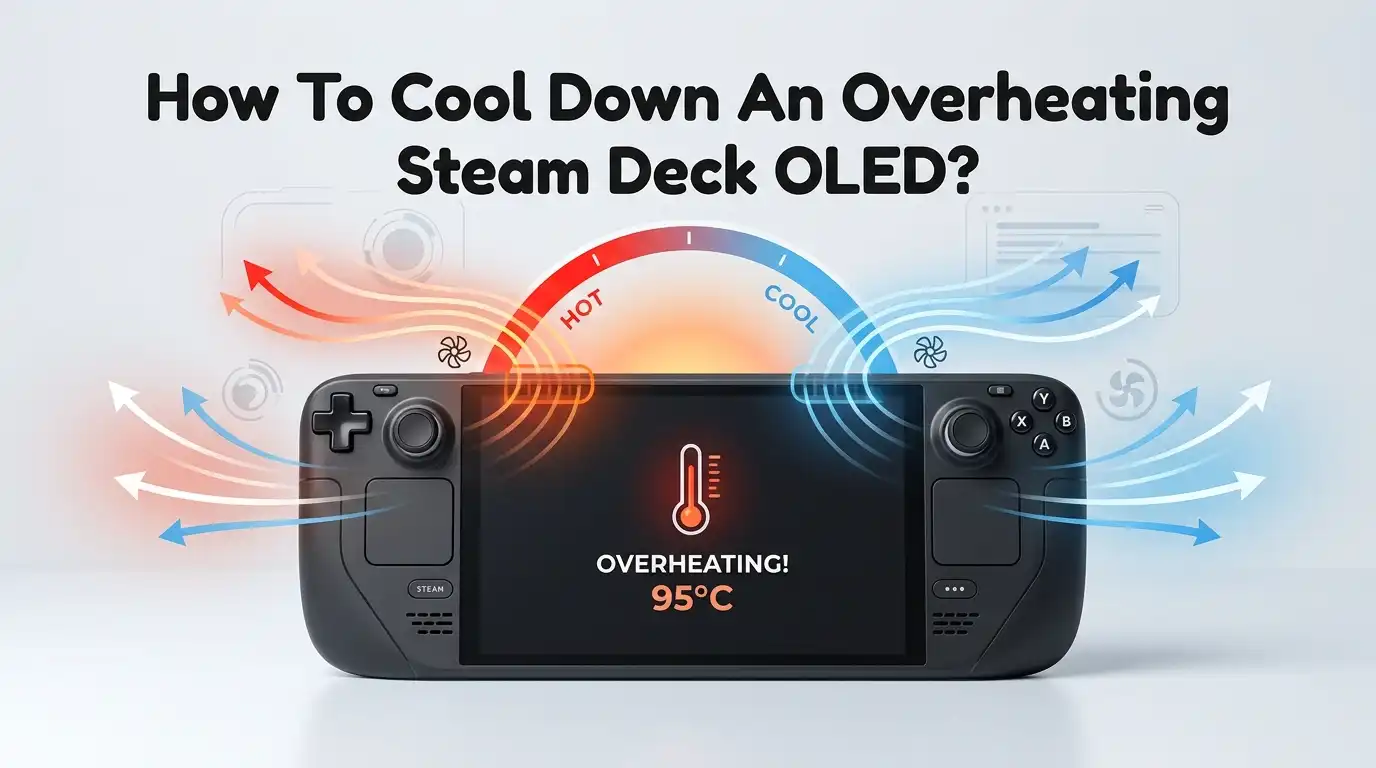
How To Cool Down An Overheating Steam Deck OLED?
Your Steam Deck OLED is a portable gaming powerhouse, but that power comes with heat. You’re mid session in Cyberpunk 2077, your palms feel like they’re resting on a warm plate, the fan sounds like a tiny jet engine, and then you notice your frame rate tank.
Sound familiar? Overheating is one of the most common complaints among Steam Deck OLED owners, and if left unchecked, it can lead to thermal throttling, performance drops, and even unexpected shutdowns.
The good news is you don’t need to be a tech expert to fix it. This guide walks you through every practical solution, from simple settings changes to hardware upgrades, so you can keep your OLED Deck cool and your games running smooth.
Key Takeaways
- The Steam Deck OLED operates best in ambient temperatures between 0°C and 35°C (32°F to 95°F). Anything above 35°C in your room can push internal temps into dangerous territory. The internal CPU and GPU can safely run up to 100°C, but performance starts throttling well before that point.
- Disabling the “Updated Fan Control” in system settings activates an older, more aggressive fan curve. This makes the fan spin faster and louder, but it pulls heat away from the APU much more effectively. It is one of the easiest and fastest fixes you can apply.
- Lowering TDP (Thermal Design Power) through the Quick Access Menu reduces heat output at the source. You sacrifice some raw performance, but most games remain perfectly playable at 10W to 12W. This also extends battery life as a bonus.
- Replacing the stock thermal paste with a high quality compound like Noctua NT H1 or a PTM7950 thermal pad can reduce internal temps by 3°C to 10°C. The PTM7950 pad, in particular, has shown impressive results in community testing, often outperforming traditional paste.
- Aftermarket backplates with fan vents can drop GPU temperatures by up to 11°C under heavy loads. Community testing has shown that vented backplates paired with upgraded thermal material produce the best combined results for cooling and noise reduction.
- Simple habits matter just as much as hardware upgrades. Playing in a well ventilated space, keeping air vents clear of obstructions, and taking breaks during extended sessions all help prevent your Deck from overheating in the first place.
Why Does The Steam Deck OLED Overheat
The Steam Deck OLED packs a custom AMD APU into a compact handheld body. That APU handles both CPU and GPU tasks, and it generates a significant amount of heat under load. Valve designed the device with a single fan and heat pipe system to manage temperatures, but this cooling solution has limits.
The internal components can reach 85°C to 95°C during demanding games like Returnal, Horizon Zero Dawn, or Cyberpunk 2077. The compact design leaves very little room for airflow.
Hot air must travel across several heat sensitive components before exiting through the top vent. External factors also play a role.
Playing in a warm room, blocking the intake or exhaust vents, or charging while gaming all add extra heat. Even the position you hold the Deck in can restrict airflow around the rear intake grille.
How To Check Your Steam Deck OLED Temperature
Before you start fixing anything, you need to know how hot your Deck is actually running. SteamOS has a built in performance overlay that shows real time temperature data. Press the Quick Access button (the three dot button) and go to the Performance tab.
Set the Performance Overlay Level to at least 2. This displays CPU and GPU temperatures on screen while you play. Watch for CPU temps above 90°C and GPU temps above 85°C during gameplay. These numbers signal that your cooling system is struggling.
Valve also added a system level temperature warning in SteamOS 3.3. If your Deck’s ambient sensor detects temperatures outside the 0°C to 35°C safe range, a popup notification appears on screen. If you see this warning, stop playing and let the device cool down before continuing.
Improve Airflow And Ventilation Around Your Deck
This is the simplest fix and costs nothing. The Steam Deck OLED pulls cool air in through the rear intake vent and pushes hot air out through the top exhaust.
If either vent is blocked, heat builds up inside the device fast. Avoid playing with your Deck resting flat on a bed, pillow, or blanket. These soft surfaces block the rear intake almost completely.
Use a small stand or prop the device at an angle to keep air flowing freely. If you play docked, make sure the dock area has open space around it. Also check that no cases, skins, or accessories cover the vents. Even a slightly shifted protective case can reduce airflow enough to raise temps by several degrees.
Pros: Zero cost, instant results, no risk of damage.
Cons: Limited impact during very demanding games or in hot environments.
Disable Updated Fan Control For Aggressive Cooling
Valve offers two fan curve options in the Steam Deck’s settings. The default “Updated Fan Control” prioritizes quiet operation and keeps the fan speed lower for longer. This sounds nice, but it allows internal temperatures to climb higher before the fan ramps up.
Go to Settings > System and scroll down to find “Enable Updated Fan Control.” Uncheck this option. Your Deck will fall back to the original, more aggressive fan curve.
The fan will spin up sooner and faster, pulling heat away from the APU before it reaches critical levels. Community reports show this change alone can reduce peak temperatures by 3°C to 5°C during heavy gaming sessions.
Pros: Easy toggle, no hardware changes needed, noticeable temperature drop.
Cons: The fan becomes louder, especially with Delta model fans that produce a higher pitched whine.
Lower TDP To Reduce Heat At The Source
TDP stands for Thermal Design Power and controls how much energy the APU draws. More power means more performance, but also more heat. The Steam Deck OLED lets you set a manual TDP limit through the Quick Access Menu.
Press the Quick Access button, go to the Performance tab, and toggle on “Manual GPU Clock Control” and “TDP Limit.” Most games run well at 10W to 12W. Some lighter titles like indie games and older ports perform perfectly at 8W.
Dropping TDP from the default 15W to 10W can reduce internal temperatures by 5°C to 10°C. Your frame rates might dip slightly, but if you also lock the frame rate to 30 FPS or 40 FPS, you’ll barely notice the difference.
Pros: Significant heat reduction, longer battery life, easy to adjust per game.
Cons: Lower peak performance, not ideal for games that already struggle to maintain stable frame rates.
Lock Frame Rate To Reduce GPU Load
An uncapped frame rate forces your GPU to work as hard as it can at all times. This generates maximum heat even in scenes that don’t benefit from extra frames. The Steam Deck OLED’s display supports up to 90Hz, but running every game at 90 FPS is a recipe for overheating.
Use the Quick Access Menu to set a frame rate limit of 40 FPS or 30 FPS for demanding titles. The 40 FPS option works especially well on the OLED screen because it divides evenly into 80Hz, giving you smooth frame pacing.
A locked 40 FPS feels much better than an unstable 50 to 60 FPS and keeps your GPU temperature significantly lower. Pair this with a TDP limit for the best balance of visuals, performance, and thermal management.
Pros: Smoother gameplay, lower GPU temps, better battery life.
Cons: Reduced visual fluidity compared to higher frame rates.
Use A Cooling Accessory Or External Fan
If software settings alone don’t bring your temperatures down enough, external cooling accessories can help. Clip on exhaust fans attach to the top of the Deck and pull hot air out of the exhaust vent faster than the internal fan alone. Community testing shows these fans can lower internal temperatures by 10°C to 20°C, which is a dramatic improvement.
Magnetic cooling fans attach to the back of the Deck using a metal plate. They blow cool air across the backplate and help dissipate heat from the chassis. These work best when paired with aftermarket backplates that have thermal pads.
Pros: Major temperature reductions, no need to open the device, reversible.
Cons: Clip on fans can be loud (up to 47 dBA on max speed), add bulk, and may not fit in a dock. Magnetic fans require a cable connection and don’t have internal batteries.
Upgrade Your Backplate For Better Heat Dissipation
Aftermarket backplates with built in fan vents have become popular in the Steam Deck community. These backplates replace the stock rear shell and allow cool air to reach the internal fan directly, skipping the longer path through the rear intake grille.
Testing has shown that a vented backplate can reduce GPU temperatures by up to 11°C during overclocked gaming sessions. The top exhaust vent also runs significantly cooler because the fan receives fresher, cooler air.
Some community tests showed that the fan noise dropped dramatically with vented backplates, with overclocked noise being up to 6 times quieter. The swap requires removing 8 screws and takes about 10 minutes.
Pros: Large temperature drop, quieter fan operation, improved sustained performance.
Cons: Exposes the fan to more dust, changes Valve’s intended airflow pattern, and Delta fans become more audible without the backplate covering them.
Replace The Thermal Paste Or Apply A Thermal Pad
The stock thermal paste on the Steam Deck OLED does a decent job, but it is not the best available. Replacing it with a quality thermal compound like Noctua NT H1 can shave 2°C to 3°C off peak temperatures. For even better results, a Honeywell PTM7950 phase change thermal pad has shown reductions of 5°C to 10°C in community benchmarks.
The PTM7950 pad needs a burn in period of extended use before it reaches peak efficiency. Users report running stress tests for 2 to 4 hours after installation to fully activate the pad.
The replacement process takes about 20 minutes. You remove the backplate, disconnect the battery, unscrew the heat sink, clean the old paste, and apply the new material.
Pros: Noticeable temperature reduction, long lasting results (PTM7950 lasts years), improved sustained performance.
Cons: Requires opening the device and some technical comfort, may void warranty if done incorrectly, PTM7950 pads need a burn in period.
Clean Dust From Internal Vents And Fan
Over time, dust accumulates inside the Steam Deck’s vents and on the fan blades. Even a thin layer of dust reduces airflow and forces the fan to work harder. If your Deck has been running hotter than usual after months of use, dust buildup is a likely cause.
Use a can of compressed air to blow dust out of the intake and exhaust vents. Hold the can upright and use short bursts. For a deeper clean, you can remove the backplate and carefully blow dust off the fan blades and heat sink fins.
Be gentle and avoid touching the fan with anything solid, as the blades are delicate. Regular cleaning every few months keeps airflow at its best and prevents gradual temperature increases.
Pros: Restores original cooling performance, easy with compressed air, prevents long term damage.
Cons: Opening the device for deep cleaning requires some care, compressed air alone may not reach all dust.
Avoid Charging While Gaming In Hot Conditions
Charging adds heat to the system. The battery generates warmth while receiving power, and the charging circuit itself produces additional heat. If you play a demanding game while plugged in and sitting in a warm room, you are stacking three heat sources on top of each other.
Whenever possible, charge your Deck before you play rather than during. If you must play while charging, lower your graphics settings and TDP to compensate for the extra heat.
Also make sure the charger and cable are in good condition. A faulty or underpowered charger can cause the system to work harder and generate more heat than necessary. Play in an air conditioned room or near a fan if you plan extended docked sessions.
Pros: Reduces one source of heat entirely, no cost, easy habit to adopt.
Cons: Limits play time to battery life, not always practical for long gaming sessions.
Know When To Contact Valve Support
Sometimes overheating signals a hardware defect rather than a solvable problem. If your Steam Deck OLED shuts down at temperatures well below 100°C, throttles the CPU to 200 MHz, or shows erratic temperature spikes, something may be wrong with the cooling system itself. A loose heat sink, a defective fan, or a poorly applied factory thermal paste can all cause unusual overheating.
Try a full power cycle first. Shut the device down completely, unplug it, and wait 10 to 15 minutes. Then hold the power button for 10 seconds to restart. If the problem continues, enter the BIOS by holding Volume Down and Power, and check if battery storage mode resets help.
If none of these steps work and your device is still under warranty, contact Valve support directly. Provide your temperature logs and describe the issue clearly so they can determine if a repair or replacement is needed.
Best Combination For Maximum Cooling
If you want the coolest possible Steam Deck OLED, the community testing data points to one clear winner. A PTM7950 thermal pad combined with a vented aftermarket backplate delivers the best overall results.
This combination reduced CPU temperatures by 5°C to 7°C and GPU temperatures by 5°C to 11°C compared to the fully stock setup in benchmark testing.
Fan noise also dropped by roughly 5 dBA, which makes the gaming experience noticeably quieter. Performance improved too, with benchmark lows increasing by over 100% in some stress tests due to reduced thermal throttling.
On the software side, pair this hardware setup with a frame rate lock of 40 FPS and a TDP limit of 12W. This full stack approach addresses heat at every level from generation to transfer to exhaust.
Pros: Best possible temperatures and noise levels, improved sustained performance, long term reliability.
Cons: Requires opening the device, purchasing aftermarket parts, and some technical skill. Total setup takes about 30 minutes.
Frequently Asked Questions
What temperature is too hot for a Steam Deck OLED?
The internal CPU and GPU can safely operate up to 100°C. At 100°C, the system begins thermal throttling to reduce heat. At 105°C, the device shuts down automatically to prevent damage. Valve recommends an ambient temperature range of 0°C to 35°C for best performance. If your CPU regularly exceeds 90°C during gameplay, you should take steps to improve cooling.
Does the Steam Deck OLED run hotter than the LCD version?
The OLED model uses a slightly different thermal design with improved heat dissipation in some areas. However, many users report similar peak temperatures between the two models during heavy gaming. The OLED screen itself does not generate significantly more heat than the LCD panel. Cooling solutions that work for the LCD model generally work for the OLED model as well.
Will lowering TDP hurt my gaming experience?
Most games on the Steam Deck run well at 10W to 12W TDP. You may lose a few frames per second, but locking the frame rate to 40 FPS at a lower TDP often produces a smoother and more consistent experience than running at full power with an unstable frame rate. Lighter games and older titles can run perfectly at 8W with no noticeable difference.
Can I use a regular laptop cooling pad with my Steam Deck OLED?
A laptop cooling pad can help if you place the Deck on it while playing in tabletop or docked mode. The airflow from the pad cools the exterior of the device and helps prevent heat from building up around the rear intake. It is not as effective as a dedicated clip on fan, but it is better than resting the Deck on a flat surface with no airflow.
Does replacing thermal paste void the Steam Deck warranty?
Valve has been relatively open about user repairs and modifications. The company partnered with iFixit to provide official repair guides and replacement parts. However, if you damage your device during a thermal paste replacement, the warranty may not cover that damage. Proceed carefully and follow official guides if you choose to repaste your Deck.
How often should I clean the Steam Deck OLED vents?
A quick external cleaning with compressed air every 2 to 3 months is a good habit. If you play in dusty environments or have pets, clean the vents monthly. A deeper internal cleaning with the backplate removed should be done every 6 to 12 months depending on usage and environment. Regular maintenance prevents gradual performance loss from dust buildup.

Hi, I’m Lola Griffin 👩💻, the voice and creator behind ResizerBox. I’m a passionate tech enthusiast who loves exploring the latest gadgets, smart devices, and trending Amazon electronics. Through my reviews, I share honest insights, real-world testing experiences, and practical buying advice to help readers make confident tech choices.