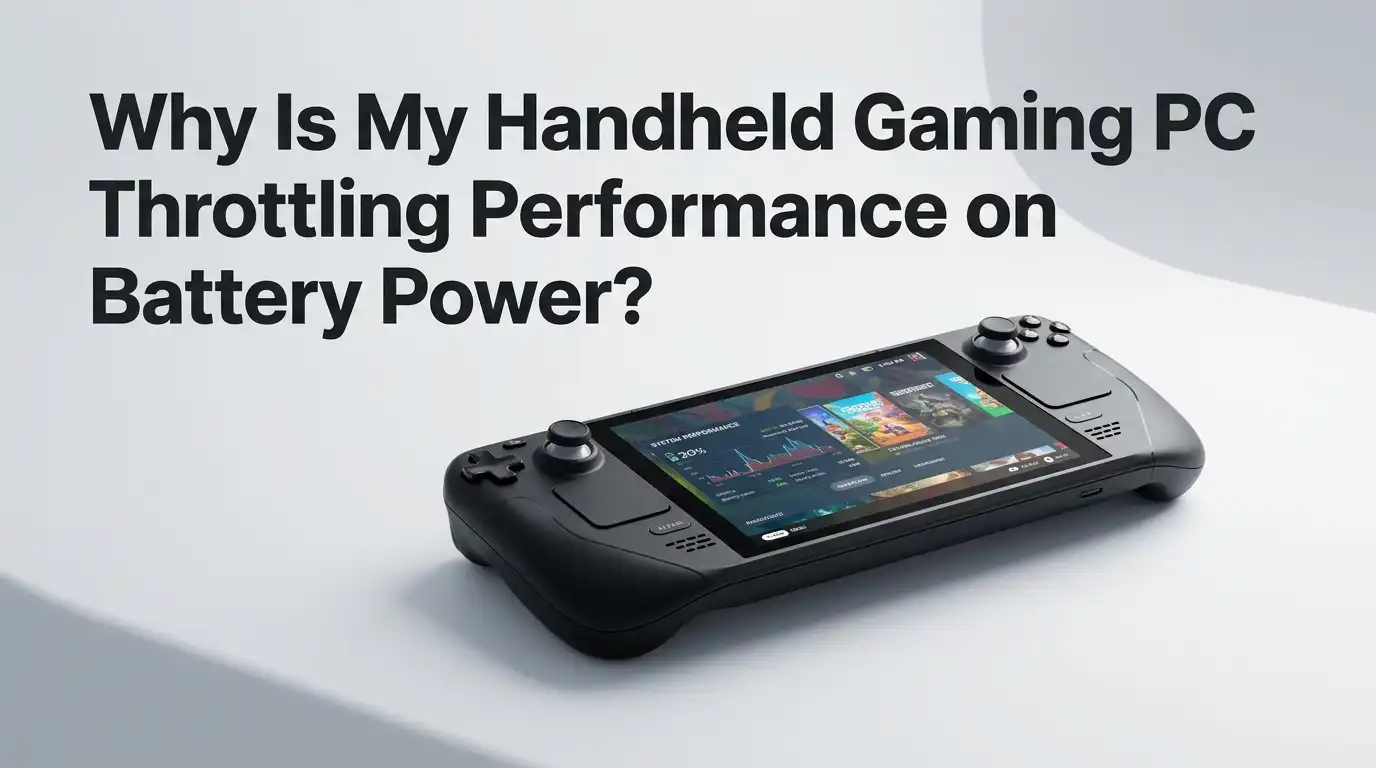
Why Is My Handheld Gaming PC Throttling Performance on Battery Power?
You unplug your handheld, start a game, and the frame rate drops. The fans go quiet. The screen feels less smooth. This is one of the most common complaints among handheld gaming PC owners, and it happens on almost every device, from the Steam Deck to the ROG Ally and the Legion Go.
The good news is simple. Battery throttling is almost always a settings problem, not a hardware fault. Your handheld is doing exactly what it was told to do. It is trying to protect your battery and keep heat low. Once you understand the cause, you can change it in minutes.
This guide explains why your device slows down on battery and gives you clear, step by step fixes for each cause. Let’s get your handheld running at full speed again.
Key Takeaways
- Handheld PCs limit power on battery on purpose. A lower TDP (the wattage your chip can pull) means lower frame rates but longer battery life. This is the number one reason for the slowdown.
- Power modes are the biggest control you have. Turbo, Performance, and Silent modes set different wattage caps. Many devices use a lower cap on battery than when plugged in, even in the same mode.
- Windows power settings can override your handheld software. Power throttling, the battery slider, and processor power limits all reduce speed when you are unplugged.
- Heat still matters on battery. Dust, old thermal paste, and high room temperature can force thermal throttling no matter what power mode you pick.
- Your charger and cable affect plugged in speed too. A weak power adapter cannot supply enough watts for Turbo mode, so the device acts like it is still on battery.
- You can fix most of this yourself. No tools, no warranty risk, and no special skills. Just settings changes inside Armoury Crate, SteamOS, Legion Space, or Windows.
What TDP Actually Means and Why It Drops on Battery
TDP stands for Thermal Design Power. In plain terms, it is the number of watts your processor is allowed to use. More watts mean higher clock speeds, more frames, and a hotter, louder device. Fewer watts mean the opposite.
When you unplug your handheld, the system often lowers the TDP automatically to save battery. A device running at 25 watts plugged in may drop to 15 watts on battery. That single change can cut your frame rate by a third or more.
This is not a defect. It is a deliberate balance between speed and runtime. The manufacturer assumes you want longer play sessions away from a wall socket. Knowing this, your job is simply to tell the device you want more power, which we cover next.
How Power Modes Control Your Speed
Almost every handheld ships with named power modes. The ROG Ally uses Silent, Performance, and Turbo. The Legion Go uses similar profiles inside Legion Space. SteamOS lets you set a manual TDP slider instead.
Here is the catch many people miss. Turbo mode on the ROG Ally is 25 watts on battery but up to 30 watts when plugged in. So even if you select the highest mode, battery power still caps you lower. The mode name stays the same, but the wattage changes underneath.
To fix this, open your control software and force the highest mode while on battery. On the Ally, open Armoury Crate, go to Operating Mode, and pick Turbo. On the Legion Go, open Legion Space and select the custom or performance profile.
Pros: Instant speed boost, no risk, fully reversible.
Cons: Battery drains much faster, and the fans get loud.
Setting a Manual TDP for Full Control
Power modes are simple, but a manual TDP slider gives you exact control over watts. Most handhelds offer this through their own software or a free tool many owners install.
On the Steam Deck, open the Quick Settings menu, go to the Performance tab, and turn on Advanced View. You will see a TDP slider you can set from around 3 watts up to 15 watts. On the Ally and Legion Go, the manual mode inside Armoury Crate or Legion Space does the same job.
Setting a manual TDP stops the device from dropping power the moment you unplug. For example, locking 15 watts keeps that wattage whether you are plugged in or not, unless heat forces a reduction.
Pros: Precise, consistent performance, and you can fine tune per game.
Cons: Higher numbers shorten battery life, and too high a value can cause heat throttling.
Using Per Game Profiles So You Never Lose Power
One of the smartest features on modern handhelds is the per game performance profile. This lets each game remember its own TDP and power mode. A light indie title can sip 8 watts while a heavy game gets the full 25.
On the Steam Deck, open Quick Settings, go to Performance, and enable Use per game profile. Then set your TDP for that specific game. The Deck saves it and reloads it every time you launch that title.
This stops the frustrating cycle of setting power every single session. It also means you stop wasting battery on games that do not need full power.
Pros: Set once and forget, balances battery and speed per game automatically.
Cons: You must set each game individually, and profiles can occasionally fail to load after updates.
Fixing Windows Power Settings That Override Everything
If you own a Windows handheld, Windows itself can quietly throttle your device on battery. The handheld software might say Turbo, but Windows can still cap the processor underneath.
Open Settings, then System, then Power and battery. Set the Power mode to Best Performance. While unplugged, Windows often switches this to a lower setting on its own, so check it after you pull the plug.
You should also open the advanced power plan options. Search for Edit power plan, click Change advanced power settings, and find Processor power management. Set the maximum processor state to 100 percent for both On battery and Plugged in.
Pros: Removes a hidden limit, often restores a big chunk of lost speed.
Cons: The menus are buried and can confuse new users, and battery drains faster.
Disabling Windows Power Throttling
Windows has a separate feature called Power Throttling. It slows background and foreground tasks to save energy, and it kicks in hardest on battery. This can hurt games even when your power plan looks correct.
The fastest fix is the battery slider on the taskbar. Click the battery icon and drag it to Best Performance while on battery. This disables Power Throttling for most apps right away.
For a permanent fix, you can edit the Group Policy Editor on Windows Pro. Go to Computer Configuration, Administrative Templates, System, Power Management, Power Throttling Settings, and turn it off. Windows Home users cannot reach this easily, so the slider is the practical route.
Pros: Stops random clock dips, simple slider method works for everyone.
Cons: Slightly higher idle drain, and the Group Policy method is not available on Home edition.
Checking Your AMD Graphics Power Settings
Most handhelds use an AMD chip with integrated graphics. The AMD software sometimes applies its own power saving mode on battery, separate from your handheld profile.
Open AMD Software, often called Adrenalin, and look for Power or Tuning. Some versions let you set a custom power behavior for battery use. If the GPU is stuck in a power saving state, this is where you release it.
A simple trick that fixes stuck GPU states is to switch the performance mode, unplug, and plug back in. This forces the system to re detect the graphics and reset its power profile. Many owners report this clears a frozen low power mode instantly.
Pros: Solves GPU stuck states, gives extra tuning room.
Cons: The menu changes between driver versions, and some power options are locked on certain devices.
Why Heat Still Throttles You on Battery
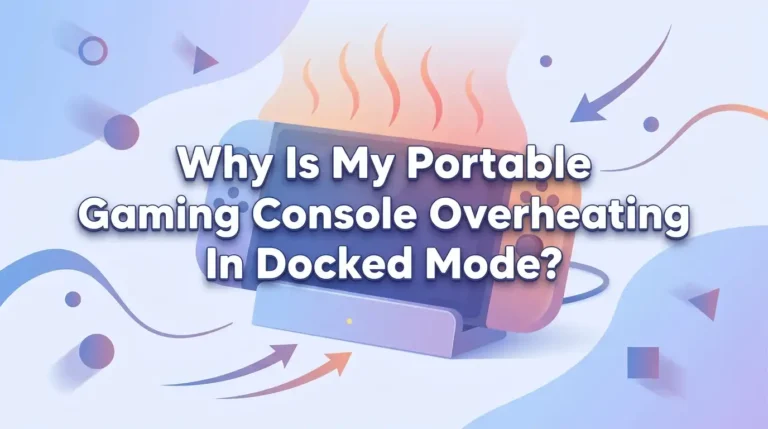
Power modes are not the only cause. Your handheld will reduce speed when it gets too hot, no matter what setting you choose. This is thermal throttling, and it protects the chip from damage.
Most handheld chips throttle near 90 to 95 degrees Celsius. If your device hits that range, clock speeds drop and frames fall. On battery this can feel like extra throttling, but the real culprit is heat.
Check your temperature with the built in overlay or a monitoring app. If you see numbers in the low 90s during a slowdown, heat is your problem, not power. The next sections explain how to bring those temperatures down.
Pros of monitoring: You learn the true cause instead of guessing.
Cons: Overlays use a small amount of resources and can clutter the screen.
Cleaning Dust and Improving Airflow
Handhelds pull air through small vents, and dust builds up fast inside the fan and heatsink. A clogged cooler traps heat and triggers throttling, which feels worse on battery when power is already tight.
Use a can of compressed air to blow out the intake and exhaust vents. Hold the fan still with a toothpick so it does not spin too fast and get damaged. Do this every few months if you play often.
Airflow around the device matters too. Playing in bed or on a blanket blocks the vents. Hold the handheld in open air, or rest it on a hard flat surface so heat can escape freely.
Pros: Free, lowers temperatures quickly, improves both speed and battery.
Cons: Compressed air must be used carefully, and deep cleaning may need disassembly.
Replacing Old Thermal Paste
Over time, the thermal paste between the chip and the cooler dries out. This reduces how well heat moves away from the processor, so the device throttles sooner and harder.
If your handheld is more than a year or two old and runs hot even after cleaning, fresh thermal paste can lower temperatures by several degrees. That difference is often enough to stop throttling on battery.
This fix requires opening the device, so it is the most advanced option here. Watch a teardown guide for your exact model first, and only attempt it if you are comfortable with small screws and ribbon cables.
Pros: Big temperature drop, restores like new cooling.
Cons: Risk of damage, may void warranty, and not suitable for beginners.
How Your Charger Affects Plugged In Performance
Here is a twist many people miss. Sometimes the device is not throttling on battery at all, it is failing to boost when plugged in. A weak charger cannot supply enough watts for Turbo mode.
Turbo mode can pull 30 watts or more from the chip alone, plus power for the screen and charging. A low wattage adapter or a thin cable cannot deliver that, so the handheld stays at a lower power level even on the wall.
Use the charger that came with your device, or one rated for high wattage USB C power delivery. Cheap cables also limit power. If full speed only appears with a stronger adapter, the cable or charger was the problem.
Pros: Cheap fix, unlocks the highest plugged in modes.
Cons: Quality high wattage chargers cost more, and not every cable supports full power delivery.
Managing the Charge Limit and Battery Health
Some handhelds let you cap the charge level, often at 80 percent, to protect long term battery health. This is great for the battery, but it can confuse your power expectations.
A capped battery still runs your chosen power mode normally. The cap does not throttle performance, but a nearly empty battery can. When the charge drops very low, the device may reduce power to avoid sudden shutdowns.
You set the charge limit in the BIOS or the handheld software. If you want maximum runtime for a long trip, set it to 100 percent. For daily desk use, 80 percent keeps the battery healthier for years.
Pros: Longer battery lifespan, fewer health worries over time.
Cons: Less total runtime per charge, and very low charge can still cause minor throttling.
Building a Smart Battery and Performance Routine
You do not have to choose between speed and battery life forever. The best approach is matching power to the moment. A simple routine keeps both in balance.
For demanding games, use Turbo or a high manual TDP and accept shorter runtime. For lighter titles, drop to a lower wattage to stretch your battery for hours. Per game profiles make this automatic once set.
Keep the device clean, cool, and updated, since firmware updates often improve power behavior. Check both your handheld software and Windows settings after big updates, because they can reset to default and quietly cap your speed again.
Pros: Best of both worlds, longer hardware life, steady performance.
Cons: Takes a little setup time, and you must recheck settings after updates.
Frequently Asked Questions
Is it bad to always run my handheld at maximum power?
No, it is not harmful, but it has trade offs. Maximum power means more heat and faster battery wear over time. The chip is designed to handle high temperatures safely. Still, running cooler when you do not need full speed will keep your device healthy longer and quieter during play.
Why does my frame rate drop only after a few minutes of play?
This is classic thermal throttling. The device starts fast, then heat builds up inside the cooler. Once it reaches the throttle limit, clock speeds fall to protect the chip. Clean the vents, improve airflow, and consider fresh thermal paste if the device is older.
Can I get full plugged in performance on battery?
Sometimes, but not always. You can force the highest power mode and set a high manual TDP on battery, which closes most of the gap. However, some devices physically cap battery wattage lower than plugged in for safety, so a small difference may remain.
Does turning down brightness really help battery life?
Yes, the screen is one of the biggest power users on a handheld. Lowering brightness and turning off the screen during pauses saves real battery. It does not boost frame rates, but it lets you keep a higher power mode running for longer before you need to recharge.
Will a power bank stop the throttling?
A high wattage USB C power bank can supply enough power to run higher modes away from a wall. Treat it like a portable charger, not a battery replacement. Check that the power bank delivers enough watts, since a weak one will behave like a low power charger and still cap your speed.

Hi, I’m Lola Griffin 👩💻, the voice and creator behind ResizerBox. I’m a passionate tech enthusiast who loves exploring the latest gadgets, smart devices, and trending Amazon electronics. Through my reviews, I share honest insights, real-world testing experiences, and practical buying advice to help readers make confident tech choices.