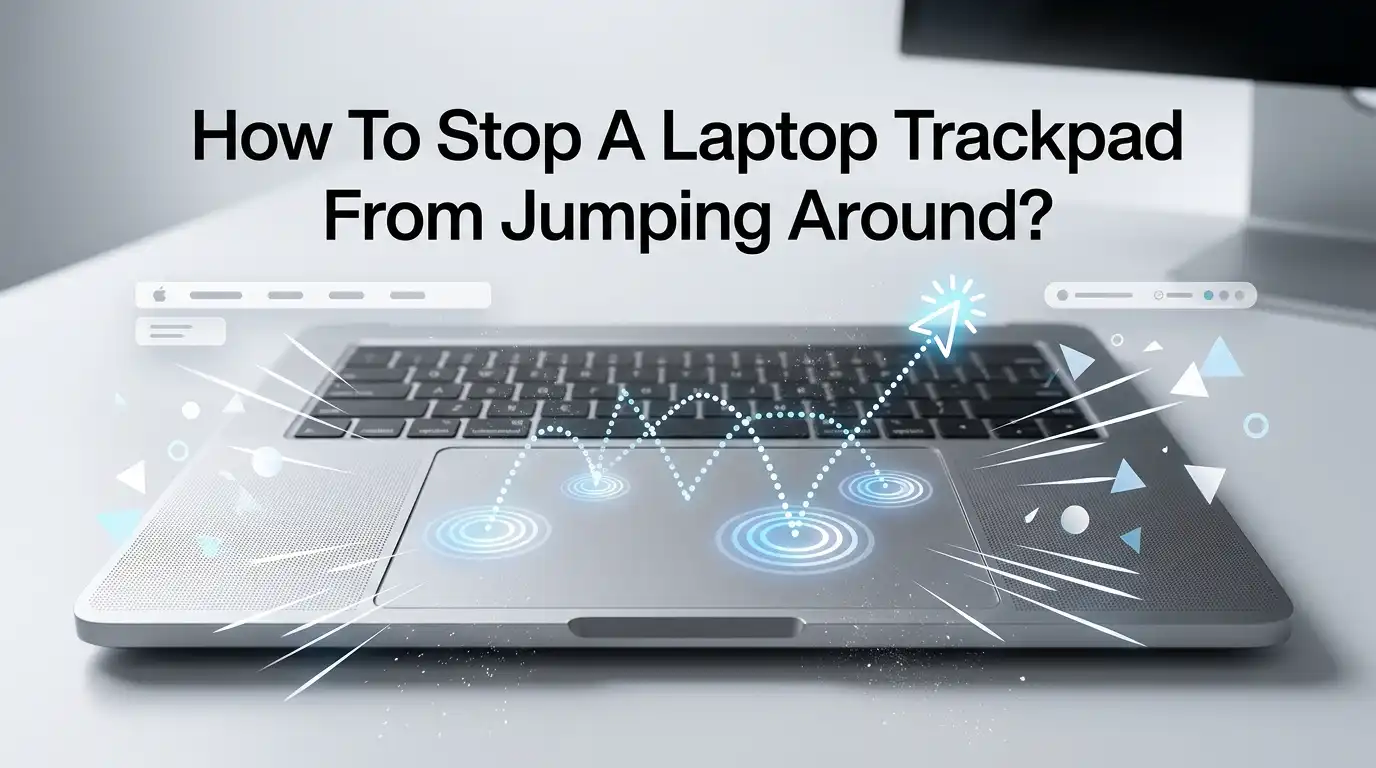
How To Stop A Laptop Trackpad From Jumping Around?
Your cursor jumps to the wrong spot. It closes a tab you wanted open. It selects text you never touched. A jumpy trackpad turns simple tasks into frustrating battles.
The good news is that most of these problems have simple fixes you can do at home. You do not always need a repair shop or a new laptop.
This guide walks you through every common cause and every working solution. You will learn quick fixes first, then deeper ones. Each method comes with clear steps and honest pros and cons.
Key Takeaways
- A dirty or wet trackpad is the most common cause of jumping. Cleaning it often solves the issue in seconds.
- Palm contact while typing confuses the trackpad. Turning on palm rejection or lowering sensitivity stops accidental jumps fast.
- Old or broken drivers make the cursor drift and skip. Updating or reinstalling the touchpad driver fixes most software faults.
- Tap to click triggers random clicks and selections. Disabling it removes a huge source of unwanted cursor behavior.
- A swollen battery can press on the trackpad from below. This is a safety risk, so stop using the laptop and get it checked.
- Electrical interference from a bad charger causes jumping only when plugged in. A grounded charger or different outlet usually clears it.
Why Does Your Laptop Trackpad Jump Around?
A trackpad jumps when it reads input you did not mean to give. The trackpad is a sensor. It detects tiny changes in electrical signals from your finger. When something else triggers those signals, the cursor moves on its own.
Common triggers include dirt, moisture, sweat, palm touches, faulty drivers, and electrical interference. Hardware faults like a swollen battery can also force the issue. Understanding the cause saves you time. You should always match the fix to the real problem.
Start by noticing when the jumping happens. Does it happen while typing? Only when plugged in? All the time? These clues point you to the right solution below.
Clean Your Trackpad And Your Hands First
This sounds too simple, but it works often. A trackpad reads your finger through electrical contact. Dust, grease, food crumbs, and sweat break that contact. The sensor then misreads your touch and the cursor jumps.
Wipe the trackpad with a soft, slightly damp microfiber cloth. Use water or a little isopropyl alcohol. Dry it fully before you use it. Wash and dry your hands too. Sweaty or oily fingers confuse the sensor just as much as a dirty surface.
Pros: Free, fast, and safe. Fixes many cases instantly.
Cons: Only helps if dirt or moisture is the cause. It will not fix software or hardware faults.
Try this first every single time. It costs you nothing and rules out the easiest problem.
Restart Your Laptop Before Anything Complex
A restart clears temporary software glitches. Background processes sometimes hog resources or send bad signals to the trackpad. A fresh boot resets all of that.
Save your work first. Then choose Restart, not Shut Down, because Restart fully reloads the system. On Windows and Mac, the steps are the same. Wait for the system to load completely before testing the trackpad.
Pros: Takes one minute. Fixes random one time glitches. Needs no technical skill.
Cons: It is a temporary fix if the real cause is hardware or a broken driver. The problem may return.
Think of a restart as pressing reset on the software. If the jumping stops after a restart but comes back later, the cause is deeper. That tells you to move on to driver or settings fixes below.
Adjust Your Trackpad Sensitivity Settings
A trackpad set too high reacts to the lightest touch. Even a hovering palm or a brush of your sleeve makes the cursor leap. Lowering the sensitivity gives you steadier control.
On Windows 11, open Settings, then Bluetooth and devices, then Touchpad. Look for Touchpad sensitivity and set it to Low or Medium. On Windows 10, go to Settings, then Devices, then Touchpad. On Mac, open System Settings, then Trackpad, and adjust the tracking speed.
Pros: Built into your system. No downloads needed. Often stops palm related jumps.
Cons: Too low a setting can make the cursor feel slow. You may need to test a few levels.
Try Medium first. It balances comfort and accuracy for most people. Spend a minute testing each level until the cursor feels smooth and predictable.
Turn Off Tap To Click To Stop Random Clicks
Tap to click lets a light tap act as a mouse click. This feels handy, but it causes chaos. A stray finger or palm tap registers as a real click. That is why your cursor selects text or closes tabs on its own.
On Windows, open Touchpad settings and find the Taps section. Turn off Tap with a single finger to click. On Mac, open System Settings, then Trackpad, and uncheck Tap to click. You can still click using the physical press.
Pros: Removes a major cause of unwanted clicks and jumps. Easy to toggle on or off.
Cons: You lose the quick tap habit. You must press down to click instead.
Many users never go back after turning this off. The control you gain is worth the small change in habit. Give it a few days before you judge it.
Enable Palm Rejection To Block Accidental Touches
Palm rejection tells the trackpad to ignore large contact areas. Your palm covers a wide spot. Your fingertip covers a small one. Palm rejection uses that difference to block accidental input while you type.
On Windows, open Touchpad settings and look for sensitivity options. A lower sensitivity setting often acts as palm rejection. Some laptop brands include a dedicated palm rejection toggle in their own control panel. On Mac, the system handles palm rejection automatically and well.
Pros: Stops jumping caused by your hands resting near the trackpad. Works in the background.
Cons: Not every laptop offers a clear toggle. Some brands hide it under sensitivity settings.
If your cursor jumps mainly while typing, this is your fix. Lower the sensitivity step by step and test as you type a few sentences each time.
Update Your Trackpad Driver
A driver is the software that connects your trackpad to your system. An old or corrupt driver sends wrong signals, and the cursor drifts or skips. Updating it often fixes jumping that cleaning and settings could not.
On Windows, right click the Start button and open Device Manager. Expand Mice and other pointing devices. Right click your touchpad and choose Update driver. Pick Search automatically for drivers. Restart when done.
Pros: Fixes many software based jumping problems. Free and built into Windows.
Cons: Windows does not always find the newest driver. You may need the laptop maker’s website.
For the best results, visit your laptop brand’s support page. Search your exact model and download the latest touchpad driver there. Manufacturer drivers are often newer and more stable than the ones Windows finds.
Reinstall The Trackpad Driver Completely
Sometimes an update is not enough. A driver file can stay corrupt even after an update. A full reinstall replaces the driver from scratch and clears hidden faults.
Open Device Manager again. Find your touchpad under Mice and other pointing devices. Right click it and choose Uninstall device. Confirm the action. Then restart your laptop. Windows reinstalls a fresh driver during the restart automatically.
Pros: Clears deep driver corruption that updates miss. Often the fix when nothing else works on the software side.
Cons: Your trackpad may not work until the restart finishes. Keep a USB mouse handy just in case.
This step solves stubborn cases. Many people report success after a reinstall when updating alone failed. Always keep an external mouse nearby so you can still control the laptop during the process.
Check For Electrical Interference When Plugged In
Does the jumping only happen while charging? Then the cause is likely electrical. A poorly grounded charger sends small currents that confuse the trackpad sensor. This is a known and common issue.
Test it. Unplug the charger and use the laptop on battery. If the jumping stops, the charger is the problem. Try a different wall outlet. Use a grounded three prong outlet if your charger supports it. Try the original charger that came with your laptop.
Pros: Identifies a tricky cause that settings cannot fix. The solution can be as simple as a new outlet.
Cons: A cheap or third party charger may keep causing it. You might need a proper grounded replacement charger.
Always use a charger made for your laptop. Off brand chargers often skip the grounding that keeps the trackpad stable. A grounded charger usually ends this kind of jumping for good.
Disconnect External Devices And Test
Other devices can interfere with your trackpad. A faulty USB mouse, a wireless dongle, or a damaged cable may send rogue signals. The system reads two pointing inputs at once and the cursor fights itself.
Unplug every external device. Remove USB drives, mice, dongles, and adapters. Test the trackpad alone. If the jumping stops, plug devices back one at a time. This shows you exactly which device causes the trouble.
Pros: Pinpoints interference fast. Costs nothing. Easy to do.
Cons: Only helps if an external device is the cause. You may need to replace a faulty accessory.
A bad wireless mouse is a frequent hidden culprit. Its receiver picks up noise and moves the cursor. Always test your trackpad with nothing else connected to get a clear answer.
Run Hardware Troubleshooters And Scans
Your system includes built in tools that find and fix input faults. These troubleshooters check for known problems and apply fixes for you. They are a smart middle step before you consider hardware repair.
On Windows, open Settings, then System, then Troubleshoot, then Other troubleshooters. Run any Bluetooth or hardware related option available. Also run a malware scan, because some malware moves the cursor. On Mac, restart in Safe Mode to test if extra software causes the issue.
Pros: Automatic and guided. Catches problems you might miss. Free.
Cons: It does not fix every issue. Hardware faults need physical repair.
A malware scan matters more than people think. Hidden programs sometimes hijack the cursor. Running a trusted antivirus scan rules this out and protects your data at the same time.
Inspect For A Swollen Battery (Important Safety Step)
This step is serious. A swollen battery pushes up against the trackpad from underneath. That pressure makes the trackpad register constant or random input, and the cursor jumps or clicks on its own.
Look for warning signs. Check if the trackpad bulges, feels stiff, or sits unevenly. Check if the laptop wobbles on a flat table. A puffy or lifted trackpad is a clear red flag. Stop using the laptop right away if you see this.
Pros: Identifies a dangerous hardware fault early. Protects you from fire and damage.
Cons: It needs professional repair. You cannot safely fix a swollen battery at home.
A swollen battery is a fire risk. Do not press on it or try to remove it yourself. Take the laptop to a qualified technician. Safe battery replacement ends the jumping and removes the hazard.
When To See A Professional For Repair
Some problems sit beyond home fixes. If you tried cleaning, settings, drivers, and charger tests with no luck, the trackpad hardware may be faulty. A loose ribbon cable or a worn sensor can cause endless jumping.
A technician can open the laptop, check the trackpad cable, and reseat or replace parts. They can also handle battery swelling safely. Choose a trusted repair shop or your laptop’s official service center.
Pros: Fixes faults you cannot reach. Trained hands and proper tools. Often restores full function.
Cons: It costs money. You may be without your laptop for a few days.
Weigh the repair cost against the laptop’s value. For newer laptops, repair makes sense. For very old ones, an external mouse may be the cheaper path while you plan an upgrade.
Use An External Mouse As A Backup Plan
Sometimes you need to work right now and cannot wait for a fix. A plain wired USB mouse gives you instant, reliable control. It bypasses the trackpad completely while you sort out the real cause.
Plug in any USB mouse. The cursor follows the mouse, not the jumpy trackpad. You can also disable the trackpad while the mouse is connected. On Windows, look for the option under Touchpad settings.
Pros: Instant relief. Cheap and simple. Works on any laptop.
Cons: It is a workaround, not a cure. You carry an extra item with you.
A wired mouse is more stable than a wireless one for testing, since it adds no signal interference. Keep one in your bag. It saves you on the days your trackpad refuses to cooperate.
Final Thoughts
A jumping trackpad feels maddening, but the fix is usually close at hand. Start simple. Clean the surface, wash your hands, and restart. Then move through settings, palm rejection, and tap to click. If the cursor still misbehaves, update or reinstall the driver.
Watch for the special cases too. A jumpy cursor only while charging points to your charger. A bulging trackpad points to a swollen battery, and that needs fast professional care. Match the fix to the cause and you will save hours of frustration.
Most people solve this within the first few steps. Work through the list in order. Your cursor will soon move where you want it, when you want it.
Frequently Asked Questions
Why does my trackpad jump only when I type?
Your palm or wrist touches the trackpad while your fingers type. The sensor reads that contact as input. Lower the trackpad sensitivity and turn off tap to click. These two changes stop most typing related jumps quickly and need no extra software.
Can a dirty trackpad really cause the cursor to jump?
Yes. The trackpad reads your finger through electrical contact. Dirt, grease, and moisture break that contact and confuse the sensor. A quick wipe with a damp microfiber cloth often fixes the jumping in seconds. Always clean it before trying harder fixes.
Why does my cursor jump only when the laptop is charging?
This points to electrical interference from your charger. A poorly grounded charger sends small currents that disturb the trackpad. Try a different outlet, use a grounded plug, or switch to the official charger. The jumping usually stops once the grounding improves.
Is a swollen battery dangerous?
Yes, very. A swollen battery can catch fire or leak. It also presses on the trackpad and causes jumping. Stop using the laptop and take it to a technician. Never press, puncture, or try to remove a swollen battery yourself, as that is unsafe.
Will updating the driver fix a jumping trackpad?
Often, yes. An old or corrupt driver sends wrong signals and makes the cursor drift. Update it through Device Manager, or download the latest one from your laptop maker’s website. If updating fails, a full driver reinstall clears deeper faults.
Should I use an external mouse instead?
An external mouse is a great backup while you fix the real cause. It gives you instant, stable control and bypasses the jumpy trackpad. A wired mouse works best because it adds no signal interference. Keep one handy for busy days and quick testing.

Hi, I’m Lola Griffin 👩💻, the voice and creator behind ResizerBox. I’m a passionate tech enthusiast who loves exploring the latest gadgets, smart devices, and trending Amazon electronics. Through my reviews, I share honest insights, real-world testing experiences, and practical buying advice to help readers make confident tech choices.