
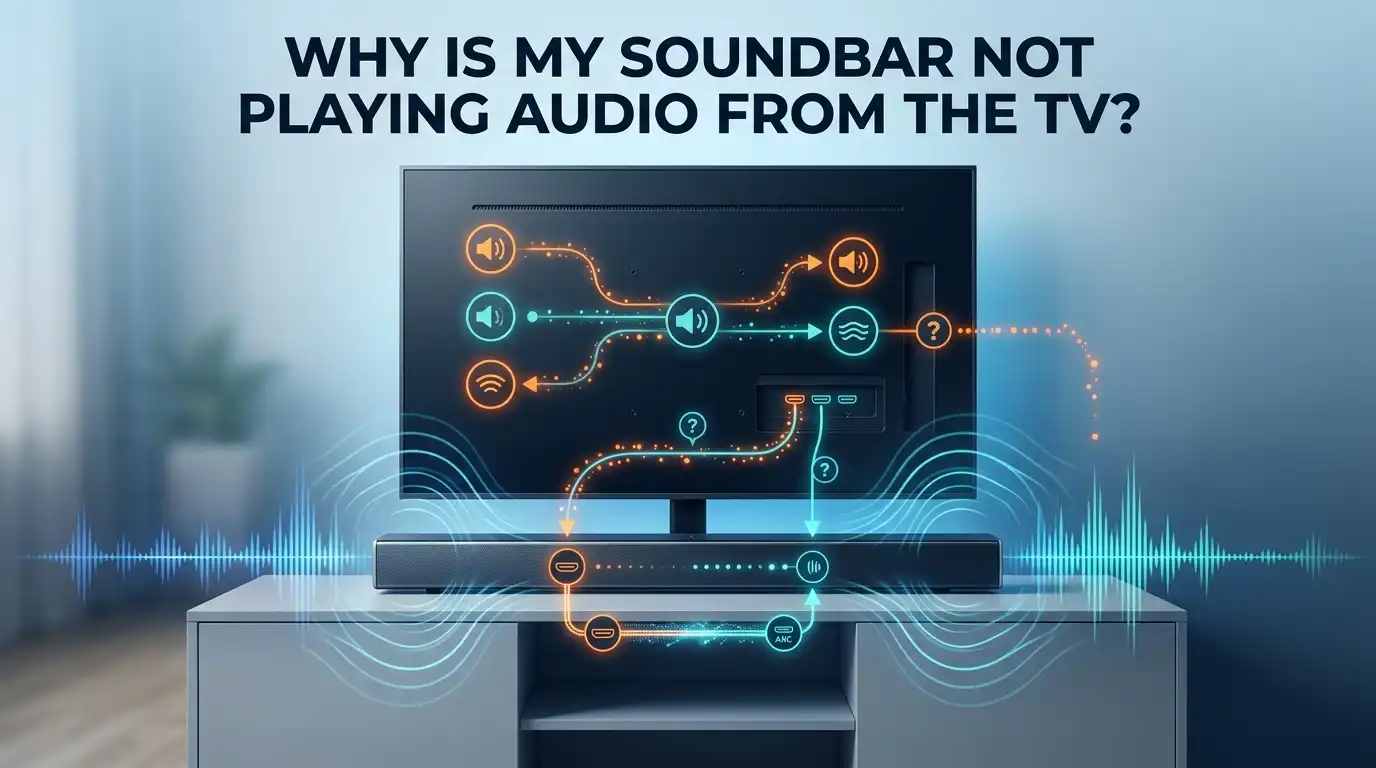
Why Is My Soundbar Not Playing Audio From The TV?
You just sat down for movie night. The picture looks great. But your soundbar stays silent. Frustrating, right? You are not alone. Thousands of people face this exact problem every single day.
A soundbar should make your TV sound better. When it goes quiet, the whole setup feels broken. The good news is simple. Most silent soundbar problems come from small settings or loose cables. You can fix them yourself in minutes.
This guide walks you through every cause and solution. You will learn what to check first, what to adjust next, and what to do when nothing seems to work. Let us get your sound back.
In a Nutshell:
- Wrong input or output settings cause most problems. Your TV often defaults to its own speakers. You must switch the TV audio output to External Speakers or HDMI ARC.
- The HDMI ARC port matters a lot. Only one HDMI port on your TV supports ARC. Plug the cable into the port clearly labeled ARC or eARC.
- HDMI CEC must be turned on. This feature lets your TV and soundbar talk to each other. Brands name it differently, like Anynet+, Bravia Sync, or SimpLink.
- Audio format mismatch creates silence. If your TV sends a format the soundbar cannot read, you hear nothing. Setting the TV to PCM fixes this fast.
- A simple power cycle solves many bugs. Unplug both devices, wait two minutes, then plug them back in. This clears stuck glitches.
- Check volume and mute on both devices. Sometimes the answer is that easy. The TV or soundbar may be muted without you noticing.
Start With The Basics: Check Power, Volume, And Mute
Before you blame the wiring, check the easy stuff. The simplest cause is often the real one. Look at your soundbar. Most models have a small light or display on the front. If it is dark, the soundbar has no power.
Make sure the power cord sits firmly in the wall socket. Try a different outlet if you suspect the socket is dead. Next, raise the volume on both the TV and the soundbar. Someone may have lowered it by accident.
Now check the mute button. Both your TV remote and your soundbar remote have one. A crossed out speaker icon usually means mute is on. Press it once to turn the sound back on. These small checks take under a minute and solve a surprising number of cases.
Confirm The Correct Input Source On Your Soundbar
Your soundbar has more than one input. It can take sound from HDMI, optical cable, Bluetooth, or USB. If the soundbar is set to the wrong input, it will not play your TV audio. This single mistake fools many people.
Grab your soundbar remote. Look for a button labeled Input or Source. Press it until the front display shows the right option. If your TV connects through HDMI ARC, the display should read TV or ARC. If you use an optical cable, it should read Optical or D.IN.
Some soundbars come with a mobile app. The app can switch inputs more reliably than the remote. Try the app if the remote feels unresponsive. Cycling through inputs and landing on the right one often brings the sound back instantly.
Pros: This fix is free, fast, and needs no tools.
Cons: You may have to test each input one by one to find the right one.
Change Your TV Audio Output Settings
Your TV plays sound through its own speakers by default. To use the soundbar, you must tell the TV to send sound elsewhere. This is the most common fix of all. Open your TV settings menu. Find the Sound or Audio section.
Look for an option called Audio Output, Speaker List, or Sound Output. Change it from TV Speakers to External Speakers, Audio System, or HDMI ARC. The exact name depends on your TV brand. Once you pick the soundbar option, the TV stops using its built in speakers.
On many TVs, selecting the wrong output makes both speakers silent. So pick the option that matches your cable. HDMI users choose the HDMI or ARC option. Optical users choose the digital or optical option. Save the setting and test it right away.
Pros: This solves the issue permanently once set.
Cons: Menu names vary by brand, so it takes a little hunting.
Use The Right HDMI ARC Or eARC Port
HDMI ARC is the best way to connect a soundbar. ARC stands for Audio Return Channel. It sends sound from the TV back to the soundbar through one cable. But here is the catch. Most TVs have only one HDMI port that supports ARC.
Look closely at the back of your TV. The correct port has a small label that says ARC or eARC next to it. Your cable might be in HDMI 1, but only HDMI 3 supports ARC. Plug the cable into the labeled port and the sound returns.
On the soundbar side, connect the cable to the port marked HDMI OUT (TV ARC). Make sure both ends sit firmly. A loose HDMI cable can drop audio without warning. Push each connector in until you feel it click.
Pros: ARC carries high quality sound and reduces cable clutter.
Cons: Only one port works, so a wrong port choice causes silence.
Turn On HDMI CEC For Smooth Communication
HDMI ARC needs a helper feature called HDMI CEC. This lets your TV and soundbar recognize each other and share commands. Without it, ARC often fails to send any audio. Turning it on fixes many ARC problems instantly.
The tricky part is the name. Every brand calls CEC something different. Samsung calls it Anynet+. Sony calls it Bravia Sync. LG calls it SimpLink. Vizio calls it CEC. Look for these names inside your TV system or general settings menu.
Switch the feature on for both the TV and the soundbar. Once enabled, your TV remote can often control the soundbar volume too. That is a nice bonus. After turning CEC on, restart both devices to apply the change cleanly.
Pros: It enables ARC and lets one remote control everything.
Cons: The setting hides under different names, which causes confusion.
Set The Audio Format To PCM
Audio comes in many formats. Movies and shows use Dolby Digital, DTS, or Dolby Atmos. If your TV sends a format your soundbar cannot read, you get total silence. This is a hidden cause many people miss.
The safe fix is to switch your TV to PCM. PCM is a basic stereo format that almost every soundbar understands. Open your TV sound settings. Find Digital Audio Output or Audio Format. Change it from Auto, Bitstream, or Dolby to PCM.
PCM works with both HDMI and optical connections. It guarantees sound even if your soundbar is older or simple. The trade off is that PCM may not pass advanced surround formats like Dolby Atmos. But getting clear sound back is worth it for now.
Pros: PCM works with nearly every device and stops format silence.
Cons: You lose advanced surround sound features like Dolby Atmos.
Try An Optical Cable Connection Instead
If HDMI ARC keeps fighting you, switch to an optical cable. Optical, also called TOSLINK, carries digital audio through light. Many people find it more reliable than ARC. It avoids the CEC headaches that trip up HDMI connections.
Plug one end into the Optical Out port on your TV. Plug the other end into the Optical In port on your soundbar. The connectors only fit one way, so do not force them. Remove the small plastic cap first if your cable has one.
After connecting, set your soundbar input to Optical or D.IN. Then set your TV audio output to the optical or digital option. Remember to set the format to PCM here too. Optical cannot carry full surround formats, so PCM keeps things smooth.
Pros: Optical is stable and skips CEC problems entirely.
Cons: It cannot pass high end formats like Dolby Atmos or full 5.1 PCM.
Plug Your Source Device Directly Into The Soundbar
Sometimes the problem is one device, like a game console or Blu ray player. In that case, skip the TV middleman. Plug the source straight into the soundbar instead. This often clears delays and format errors at once.
Connect your console or player to the HDMI IN port on the soundbar. Then connect the soundbar to the TV using the ARC port. Now the audio flows from the source to the soundbar first. The TV only handles the picture.
This setup gives you cleaner sound and better sync. It removes many of the bandwidth limits that ARC and optical cables create. The downside is space. Most soundbars have only one or two HDMI inputs, so you cannot plug in many devices.
Pros: It improves sound quality and reduces audio delay.
Cons: Soundbars have few HDMI inputs, and TV apps still need ARC.
Power Cycle Both The TV And Soundbar
Electronics get stuck sometimes. A small software glitch can stop the audio for no clear reason. A power cycle clears these stuck bugs fast. This is one of the most reliable fixes in the whole guide.
Turn off both the TV and the soundbar. Then unplug both from the wall socket. Do not just use the remote. You need to cut the power fully. Wait two to three minutes so any stored charge drains away.
Now plug both devices back in. Turn the TV on first, then the soundbar. Test your sound. Many people report that this simple reset brings the audio back instantly. It costs nothing and takes only a few minutes, so always try it early.
Pros: It fixes random glitches with zero risk to your settings.
Cons: The fix may be temporary if a deeper bug keeps returning.
Re Pair The Subwoofer And Wireless Speakers
Maybe the main soundbar works, but the bass or rear speakers stay quiet. These extra parts often connect wirelessly. Wireless links can drop without warning. When that happens, you lose part of your sound, not all of it.
Start by unplugging the subwoofer and rear speakers from the wall. Wait thirty seconds, then plug them back in. Many units reconnect on their own after a fresh start. If they do not, you need to pair them by hand.
Look for a small Pair or Link button on the back of the subwoofer. Press and hold it until the light blinks. Then check your manual for the exact pairing steps for your model. Once paired, the indicator light usually turns solid to confirm the link.
Pros: It restores full surround sound and deep bass.
Cons: Pairing steps differ by model, so you may need the manual.
Update The Firmware On Both Devices
Old software can cause audio bugs. Brands release firmware updates to fix these problems. An outdated soundbar or TV may simply have a known glitch. Updating the software often clears it for good.
Open your soundbar settings and look for a Software Update or Firmware option. Many modern soundbars update through a mobile app or a WiFi connection. Older models may need a USB drive with the update file from the brand website.
Do the same for your TV. Find the support or system section in the menu and check for updates. Keep both devices on the same software generation when possible. This helps them communicate without errors. Never unplug the device during an update, as that can damage it.
Pros: Updates fix known bugs and add new features.
Cons: Some older soundbars have no easy update path.
Test With Another Device Or A Factory Reset
If nothing has worked yet, test where the fault lives. Connect your soundbar to a different TV. Or connect a different soundbar to your TV. This tells you which device is the real problem. It saves you from chasing the wrong fix.
You can also play music through Bluetooth from your phone. If Bluetooth works but the TV does not, the issue is the TV link, not the soundbar speakers. This kind of testing narrows things down quickly.
As a last step, try a factory reset. This wipes all settings and returns the device to its original state. Reset the soundbar first, then the TV if needed. Check your manual for the exact reset steps. Remember, a reset erases your custom settings, so use it only when other fixes fail.
Pros: Testing pinpoints the faulty device, and a reset clears deep errors.
Cons: A factory reset deletes all your saved settings.
When To Call Support Or A Technician
Sometimes the hardware itself has failed. If you tried every fix and still hear nothing, the problem may be physical. A blown speaker, a dead port, or a faulty board needs a professional. These are not home fixes for most people.
Before you call, gather your details. Write down the soundbar model, the TV model, and the steps you already tried. This saves time when you talk to support. The agent will not repeat steps you already finished.
Check if your device is still under warranty. A warranty claim can mean a free repair or replacement. If the warranty has expired, ask for a repair quote first. Sometimes a new soundbar costs less than fixing an old one. Weigh both options before you decide.
Pros: Experts fix hardware faults you cannot handle at home.
Cons: Repairs cost money and take time if the warranty has ended.
Frequently Asked Questions
Why does my TV sound work but the soundbar stays silent?
Your TV is likely set to play through its own speakers. Open the TV sound menu and switch the audio output to External Speakers or HDMI ARC. Also confirm the soundbar input matches your cable.
What is the best connection for a soundbar and TV?
HDMI ARC or eARC is the best choice. It sends high quality sound through one cable and lets your TV remote control the soundbar. Use the HDMI port clearly labeled ARC on your TV.
Why does my soundbar lose sound on certain shows only?
This usually means an audio format problem. Some content uses formats your soundbar cannot read. Set your TV digital audio output to PCM to fix this. PCM works with almost every device.
Will a power cycle delete my soundbar settings?
No. A power cycle simply unplugs and restarts the device. It clears temporary glitches without touching your saved settings. Only a factory reset erases your settings. Always try a power cycle before a full reset.
How do I know which HDMI port supports ARC?
Look at the back of your TV. The correct port has a small label that reads ARC or eARC next to the HDMI number. Only that one port carries sound back to your soundbar.
My soundbar plays but the subwoofer is silent. What now?
The subwoofer likely lost its wireless link. Unplug it, wait thirty seconds, and plug it back in. If it stays quiet, press the Pair button on the subwoofer and follow your manual to relink it.

Hi, I’m Lola Griffin 👩💻, the voice and creator behind ResizerBox. I’m a passionate tech enthusiast who loves exploring the latest gadgets, smart devices, and trending Amazon electronics. Through my reviews, I share honest insights, real-world testing experiences, and practical buying advice to help readers make confident tech choices.