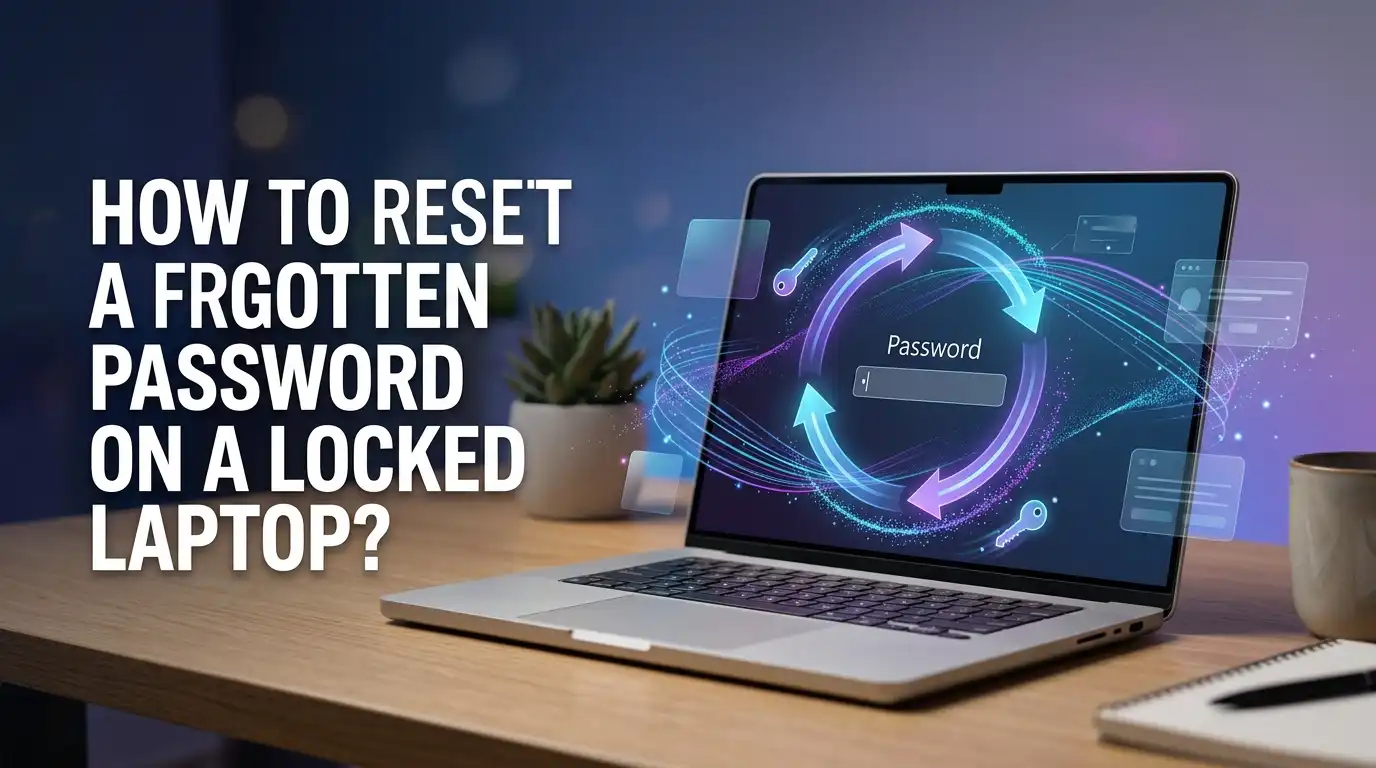
How To Reset A Forgotten Password On A Locked Laptop?
You sit down, open your laptop, and your fingers freeze. The password you typed a hundred times is gone from your memory. Your heart sinks a little. The good news is simple.
A forgotten password does not mean your laptop is dead. You have many safe ways to get back in, and most of them take only a few minutes.
This guide walks you through every working method for Windows, Mac, and Chromebook. You will find clear steps, honest pros and cons, and tips to protect your files. Read on, stay calm, and let us get you back into your machine.
Key Takeaways
- Your account type decides your path. A Microsoft account resets online, while a local account uses security questions or a reset disk. Check which one you have first.
- Online recovery is the safest choice. Resetting through Microsoft, Apple, or Google keeps all your files and apps in place. Always try this before anything drastic.
- A reset disk or USB key saves you fast. If you made one earlier, your password problem ends in under two minutes with zero data loss.
- Recovery Mode is your strong backup. Both Windows and Mac let you reset passwords using built in recovery tools without extra software.
- Factory reset is the last resort. It wipes your data but always works. Use it only when every other method fails and you have a backup.
- Chromebooks need a powerwash. You cannot reset a local password, but your Google account restores everything after the wipe.
Why You Get Locked Out Of Your Laptop
Getting locked out feels personal, but it happens to almost everyone. Human memory is not built to store random strings of letters and numbers. When you create a strong password and then do not use it for weeks, your brain simply lets it go. This is normal and very common.
Other causes also lock people out. A keyboard set to the wrong language types different characters than you expect. Caps Lock stays on without you noticing. Sometimes a recent update changes your sign in method. A family member may have changed the password too.
Knowing the cause helps you pick the right fix. So check the small things first, like Caps Lock and keyboard layout, before you start a full reset.
First Steps Before You Reset Anything
Stop and breathe before you try anything big. A few quick checks often solve the problem on their own. Many people perform a full reset when the real issue was tiny and easy to fix in seconds.
Start with these simple checks. Look at your Caps Lock and Num Lock keys. Confirm your keyboard language in the bottom corner of the login screen. Try any old passwords you used before. Type slowly and watch each character if your screen shows dots.
Next, find out your account type. On Windows, a login that uses an email address is a Microsoft account. A login with just a username is a local account.
This single detail changes every step that follows. Once you know your account type and your laptop brand, you are ready to choose a method with confidence.
Reset A Microsoft Account Password Online
If your Windows laptop signs in with an email address, you have the easiest fix of all. Microsoft lets you reset your password from any other device with internet access. You do not even need your locked laptop for this part.
Follow these steps from a phone or another computer:
- Open a browser and go to the Microsoft account recovery page.
- Enter the email address linked to your laptop.
- Choose how to get your code, by text, email, or app.
- Type the code Microsoft sends you.
- Create a new password and confirm it.
Now return to your locked laptop, connect it to the internet, and type your new password. It works right away.
Pros: No data loss, no software, and you can do it from anywhere.
Cons: You need internet on the laptop and access to your recovery phone or email.
Reset A Local Account Using Security Questions
Local accounts created on Windows 10 and Windows 11 often include security questions. These questions are your built in rescue plan, and they live right on the login screen. If you set them up when you made the account, this method is quick and clean.
Here is how you use them:
- Type any wrong password on the login screen and press Enter.
- Click the Reset password link that appears below the box.
- Answer your three security questions.
- Enter a new password and confirm it.
You sign in at once with no restart needed. This method keeps every file and app exactly where it was.
Pros: Fast, free, and zero data loss. No extra tools required.
Cons: It only works if you added security questions earlier. Forgotten answers block this path completely.
Use A Password Reset Disk Or USB Drive
A password reset disk is a small lifesaver that many people forget exists. You create it ahead of time on a USB flash drive while you still know your password. If you made one, your problem ends in moments.
To use the reset disk:
- Plug the USB drive into your locked laptop.
- Type a wrong password so the Reset password link shows up.
- Click it to open the Password Reset Wizard.
- Pick your USB drive from the list.
- Set a new password and a hint, then finish.
You log in instantly. One disk works for that account forever, so you never need a new one.
Pros: Very fast, totally offline, and safe for all your data.
Cons: You must create it before you get locked out. It only works for the specific local account it was made for.
Reset Windows Password Through Recovery Mode
Windows includes a Recovery environment that you can reach even when locked out. This method uses tools already inside Windows, so you need no downloads. It suits people comfortable with a few extra steps.
Start by opening Recovery Mode:
- On the login screen, hold Shift and click Restart.
- Choose Troubleshoot, then Advanced options, then Command Prompt.
Inside the Command Prompt, advanced users can swap accessibility tools to open a command window at the login screen, then reset the account password. This trick is powerful but technical, so move slowly and copy commands carefully.
For most people, the simpler Recovery choice is to use Reset this PC, which we cover later as a full reset.
Pros: No third party software and no cost. Works fully offline.
Cons: The command method is technical and risky for beginners. One typo can cause problems.
Reset Your PIN When You Forget It
Many Windows users sign in with a short PIN instead of a long password. Forgetting a PIN feels worse, but the fix is often easier than a password reset. Windows gives you a recovery link right on the screen.
Try these steps:
- On the sign in screen, click I forgot my PIN.
- Verify your identity with your Microsoft account password or a sent code.
- Follow the prompts to create a fresh PIN.
If you cannot recall your account password either, choose Sign in options and switch to password or web sign in instead. This lets you get in through a different door.
Pros: Quick and keeps all your data. No tools needed.
Cons: You still need your Microsoft account password or recovery contact to verify yourself.
How To Reset A Forgotten Password On A Mac
Mac owners have a smooth recovery path built into the system. Apple ties your Mac login to your Apple Account, which makes resets simple. The exact steps depend slightly on your macOS version, but the idea stays the same.
Try the login screen method first:
- Type a wrong password three times at the login screen.
- A message offers to reset using your Apple Account.
- Click it, sign in with your Apple ID, and create a new password.
If that option does not appear, restart and hold Command plus R to enter Recovery Mode. From there, open Utilities, then Terminal, and type the reset password command to launch the reset tool.
Pros: Built in, no extra software, and usually keeps your files.
Cons: You need your Apple ID details. A FileVault encrypted drive may require your recovery key.
How To Reset A Locked Chromebook
Chromebooks work differently from Windows and Mac laptops. Your Chromebook password is actually your Google account password, so the fix lives online. You cannot reset a separate local password because there usually is not one.
Recover your Google account first:
- On another device, go to the Google account recovery page.
- Enter your email and follow the steps to set a new password.
- Return to your Chromebook and sign in with the new password.
If recovery fails, you must powerwash the device. Press and hold Esc plus Refresh plus Power, then follow the on screen reset steps. Your files in Google Drive stay safe in the cloud.
Pros: Cloud storage means your real data is rarely lost.
Cons: A powerwash erases local files and signed in accounts. You must remember your Google login.
Factory Reset Your Laptop As A Last Resort
When nothing else works, a factory reset always gets you back in. This method wipes the laptop and reinstalls a fresh copy of the system. It removes the password by removing everything, so treat it as your final option.
On Windows, you reach it through Recovery:
- On the login screen, hold Shift and click Restart.
- Choose Troubleshoot, then Reset this PC.
- Pick Remove everything and follow the prompts.
Macs reset through Recovery Mode by erasing the disk and reinstalling macOS. Always assume a factory reset deletes your personal files.
Pros: It works every single time and needs no password at all.
Cons: You lose all local files without a backup. Setup takes time afterward.
How To Protect Your Files During A Reset
A reset can feel scary because of your photos, documents, and downloads. The smartest move is to rescue your data before you wipe anything. A little effort here saves real heartache later.
If you can still boot from a USB or live system, copy your important folders to an external drive first. You can also remove the laptop hard drive and read it on another computer using a USB adapter. This pulls your files out even when you cannot log in.
For methods like online resets, security questions, and reset disks, your data stays put. So always try those gentle methods before any wipe. Cloud backups through OneDrive, iCloud, or Google Drive also protect you without any extra steps.
Smart Tips To Never Get Locked Out Again
The best fix is the one you never need. A few simple habits keep you from ever facing a locked laptop again. Set them up once and relax for good.
Build these safety nets today:
- Use a trusted password manager to store every password safely.
- Add security questions and a recovery email to your accounts.
- Create a password reset disk on a USB drive and keep it nearby.
- Turn on cloud backup so your files live in two places.
- Write a strong password hint that only you understand.
A password manager alone solves most lockouts for most people. It remembers everything so your brain does not have to. Spend ten minutes now and save hours of stress later.
When To Call A Professional For Help
Sometimes the safest choice is to hand the job to an expert. If your laptop holds work files, encrypted drives, or business data, a wrong step can be costly. A technician brings tools and experience that lower the risk.
Consider professional help in these cases. Your drive is encrypted and you lost the recovery key. The laptop belongs to a company with managed accounts. Your files are priceless and you have no backup. The reset steps feel too technical for comfort.
A trusted local repair shop or your laptop maker’s support line can guide you. They can often recover access while protecting your data. Paying a small fee beats losing years of memories or important documents forever.
Frequently Asked Questions
Can I reset my laptop password without losing my files?
Yes, in most cases. Online resets, security questions, reset disks, and PIN recovery all keep your files safe. You only risk data loss with a full factory reset, so try the gentle methods first and always keep a backup just in case.
What if I forgot both my password and my security questions?
You still have options. On a Microsoft or Apple account, use online recovery with your email or phone instead. For a local account with no recovery set, a factory reset becomes your final path. Back up your files first if you can reach them.
How long does a laptop password reset take?
It depends on the method you use. Online resets, security questions, and reset disks take only a few minutes. Recovery Mode steps may take ten to twenty minutes. A full factory reset is the longest, often taking thirty minutes to over an hour with setup.
Is it legal to reset a password on a locked laptop?
Yes, when the laptop is yours. You have every right to reset a password on a device you own. Never attempt to bypass a password on someone else’s laptop without permission, since that can break the law and personal trust.
Will a factory reset remove viruses too?
Often, yes. A factory reset wipes the system and reinstalls a clean copy, which removes most malware. It is a strong way to start fresh. Just remember it also deletes your personal files, so save anything important before you begin the reset.
Do I need special software to reset my password?
Usually not. Windows, Mac, and Chromebook all include built in recovery tools that handle resets without downloads. Online account recovery needs only a browser. Reach for third party software only when these native methods cannot help, and choose trusted sources carefully.

Hi, I’m Lola Griffin 👩💻, the voice and creator behind ResizerBox. I’m a passionate tech enthusiast who loves exploring the latest gadgets, smart devices, and trending Amazon electronics. Through my reviews, I share honest insights, real-world testing experiences, and practical buying advice to help readers make confident tech choices.