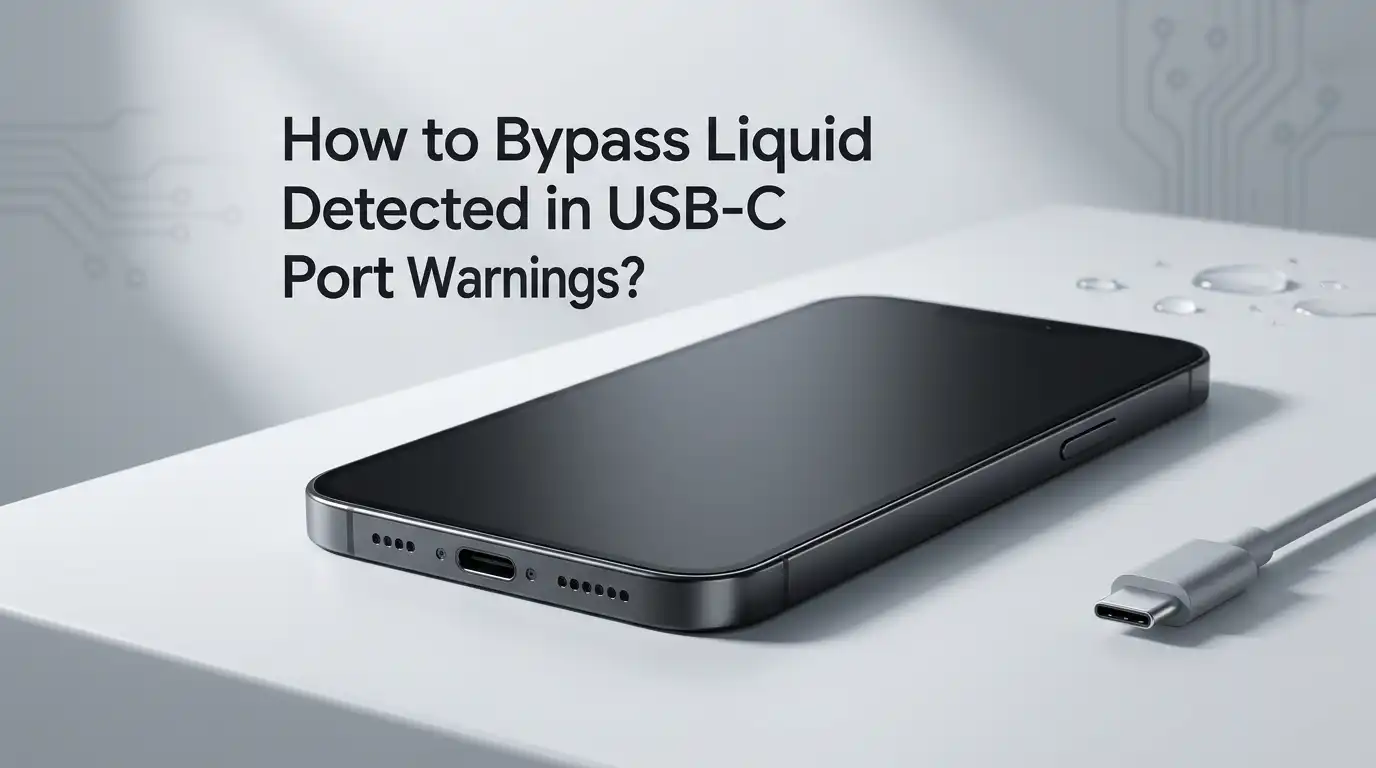
How to Bypass Liquid Detected in USB-C Port Warnings?
Your phone buzzes. You plug in the charger. Suddenly, a warning pops up that screams “Liquid Detected in USB-C Connector.” Your battery is at 4 percent. Your charger is fine. Your port looks dry. Yet the phone refuses to charge. Frustrating, right?
This warning appears on iPhones, Pixels, Galaxy phones, and even MacBooks. It exists to protect your device from short circuits and corrosion. But sometimes the sensor triggers a false alarm.
Lint, dust, humidity, or a faulty cable can all set it off. The good news is that you can fix it. You can also bypass it safely when you really need to charge your phone.
Key Takeaways
- The warning is a safety feature, not a malfunction. Your phone detects moisture, lint, or corrosion inside the USB-C port and stops charging to protect the internal components from damage.
- Air drying for 30 minutes to 24 hours solves most cases. Place the phone in a dry, well ventilated room with the port facing down. Skip rice, hair dryers, and compressed air.
- Cleaning out lint with a wooden toothpick fixes false alarms. Many “liquid detected” alerts come from dust packed inside the port, not water.
- Emergency Override and wireless charging let you bypass the alert when you need power right away. iPhones offer an override option, and Qi pads work with no port contact.
- A faulty or wet cable often triggers the warning. Always test with a different cable and a different power source before blaming the phone.
- Persistent warnings need a reboot or USB cache reset. On Samsung phones, clearing the USBSettings cache stops ghost alerts. On iPhones, a simple restart often clears the sensor.
Why Your Phone Shows the Liquid Detected Warning
Your phone has tiny sensors inside the USB-C port. These sensors check for moisture, conductivity, and debris. When the port detects something unusual, the system blocks charging. This stops electricity from reacting with water and corroding the pins.
The warning is not always accurate. A small piece of pocket lint can mimic moisture. High humidity from a bathroom or gym bag can trigger it. A damaged cable with a frayed tip can also set off the sensor. Even a software glitch after an update can cause false alerts.
The key takeaway is simple: the warning means something is off, but not always water. Knowing the cause helps you pick the right fix. If you charged your phone after a swim or a rainy walk, treat it as real. If your phone never touched water, the cause is likely lint or a sensor glitch.
Step One: Unplug the Cable Right Away
The first move is the most important. Pull the cable out as soon as you see the alert. Do not wiggle it. Do not try a different charger to test the port. Any power flowing through a wet port can cause permanent damage to the charging chip.
Set the phone down on a flat surface. Place the USB-C port facing down so gravity helps drain any moisture. Avoid pressing buttons or shaking the device hard. A gentle tap against your palm with the port facing the floor can release droplets.
Pros of this step: It is free, takes seconds, and prevents short circuits. It costs you nothing and protects your hardware.
Cons: You lose charging access for now. If your battery is critically low, you will need a backup plan such as wireless charging or a power bank with Qi support.
Step Two: Air Dry the Port the Right Way
Air is the safest drying tool you have. Place your phone in a dry room with steady air flow. A desk fan pointed at the port works well. Aim the fan from a short distance and let it run for 30 to 60 minutes. This pulls moisture out without forcing it deeper.
For heavier moisture, leave the phone alone for up to 24 hours. Patience matters here. Rushing the process is the most common reason the warning comes back. A windowsill in a warm, low humidity room also works fine.
Pros: Air drying is gentle, free, and effective for almost every case. It does not damage the port pins or the rubber seals around the connector.
Cons: It takes time. If you need to charge your phone fast, this method will test your patience. Never use a hair dryer, oven, or microwave. Heat warps the internal seals and melts adhesive inside the phone.
Step Three: Clean Out Lint with a Wooden Toothpick
Many “liquid detected” warnings are actually lint warnings. Pocket fuzz packs into the port over months of use. The fuzz traps humidity from your skin and pocket air. The sensor reads this as moisture.
Grab a wooden toothpick and a flashlight. Look inside the USB-C port. You may see grey or white fluff packed at the back. Gently scrape the toothpick along the inside walls. Pull the lint out in small bits. Tilt the phone and tap it to shake loose any remaining bits.
Pros: This fix is permanent for lint based alerts. It costs nothing and takes only a few minutes. Many users report the warning vanishes the moment the lint comes out.
Cons: You must work carefully. Never use a metal pin, paperclip, or needle. Metal can scratch the pins inside the port and break the connector. A plastic SIM ejector tool also works if you cannot find a wooden toothpick.
Step Four: Test with a Different Cable and Charger
Sometimes the cable is the culprit. A USB-C cable with a wet tip, a damaged shield, or a worn connector can trigger the warning every time you plug it in. The phone is not lying. The cable itself is wet or damaged.
Try a fresh cable from a different brand. Use a wall adapter you know works. Plug it in and watch for the alert. If the warning disappears with the new cable, the old one is the problem. Toss it or let it air dry for a full day before testing again.
Pros: This step rules out cable issues in under a minute. It saves you from drying a phone that was never wet in the first place.
Cons: You need a spare cable on hand. If you only own one USB-C cable, borrow one from a friend before assuming the port is at fault. Cheap or counterfeit cables often cause repeat warnings due to poor shielding.
Step Five: Use Emergency Override on iPhone
Apple gives you an escape hatch. When the liquid detection alert appears on iPhone, you can tap Emergency Override. This forces the phone to charge anyway. Use this option only when you are sure the port is dry, or when the battery is dangerously low.
To trigger it, plug in your charger. When the warning pops up, do not dismiss it. Wait for the second prompt that offers the override choice. Tap Emergency Override and charging will start. On newer iPhones, you can also enable an override toggle inside Settings under Battery or Charging menus.
Pros: Override gets you charging in seconds. It is built in by Apple, so it does not break any safety features long term.
Cons: If the port is actually wet, you risk corrosion and a fried charging chip. Apple’s warranty does not cover liquid damage, so you take on the risk yourself. Use override as a last resort, not a daily habit.
Step Six: Charge Wirelessly to Skip the Port
Wireless charging is the cleanest bypass. The Qi pad never touches your USB-C port. The warning does not block wireless power because the alert is tied only to the wired connection. Your phone charges normally while the port dries on its own.
Place your phone on any Qi compatible pad. Most modern iPhones, Pixels, and Galaxy phones support wireless charging out of the box. The speed is slower than wired charging, but it gets the job done while the port air dries.
Pros: It is completely safe. There is no risk of short circuits, no need to override safety features, and the port keeps drying while you charge. This is the smartest fix during the drying window.
Cons: Not every phone supports Qi charging. Budget Android phones often skip the feature. You also need to own a wireless pad. Charging speeds are slower, so a full top up takes longer than a wired session.
Step Seven: Clear the USB Cache on Samsung Phones
Samsung Galaxy phones sometimes get stuck on the moisture warning even after the port is bone dry. The fix is a simple cache reset. This clears the saved data that the moisture sensor uses.
Open Settings. Tap Apps. Tap the filter icon and turn on Show system apps. Search for USBSettings. Tap it, then tap Storage. Hit Clear cache and Clear data. Restart your phone. The ghost warning usually disappears.
Pros: This works fast and solves a known Samsung bug. It costs nothing and takes under two minutes.
Cons: It is a software fix only. If the port is still wet, the warning will return as soon as you plug in a cable. Always confirm the port is dry first, then clear the cache. Some older Galaxy models hide the USBSettings menu, so the path may vary slightly.
Step Eight: Restart or Power Cycle Your Phone
A reboot fixes more problems than people realize. Software glitches in the moisture sensor can lock the warning in place. A simple restart clears the system memory and resets the sensor reading.
Hold the power button. Tap restart. Let the phone reboot fully. Plug in your charger. If the warning was a glitch, it will not return. On iPhones, you can also force restart by pressing volume up, then volume down, then holding the side button until the Apple logo shows.
Pros: A reboot is free, fast, and risk free. It often clears software based warnings without any other steps. This is always worth trying before more drastic fixes.
Cons: A reboot does nothing if the port is actually wet or full of lint. It only fixes software glitches. If the warning returns within seconds of plugging in, the cause is physical, not digital.
Step Nine: Avoid Rice and Other Bad Drying Myths
You have probably heard the rice trick. Bury your phone in a bag of uncooked rice overnight. The rice supposedly soaks up the moisture. This advice is outdated and risky.
Rice dust gets sucked into the port and the speaker grilles. The grains do not actually absorb moisture from inside a sealed phone. Tests show air drying works better than rice in every scenario. Apple, Samsung, and Google all warn against the rice method.
Other myths to skip include putting the phone in front of a heater, using a hair dryer, or blowing into the port with your mouth. Heat damages adhesive seals. Mouth air carries more moisture, not less. Compressed air cans push water deeper into the phone.
Pros of avoiding myths: You protect your phone from accidental damage. You also save the time you would waste on methods that do not work.
Cons: None. Skipping bad advice is always the right move. Stick with airflow, patience, and a toothpick for lint.
Step Ten: Use Silica Gel Packets for Stubborn Moisture
If your phone took a real dunk, silica gel works far better than rice. Silica beads pull moisture out of the air around the phone. You will find these packets inside shoe boxes, vitamin bottles, and electronics packaging.
Place your phone in a sealed container or zip bag. Drop in five to ten silica gel packets. Position the phone so the USB-C port faces down. Seal the container. Leave it for 24 to 48 hours. The silica pulls moisture from the air, which then pulls moisture from inside the phone.
Pros: Silica gel is highly effective for soaked phones. It is reusable if you dry the packets in low heat afterward. It causes no dust or residue.
Cons: You need to collect packets ahead of time. If you do not save them from packaging, you may need to wait until the next online order arrives. The drying process is still slow, so plan for a full day of patience.
Step Eleven: When to Visit a Repair Shop
Sometimes the problem is bigger than moisture. If the warning keeps coming back after a week of drying and cleaning, the sensor itself may be faulty. Corrosion inside the port can also cause permanent issues. At that point, a repair shop is the right call.
A technician can open the phone, inspect the charging board, and clean any corrosion with isopropyl alcohol. They can also replace the USB-C port if the pins are damaged. Most repairs cost less than a new phone and take a few hours.
Pros: A pro can find issues you cannot see. They have ultrasonic cleaners and microscopes. They can also restore water damaged phones to full function.
Cons: Repair fees add up. Liquid damage is rarely covered by warranty. Out of pocket costs can range from modest to high depending on the model. Always get a quote first and ask whether your data will stay safe during the repair.
Frequently Asked Questions
Why does my iPhone say liquid detected when the port is dry?
Lint, dust, or a damaged cable usually causes the false alert. Clean the port with a wooden toothpick and try a different cable. A reboot also clears glitchy sensor readings.
Is it safe to use Emergency Override on iPhone?
Only if you are sure the port is dry. Charging a wet port can corrode the pins and damage the charging chip. Apple does not cover liquid damage under warranty.
How long does it take for a USB-C port to dry?
Light moisture clears in 30 minutes to a few hours with airflow. A soaked phone may need 24 to 48 hours of drying time. Silica gel speeds the process for heavy moisture.
Can I charge my phone wirelessly while the port dries?
Yes. Wireless charging does not use the USB-C port at all. It is the safest way to keep your phone running while you wait for the port to dry fully.
Will rice fix a wet charging port?
No. Rice does not absorb moisture from sealed electronics. It can also leave dust inside the port and speakers. Use silica gel or air drying instead.
Why does my Samsung keep showing moisture detected after drying?
A cached sensor reading is the likely cause. Clear the USBSettings cache in your apps menu and restart the phone. The ghost warning should disappear after the reboot.

Hi, I’m Lola Griffin 👩💻, the voice and creator behind ResizerBox. I’m a passionate tech enthusiast who loves exploring the latest gadgets, smart devices, and trending Amazon electronics. Through my reviews, I share honest insights, real-world testing experiences, and practical buying advice to help readers make confident tech choices.