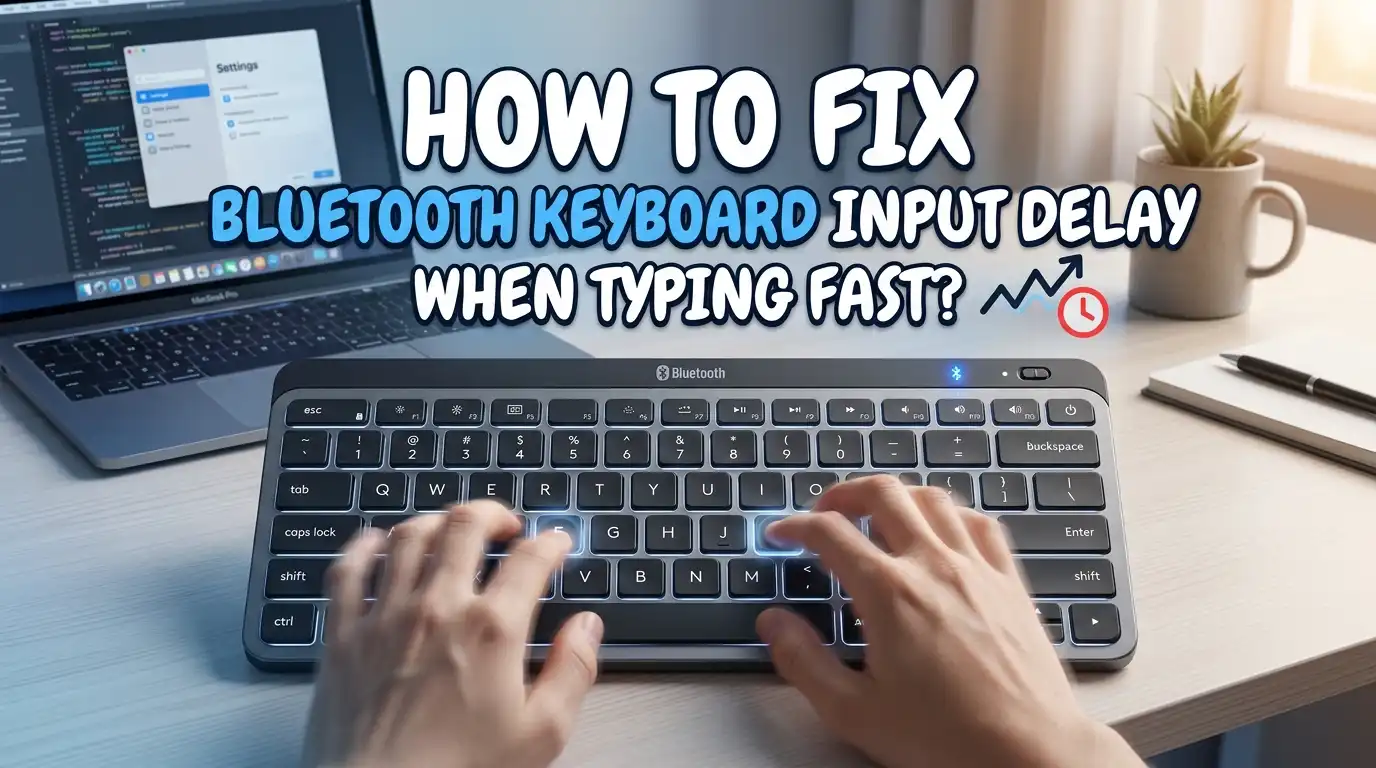
How To Fix Bluetooth Keyboard Input Delay When Typing Fast?
You are typing at full speed, and suddenly your words appear on the screen two or three seconds late. Letters jumble together. Some keystrokes go missing entirely. If this sounds familiar, your Bluetooth keyboard has an input delay problem, and it is more common than you think.
Bluetooth keyboard lag affects millions of users across Windows, Mac, and Linux systems. The delay between pressing a key and seeing the character appear on screen can range from barely noticeable to extremely frustrating.
Fast typists feel it the most because the gap between their speed and the keyboard’s response becomes painfully obvious.
In a Nutshell
- Power management settings are the most common hidden cause. Both Windows and Mac systems put Bluetooth adapters to sleep after a few seconds of inactivity. This creates a noticeable wake up delay the moment you start typing again. Disabling this feature in Device Manager or System Settings often solves the problem instantly.
- Wireless interference from Wi-Fi routers and USB 3.0 devices causes signal disruption. Bluetooth keyboards operate on the 2.4 GHz frequency band, which overlaps with Wi-Fi signals and USB 3.0 data transfer. Moving your Wi-Fi router to the 5 GHz band or switching the Bluetooth receiver to a USB 2.0 port can reduce lag significantly.
- Low battery levels degrade Bluetooth signal strength before any low battery warning appears. Your keyboard may start lagging long before it shows a battery alert. Keeping the battery above 30% charge ensures consistent signal transmission.
- Outdated Bluetooth drivers and firmware create compatibility gaps that cause delayed keystroke processing. Regular updates from your operating system and keyboard manufacturer patch these issues.
- Filter Keys and accessibility settings on Windows can secretly slow down keyboard response. A single accidental shortcut can enable these features without your knowledge, adding artificial delay to every keystroke.
- Switching from Bluetooth to a 2.4 GHz wireless dongle or wired USB connection delivers lower latency for users who need the fastest response times. Bluetooth typically adds 6 to 15 milliseconds of latency, while 2.4 GHz dongles and wired connections drop below 1 millisecond.
Why Bluetooth Keyboards Have Input Delay
Bluetooth keyboards send keystroke data wirelessly through a specific communication protocol. This protocol creates a small amount of latency by design. Every keypress must be encoded, transmitted, received, decoded, and then registered by your operating system.
Standard Bluetooth latency sits between 6 and 15 milliseconds. For casual typing, this delay is nearly invisible. But for fast typists who hit 80 or more words per minute, even small delays stack up and create a noticeable gap between finger movement and screen output.
The delay also increases when the Bluetooth adapter shares bandwidth with other connected devices. A paired mouse, headphones, and keyboard all competing for the same Bluetooth connection will slow each other down. Environmental factors like distance, obstacles, and radio frequency interference make the problem worse.
Pros of understanding the root cause: You can target the exact issue instead of trying random fixes. Cons: Some latency is built into the Bluetooth protocol itself and cannot be eliminated completely without switching connection types.
Check and Disable Power Management Settings
The single most effective fix for Bluetooth keyboard delay is disabling power management on your Bluetooth adapter. Windows and Mac both aggressively put Bluetooth hardware to sleep to save energy. This creates a half second to full second delay every time you start typing after a brief pause.
On Windows, open Device Manager. Expand the Bluetooth section. Right click your Bluetooth adapter (often labeled Intel Wireless Bluetooth or Realtek Bluetooth). Select Properties, then go to the Power Management tab. Uncheck “Allow the computer to turn off this device to save power.” Click OK and restart your computer.
On Mac, go to System Settings, then Bluetooth. Remove the keyboard from paired devices and re-pair it. For older macOS versions, hold Option and Shift while clicking the Bluetooth icon in the menu bar. Select Debug, then Reset the Bluetooth Module.
Pros: This fix works immediately for most users and requires no additional software or hardware. Cons: Disabling power management may slightly increase battery consumption on laptops.
Remove Wireless Interference Sources
Bluetooth operates on the 2.4 GHz frequency. Wi-Fi routers, microwave ovens, baby monitors, USB 3.0 devices, and other Bluetooth peripherals all share this frequency band. Signal congestion causes packet loss, which your keyboard experiences as missed or delayed keystrokes.
Start by switching your Wi-Fi router from 2.4 GHz to 5 GHz if your router supports dual band. The 5 GHz band does not overlap with Bluetooth at all. If you cannot change your Wi-Fi band, try changing the Wi-Fi channel to 1, 6, or 11, which produce the least interference with Bluetooth.
Move your Bluetooth receiver or computer closer to the keyboard. Keep the distance under 3 feet for the best signal quality. If your Bluetooth adapter plugs into a USB 3.0 port on the back of a desktop, move it to a USB 2.0 port or use a USB extension cable to position it on your desk.
Pros: Reducing interference can dramatically improve response time without any software changes. Cons: You may need to rearrange your desk setup or invest in a USB extension cable.
Update Bluetooth Drivers and Keyboard Firmware
Outdated drivers create a communication gap between your keyboard hardware and your operating system. After major system updates, Bluetooth drivers sometimes become incompatible, causing sudden input delay that did not exist before.
On Windows, open Device Manager and expand both the Bluetooth section and Human Interface Devices section. Right click each Bluetooth related entry and select Update Driver. Choose “Search automatically for drivers.” You can also visit your computer manufacturer’s website to download the latest Bluetooth driver package directly.
On Mac, keep macOS updated through System Settings, as Apple bundles Bluetooth driver improvements into system updates. If you use a third party keyboard, check the manufacturer’s website or companion app for firmware updates.
Firmware updates for the keyboard itself fix latency at the hardware level. Many keyboard brands release firmware patches that improve Bluetooth polling rates and reduce debounce times. Connect the keyboard with a USB cable before running any firmware update to prevent interruption.
Pros: Driver and firmware updates fix bugs that no other method can address. Cons: Finding the correct driver version sometimes requires research, and firmware updates carry a small risk if interrupted.
Turn Off Filter Keys and Accessibility Features
Windows has a feature called Filter Keys that intentionally slows down keyboard response. It is designed to help users who accidentally press keys repeatedly, but it creates severe input delay for fast typists. Many people enable it by accident by holding the right Shift key for 8 seconds.
Go to Settings, then Accessibility (or Ease of Access on older Windows versions). Select Keyboard. Make sure Filter Keys is turned off. Also check that Sticky Keys and Toggle Keys are disabled if you do not need them.
On Mac, open System Settings, then Accessibility, then Keyboard. Check that Slow Keys is turned off. Slow Keys adds a deliberate delay before any keystroke registers, which feels identical to Bluetooth lag. Also review the Key Repeat rate and Delay Until Repeat settings under System Settings, then Keyboard. Set the Key Repeat slider to Fast and the Delay Until Repeat slider to Short.
Pros: This is a zero cost, instant fix that many users overlook entirely. Cons: If you actually need these accessibility features, turning them off removes important functionality.
Charge Your Keyboard or Replace the Batteries
Low battery levels reduce Bluetooth signal strength before any visible warning appears on screen. Your keyboard may show 20% battery but already transmit at reduced power, causing intermittent lag spikes and missed keystrokes.
Charge your keyboard fully and test again. If you use disposable batteries, replace them with a fresh set even if the current ones seem functional. Rechargeable keyboards should be plugged in and charged to 100% before you evaluate the input delay.
Some keyboards enter a low power mode automatically when the battery drops below a certain threshold. This low power mode reduces the Bluetooth polling rate to extend battery life, which directly increases input latency. Keeping the charge above 30% prevents this behavior on most models.
Pros: A fully charged keyboard performs at its best signal strength, and this fix takes minutes. Cons: If your battery drains quickly, you may need to charge more frequently or consider a keyboard with better battery life.
Re-pair Your Bluetooth Keyboard
Corrupted pairing data causes persistent connection issues that no amount of driver updates will fix. The Bluetooth pairing profile stores encryption keys and connection parameters that can become outdated or damaged over time.
On Windows, go to Settings, then Bluetooth and Devices. Find your keyboard in the list and select Remove Device. Then put your keyboard into pairing mode (usually by holding a dedicated Bluetooth button until an LED flashes) and pair it fresh.
On Mac, go to System Settings, then Bluetooth. Click the info icon next to your keyboard and select Forget This Device. Restart your Mac before re-pairing. This clears cached connection data and forces a clean handshake between the keyboard and your system.
For best results, remove all other Bluetooth devices temporarily before re-pairing the keyboard. This ensures the initial connection happens without bandwidth competition.
Pros: Re-pairing resolves corrupted connection profiles and often eliminates random lag spikes. Cons: You will need to reconfigure any custom Bluetooth settings, and the process takes a few minutes.
Reduce Connected Bluetooth Devices
Every active Bluetooth device shares the same adapter bandwidth. A Bluetooth mouse, headphones, game controller, and keyboard all running simultaneously force the adapter to cycle between devices rapidly. This time slicing adds latency to each individual device.
Disconnect or turn off Bluetooth devices that you are not actively using. If you wear Bluetooth headphones while typing, consider switching your headphones to a wired connection or a separate dongle instead.
Check your system’s Bluetooth device list for phantom connections. Old devices that were once paired may still attempt to communicate with your adapter in the background. Remove any device you no longer use from the paired device list.
Pros: Fewer connected devices means more dedicated bandwidth for your keyboard, reducing latency. Cons: You lose the convenience of having multiple wireless devices connected at the same time.
Adjust Your Keyboard’s Connection Mode
Many modern Bluetooth keyboards support multiple connection types. Bluetooth, 2.4 GHz wireless via USB dongle, and wired USB are the three most common modes. Each one offers a different balance of convenience and speed.
Bluetooth delivers the most convenience with multi device pairing and no dongle required, but it has the highest latency at 6 to 15 milliseconds. A 2.4 GHz wireless dongle drops latency below 1 millisecond on most keyboards and provides a stable, dedicated connection. Wired USB offers the absolute lowest latency and the most reliable signal.
If your keyboard supports 2.4 GHz mode, try switching to it. Plug the included USB receiver into your computer and switch the keyboard to dongle mode (check your keyboard’s manual for the exact key combination). You get wireless freedom with nearly wired speed.
Pros: Switching connection modes can eliminate Bluetooth specific lag entirely. Cons: 2.4 GHz mode requires a USB port for the dongle, and wired mode removes the wireless benefit altogether.
Optimize System Performance and Background Processes
A heavily loaded CPU takes longer to process incoming Bluetooth data packets. Background applications, browser tabs, antivirus scans, and system updates all compete for processing power and can increase the time between keystroke transmission and screen display.
Open Task Manager on Windows (Ctrl + Shift + Esc) or Activity Monitor on Mac. Sort by CPU usage and close any unnecessary applications. Pay special attention to cloud sync services, software updaters, and media applications running in the background.
Disable hardware acceleration in web browsers if you notice keyboard lag primarily while typing in browser based applications. Hardware acceleration shifts rendering tasks to the GPU but can sometimes cause input processing delays. In Chrome, go to Settings, then System, and toggle off “Use hardware acceleration when available.”
Pros: Freeing up system resources improves overall responsiveness, not just keyboard input. Cons: Closing background applications may interrupt automated tasks like file syncing or scheduled backups.
Upgrade Your Bluetooth Adapter
Older Bluetooth adapters running version 4.0 or below have slower data transfer rates and less efficient frequency hopping. Bluetooth 5.0 and newer versions offer lower latency, better range, and improved coexistence with other wireless signals.
Bluetooth 5.3, the latest widely available version, adds features specifically aimed at reducing latency and improving connection stability. If your computer has an older built in Bluetooth adapter, purchasing an external USB Bluetooth 5.3 adapter is one of the most cost effective hardware upgrades you can make.
Before buying, check your keyboard’s Bluetooth version as well. The connection quality is limited by the older device in the pair. A Bluetooth 5.3 adapter paired with a Bluetooth 4.2 keyboard will still operate at 4.2 performance levels.
Pros: A newer adapter improves performance for all connected Bluetooth devices, not just the keyboard. Cons: External adapters use a USB port, and built in adapters on laptops cannot always be replaced.
Test Your Keyboard on Another Device
Before spending time on advanced fixes, verify that the delay is not caused by the keyboard hardware itself. Connect your keyboard to a different computer, tablet, or phone and type at your normal speed.
If the delay follows the keyboard to every device, the issue is hardware related. Worn out switches, aging Bluetooth chipsets, or degraded batteries inside the keyboard may be the cause. In this case, the keyboard itself needs repair or replacement.
If the delay disappears on a second device, the problem lives in your original computer’s settings, drivers, or Bluetooth adapter. This single test saves hours of unnecessary troubleshooting by pointing you in the right direction immediately.
Pros: Testing on another device isolates the problem quickly and accurately. Cons: You need access to a second Bluetooth capable device for the test.
When To Consider Switching To a Wired Keyboard
Some situations call for accepting that Bluetooth cannot meet your speed requirements. Professional transcriptionists, competitive gamers, and programmers who type above 120 words per minute may find that even optimized Bluetooth introduces enough delay to disrupt their workflow.
Wired mechanical keyboards deliver sub 1 millisecond latency with zero interference risk. They never need charging, never lose connection, and work identically on every system without driver configuration. If you have tried every solution in this guide and still experience input delay, a wired keyboard may be the practical choice.
A good middle ground is a keyboard that supports both wireless and wired modes. Use Bluetooth for casual browsing and email, then plug in the USB cable for intensive typing sessions. This gives you the best of both worlds without owning two separate keyboards.
Pros: A wired connection eliminates all wireless related latency issues permanently. Cons: You lose the cable free convenience and multi device switching that Bluetooth provides.
Frequently Asked Questions
Why does my Bluetooth keyboard lag only after being idle for a few seconds?
This happens because of power management settings on your computer. Windows and Mac both put Bluetooth adapters into a low power sleep state after a few seconds of inactivity. The adapter takes a moment to wake up when you start typing again, which creates that initial burst of lag. Disable the power saving option for your Bluetooth adapter in Device Manager on Windows or reset the Bluetooth module on Mac to fix this issue.
Can Wi-Fi interfere with my Bluetooth keyboard signal?
Yes. Both Wi-Fi (on the 2.4 GHz band) and Bluetooth use the same frequency range, and they can interfere with each other. Switching your Wi-Fi router to the 5 GHz band removes this conflict entirely. You can also change your router’s Wi-Fi channel to 1, 6, or 11, which produce less overlap with Bluetooth signals.
How do I know if my Bluetooth keyboard delay is a hardware or software problem?
The fastest way to find out is to connect the keyboard to a completely different device. If the delay exists on both devices, the keyboard hardware is likely failing. If the lag only appears on one computer, the problem is software or driver related on that specific machine.
Does Bluetooth version affect keyboard input delay?
Yes, it does. Bluetooth 5.0 and newer versions offer lower latency and more efficient data handling compared to older versions like 4.0 or 4.2. Upgrading to a Bluetooth 5.3 adapter can reduce lag, but both the adapter and the keyboard need to support the newer version to get the full benefit.
Is 2.4 GHz wireless better than Bluetooth for fast typing?
In most cases, yes. A dedicated 2.4 GHz wireless connection through a USB dongle delivers latency below 1 millisecond, while Bluetooth typically sits between 6 and 15 milliseconds. If your keyboard supports both modes, switching to 2.4 GHz gives you a faster, more stable connection while still being wireless.
Will resetting my keyboard fix the input delay?
Resetting and re-pairing your keyboard can fix corrupted Bluetooth pairing data that causes inconsistent lag. Remove the keyboard from your device’s Bluetooth settings, restart both the keyboard and the computer, then pair them again from scratch. This clears outdated connection profiles and often resolves random delay spikes.

Hi, I’m Lola Griffin 👩💻, the voice and creator behind ResizerBox. I’m a passionate tech enthusiast who loves exploring the latest gadgets, smart devices, and trending Amazon electronics. Through my reviews, I share honest insights, real-world testing experiences, and practical buying advice to help readers make confident tech choices.