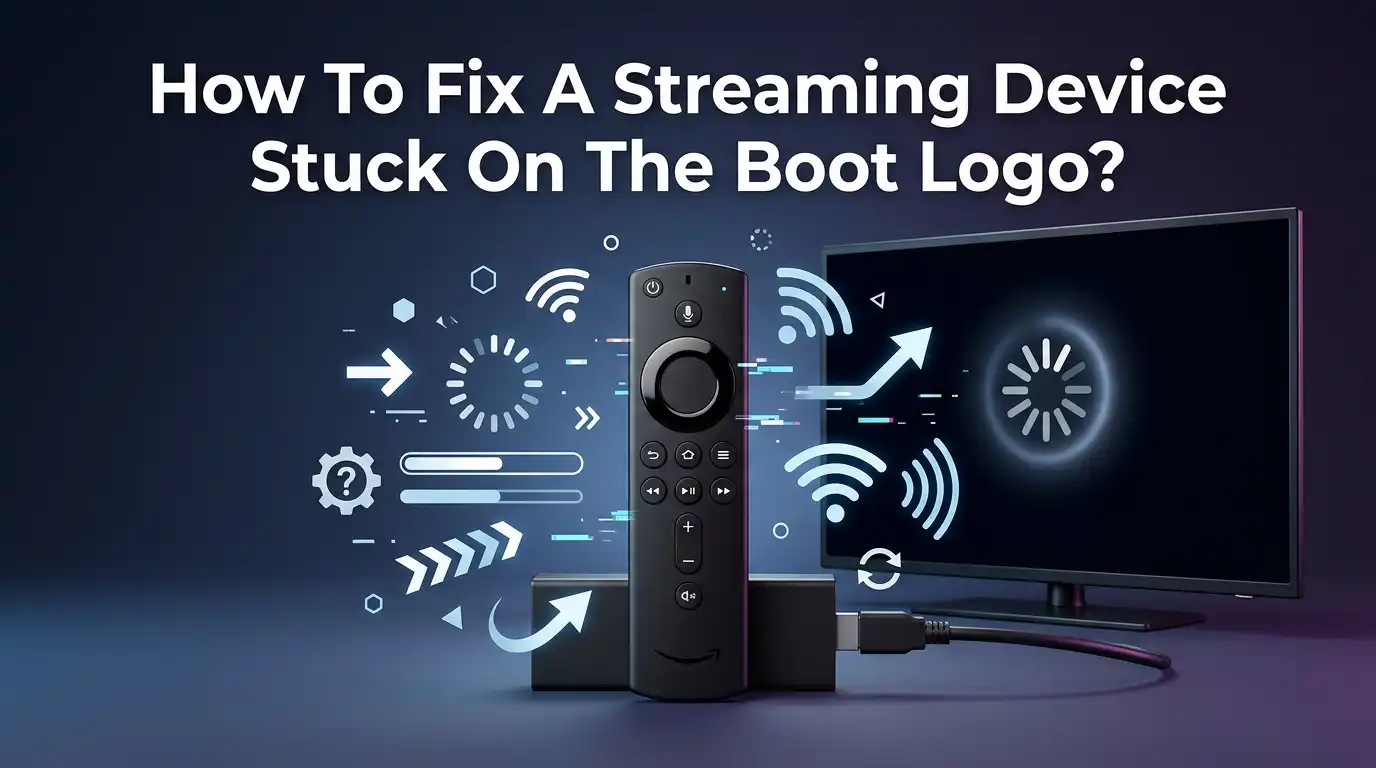
How To Fix A Streaming Device Stuck On The Boot Logo?
You press the power button, the logo pops up, and then… nothing. Your streaming device just sits there frozen on that bright logo screen. No home menu. No apps. No movie night. It feels like your device is broken forever, but in most cases it is not.
A device stuck on the boot logo is one of the most common streaming problems, and the good news is that you can usually fix it yourself in minutes. This guide walks you through every working fix, from the simplest power trick to a full factory reset.
You do not need any tech skills or special tools. Just follow each step in order, and your device will likely spring back to life. Let us get your screen moving again.
Key Takeaways
- Start with a power cycle first. Unplug your device for at least 60 seconds, then plug it back in. This simple step fixes a surprising number of stuck boot logo cases.
- Bad power is the top hidden cause. A weak charger, a USB port on your TV, or a worn cable often makes the device freeze on the logo. Use the original power adapter and a wall outlet.
- Heat hurts your device. Overheating can trap your streamer on the logo screen. Let it cool down and give it open air.
- Recovery mode saves bricked devices. Most Fire TV, Roku, and Android boxes have a button combo that opens a reset menu even when the screen is frozen.
- A factory reset is your last DIY step. It wipes your data but clears the corrupted files that block startup. Try every other fix before this one.
- Hardware damage means repair or replacement. If nothing works, the storage chip or board may have failed.
Why Your Streaming Device Gets Stuck On The Boot Logo
Your streaming device runs a small computer inside. When you turn it on, it loads its software in a set order. A stuck boot logo means the device started this process but could not finish it. Something blocked the load.
The most common reasons are corrupted software files, a weak power supply, overheating, or a failed update. Sometimes a single bad app crashes the whole startup. Other times the storage memory wears out and the system cannot read its own files.
A loose HDMI cable can also confuse the device. Knowing the cause helps you pick the right fix faster. The next sections walk through each solution, starting with the easiest. Work through them in order for the best results.
Check Your Power Source And Cables First
Many people skip this step, but bad power is the number one reason streaming devices freeze on the logo. Your device needs steady, full power to finish booting. A USB port on the back of your TV often does not give enough power.
This causes the device to start, drain, and stall on the logo. First, plug your streamer directly into a wall outlet using its original power adapter. Avoid surge protectors and power strips for this test.
Next, check the cable for any kinks, frays, or loose ends. Swap in a different cable if you have one. Push the HDMI cable firmly into both the device and the TV. A loose connection can mimic a boot loop. This quick check fixes a large share of cases.
Pros: It is free, fast, and safe. You risk nothing and often solve the problem in seconds.
Cons: It does not help if the issue is software based. You may need a spare adapter or cable to test properly.
Perform A Simple Power Cycle (The 60 Second Fix)
A power cycle is the most powerful easy fix you have. It clears the device’s short term memory and forces a clean restart. This step alone solves most stuck logo problems. Here is how to do it the right way.
First, unplug your streaming device from the power source completely. Do not just turn it off. Pull the plug from the wall or the adapter. Now wait a full 60 seconds. This pause lets the internal parts fully discharge.
Counting matters here, so do not rush it. After 60 seconds, plug the device back in and turn it on. Watch the screen and give it two to three minutes to load. The boot logo may sit for a while before the home screen appears. Be patient.
Pros: It works fast, needs no tools, and keeps all your apps and settings.
Cons: It may not fix deep software corruption. Sometimes you must repeat it two or three times before it sticks.
Let Your Device Cool Down To Prevent Overheating
Heat is a quiet enemy of streaming devices. When your streamer gets too hot, it can freeze on the boot logo to protect itself. Many sticks and boxes sit in tight spaces behind the TV, where air cannot move.
This traps heat fast. Touch the device gently. If it feels hot, this is likely your problem. Unplug it and let it rest for 15 to 30 minutes in open air. Do not place it on soft surfaces like blankets that block airflow.
Move it away from other warm electronics. A short HDMI extender cable can pull the device out of the cramped area behind your TV. This gives it room to breathe and stops future overheating. Once it cools, plug it back in and try again.
Pros: It costs nothing and prevents the problem from returning. Better airflow protects your device long term.
Cons: You must wait for it to cool, which takes time. It only helps if heat is the real cause.
Restart Using The Remote Control
Some streaming devices let you force a restart straight from the remote, even when the screen looks frozen. This bypasses the stuck logo and sends a fresh restart command. The button combo changes by brand, so try the one that matches your device.
On most Fire TV remotes, press and hold the Select (center) button and the Play/Pause button together for about ten seconds. On some models, hold the Back button and the Right navigation button for ten seconds to trigger a reset prompt.
For Apple TV, hold the Menu or Back button along with the Volume Down or TV button until the light blinks. Keep holding until you see the screen react. This method is quick and saves you from unplugging anything. Give the device a moment to reboot after the combo.
Pros: It is fast and needs no cables or outlets. You can do it from your couch.
Cons: It does not work on every model. The remote must still be paired and working.
Try Booting Into Recovery Mode
Recovery mode is a hidden menu built into most streaming devices. It lets you fix or reset the device even when the normal screen is frozen. This is a strong tool when a power cycle fails. To enter it, you usually press a button combo while the device powers on.
For Fire TV, unplug the device, then hold the power or select button while you plug it back in. Keep holding for about 15 seconds. The recovery menu should appear. On Android TV boxes, you often hold a small reset button with a toothpick while connecting power.
Inside recovery mode, you can choose options like reboot, wipe cache, or factory reset. Use the volume or navigation buttons to move and select. Start with the reboot or wipe cache option before choosing a full reset. This menu often rescues devices that seem dead.
Pros: It works when the screen is fully frozen. It offers gentle fixes before a full wipe.
Cons: The button combo can be tricky to time. A wrong choice here may erase your data.
Clear The Cache To Remove Corrupted Files
A full cache can choke your device during startup. Cache files are temporary data that apps store to load faster, but they can become corrupted and block the boot. Clearing them often frees the device without deleting your apps or login info.
This is a softer step than a factory reset, so try it first. On Roku devices, you can clear the cache with a remote combo. Press the Home button five times, then Up once, Rewind twice, and Fast Forward twice. The device will restart and clear its cache.
On Fire TV and Android boxes, you usually clear cache through the recovery menu by choosing the wipe cache partition option. This removes only junk files, not your personal data. After clearing, restart the device and watch the boot screen. The home menu should now load cleanly.
Pros: It keeps your apps and settings while removing the bad files. It is safer than a full reset.
Cons: You may need a working remote or recovery mode access. It does not fix hardware faults.
Remove External Devices And USB Drives
External gadgets plugged into your streamer can stop it from booting. A faulty USB drive, game controller, or storage stick can confuse the startup process and trap the device on the logo. The device may keep trying to read a bad drive and never move past the logo.
This is a common cause that people often overlook. Unplug every extra item from your streaming device. Remove USB flash drives, external hard drives, SD cards, and any wired accessories. Leave only the power cable and the HDMI connection in place.
Now restart the device and see if it boots normally. If it loads, one of those items was the problem. Plug them back in one at a time to find the bad one. Replace or reformat the faulty drive before using it again.
Pros: It is quick, free, and easy to test. It pinpoints a hidden cause fast.
Cons: It only helps if an external device caused the freeze. You may lose data on a corrupted drive.
Update Or Reinstall The Software
Old or broken software often causes a stuck boot logo. A failed update can leave the system half finished and unable to start. If you can reach a recovery menu or a brief settings window, an update may fix it.
Some Android TV boxes let you load a fresh software file from a USB drive. You download the correct firmware for your exact model from the maker’s official site, place it on a USB stick, and install it through recovery mode.
For Roku, Fire TV, and Apple TV, the device usually updates on its own once it connects to the internet and boots. Always match the software to your exact device model. The wrong file can cause more harm. If the device boots even for a second, head straight to settings and check for an update.
Pros: It can fix deep software bugs and restore full function. It may save you from a full reset.
Cons: It needs some access to the device or a computer. Using the wrong file can damage the device.
Perform A Factory Reset (Your Strongest DIY Fix)
A factory reset wipes the device and rebuilds it from scratch. This clears the corrupted files that block startup and works when softer fixes fail. It is your most powerful do it yourself option. Remember, this erases all your apps, accounts, and settings.
You will need to set up the device again afterward. If you can reach recovery mode, choose the wipe data or factory reset option. On Roku devices with no menu access, find the small reset button on the body.
Use a paperclip to press and hold it for at least 20 seconds until the indicator light flashes. On Fire TV, hold the Back and Right buttons together for ten seconds to start the reset prompt. After the reset, the device boots fresh and walks you through setup. This fixes most stubborn boot logo cases.
Pros: It clears nearly all software problems. It restores the device to like new condition.
Cons: You lose all your apps, logins, and settings. You must set everything up again from zero.
Test The Device On A Different TV Or Outlet
Sometimes the problem is not the streamer at all. Your TV’s HDMI port or wall outlet may be the real culprit. Testing on another TV quickly tells you where the fault lies. This step saves you from blaming the wrong device. Take your streaming device to another television in your home.
Plug it into a different HDMI port and a different wall outlet. Use the same power adapter if you can. Turn it on and watch the boot screen closely. If it loads fine on the second TV, your original TV’s port or power was the problem.
Try a different HDMI port on your first TV, or a different outlet. If it still sticks on the logo everywhere, the device itself has the fault. This simple test points you to the right repair path.
Pros: It isolates the cause clearly. It can reveal a cheap fix like a bad port.
Cons: You need a second TV to test. It takes a little setup and moving around.
When To Seek Professional Help Or Replace The Device
Sometimes a streaming device simply reaches the end of its life. If you have tried every fix and the logo still freezes, the storage chip or main board may have failed. This is a hardware problem that home fixes cannot solve.
Storage memory wears out over years of use, and once it fails, the device cannot read its own software. Check if your device is still under warranty. If so, contact the maker for a free repair or replacement.
Most streaming sticks cost less to replace than to repair, so weigh the price before paying for service. If the device is old and out of warranty, replacement is usually the smart choice.
Back up nothing special is needed since your accounts live in the cloud. A new device sets up in minutes and runs faster. Recycle the old one responsibly.
Pros: It ends the frustration for good and gives you a reliable device. Cloud accounts make setup easy.
Cons: It costs money. Repair may not be worth it for a low priced device.
How To Prevent The Boot Logo Problem In The Future
A few simple habits keep your streamer healthy and stop the boot logo freeze from returning. Good airflow and steady power matter most. First, give your device room to breathe.
Use an HDMI extender to move it out of tight spaces and away from heat. Never tuck it under blankets or behind hot electronics. Second, always use the original power adapter and a wall outlet, not a TV USB port. Steady power prevents most boot failures.
Keep your software updated, since fresh updates fix bugs that cause crashes. Restart your device once a week to clear its cache and memory. Avoid plugging in unknown or faulty USB drives.
Unplug the device during long trips or storms to protect it from power surges. These small steps add years to your device’s life and keep movie nights smooth.
Frequently Asked Questions
Why is my streaming device stuck on the logo screen?
Your device started its software but could not finish loading. The most common causes are weak power, overheating, corrupted files, or a failed update. A loose HDMI cable or a faulty USB drive can also trap it on the logo. Start with a power cycle to fix most cases fast.
How long should I wait on the boot logo before worrying?
Give your device two to three minutes to load fully. The logo may sit for a while during a normal startup or update. If it stays frozen for more than five minutes, it is truly stuck. At that point, unplug it and begin the fixes in this guide.
Will a factory reset delete all my apps and accounts?
Yes, a factory reset wipes everything on the device. You lose your apps, logins, and settings, and you must set it up again. Your accounts still live in the cloud, so you only need to sign back in. Try every softer fix first before choosing a reset.
Can a bad power supply cause the boot logo freeze?
Yes, and it is one of the top hidden causes. A weak charger or a TV USB port often fails to give enough power, so the device stalls on the logo. Always use the original adapter plugged into a wall outlet for steady, full power.
Is it cheaper to repair or replace a stuck streaming device?
In most cases, replacing is cheaper than repair. Streaming sticks and boxes usually cost less than a repair bill. If your device is under warranty, contact the maker for a free fix first. For old, out of warranty devices, a fresh replacement is the smart choice.
Why does my device freeze again after a fix?
Repeat freezes often point to heat or weak power. Move the device to open air and use the original adapter in a wall outlet. Keep the software updated and restart it weekly. If it still freezes, the storage chip may be failing, which means it is time to replace it.

Hi, I’m Lola Griffin 👩💻, the voice and creator behind ResizerBox. I’m a passionate tech enthusiast who loves exploring the latest gadgets, smart devices, and trending Amazon electronics. Through my reviews, I share honest insights, real-world testing experiences, and practical buying advice to help readers make confident tech choices.