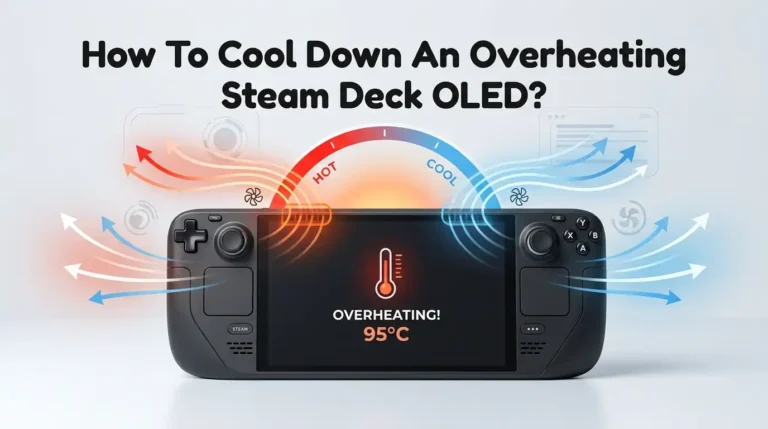
Why Is My Portable Gaming Console Overheating In Docked Mode?
Your handheld gaming console feels fine when you hold it. You drop it into the dock, connect it to your TV, and suddenly it runs hot. Maybe the fan screams.
Maybe the screen flashes a warning. Maybe it shuts down right in the middle of a boss fight. That is frustrating, and you are not alone.
Docked mode pushes your console harder than handheld mode does. It pulls more power, runs the chip faster, and pumps out more heat. When airflow gets blocked or dust builds up, that heat has nowhere to go.
Key Takeaways
- Docked mode runs your console at higher clock speeds. It draws more power, often up to 50 watts on newer models, which produces much more heat than handheld mode.
- Blocked airflow is the number one cause. Most docks hide the intake and exhaust vents, so trapping the console in a tight cabinet or against a wall makes heat build up fast.
- Dust is a silent killer. Dust clogs the internal fan and heatsink over time, which makes cooling far less effective and triggers thermal shutdowns.
- Room temperature matters a lot. A hot room near 25 to 35 degrees Celsius makes overheating much more likely, especially during long sessions.
- Simple fixes solve most cases. Cleaning vents, improving placement, adding an external fan, and using a ventilated dock fix the issue for the majority of users.
- Persistent heat may signal a hardware fault. If you cleaned everything and it still overheats, the thermal paste or fan may have failed, and a repair may be needed.
What Actually Happens When Your Console Is Docked
Your console behaves differently the moment it enters the dock. In handheld mode, it limits power to protect the battery and stay cool in your hands. In docked mode, it removes those limits. The chip runs at a higher clock speed to deliver sharper graphics and smoother frame rates on your TV.
That extra performance has a cost. The processor pulls more electricity, and more electricity means more heat. Newer consoles can draw up to 50 watts while docked.
The dock also traps the console upright in a tight slot. This combination of higher power and reduced airflow is the core reason your device gets hot. Understanding this helps you target the right fix.
Why Poor Airflow Is The Biggest Culprit
Airflow is everything for a small gaming console. Your device has an intake vent and an exhaust vent. Cool air goes in, hot air goes out. The dock often sits flush against the back of the console, which blocks one of those vents.
When you place the dock inside a closed TV cabinet, on a thick rug, or pressed against a wall, the hot air has nowhere to escape. It recycles the same warm air again and again. The temperature climbs until the console protects itself by slowing down or shutting off.
The fix is simple. Give your dock breathing room. Leave several inches of open space on all sides. Keep it on a hard, flat surface. This single change solves overheating for many people.
How To Check And Clean The Vents
Dust loves to gather around vents. Over months of use, it forms a layer that chokes airflow. Cleaning your vents is one of the easiest and most effective fixes. Start by turning off and unplugging your console completely.
Look at the top and side vents. If you see grey fuzz or dust, that is your problem. Use a soft brush or a cotton swab to gently wipe the openings. Hold a can of compressed air at least a few inches away and give short bursts to push dust out, not deeper inside.
Pros: It is free, fast, and safe for almost everyone.
Cons: Surface cleaning will not reach deep internal dust on the fan or heatsink, so badly clogged units may need more work.
Cleaning The Internal Fan And Heatsink Safely
Sometimes surface cleaning is not enough. Dust travels inside and wraps around the fan blades and heatsink fins. This buried dust is a leading cause of repeat overheating. Reaching it means opening the console, which is a bigger job.
If you feel comfortable with small electronics, you can open the back panel with the correct screwdriver. Gently brush the fan blades and clear the heatsink fins. Never spin the fan with compressed air, since that can damage the tiny motor. Take photos as you go so reassembly is easy.
Pros: It removes the dust that surface cleaning misses and restores full cooling power.
Cons: Opening the device may void your warranty and risks damage if you are not careful, so beginners should consider a professional instead.
Why Room Temperature Plays A Huge Role
Your console cannot cool itself if the room is already hot. The fan pulls in surrounding air to lower the internal temperature. If that air is warm, cooling barely works. This is why overheating spikes during summer or in rooms without air conditioning.
Most consoles are designed to run in environments between 5 and 35 degrees Celsius. Push past that range and thermal warnings appear quickly. Direct sunlight on the dock makes things even worse, since the case absorbs extra heat.
The fix costs nothing. Move your gaming setup away from windows, radiators, and other heat sources. Open a window or run a fan in the room. Game in the coolest part of your home during heat waves. Your console will thank you.
Adjusting Settings To Lower Heat Output
You can reduce heat by easing the load on your console. Some games push the hardware to its limit, which raises temperatures fast. Lowering certain settings cuts the power draw and the heat that comes with it.
Inside your game or system menu, look for graphics options. Reducing frame rate, lowering resolution, or turning off performance boost modes all help. Some consoles let you cap the refresh rate, which lowers strain during long sessions. Closing background apps and downloads also frees up the chip.
Pros: This costs nothing and works instantly without any tools.
Cons: You sacrifice some visual quality or smoothness, which may bother players who want the best possible graphics on their big screen.
Using An External Cooling Fan Or Cooling Dock
When built in cooling struggles, extra help works wonders. External fans and cooling docks add active airflow that pulls heat away from the case. A cooling dock with a built in fan can drop temperatures noticeably during demanding games.
Some cooling docks even use thermoelectric plates that actively chill the console body. Clip on fans aim a steady stream of air directly at the vents. Both options give your console the airflow that a standard dock cannot provide on its own.
Pros: They deliver strong, consistent cooling and let you play long sessions without thermal shutdowns.
Cons: They cost extra money, add bulk to your setup, and some fans produce noticeable noise that can distract you during quiet games.
Choosing A Better Ventilated Dock
Not all docks cool equally. The standard dock that came with your console often traps heat because it wraps tightly around the device. A ventilated dock with open sides solves this design flaw. These docks expose the vents fully so air moves freely.
Open frame docks and stands keep the console upright while leaving large gaps for airflow. Some include extra slots or mesh panels that let heat rise away naturally. This passive cooling makes a real difference over hours of play.
Pros: It improves airflow without any noise or extra power, and it works quietly in the background.
Cons: A replacement dock costs money, and some third party docks have caused issues with certain consoles, so you must pick a trusted, compatible model.
How Power Supply And Charging Affect Heat
Charging and gaming at the same time creates the hottest scenario possible. Your console runs the chip hard while also pushing power into the battery. Both processes generate heat at once, which raises the internal temperature quickly.
A faulty or underpowered charger makes this worse. Using the wrong adapter can cause the dock to run hot and even stop charging. Always use the official power adapter or a certified equivalent that matches your console’s wattage.
If your dock itself feels hot, unplug it and let it cool before reconnecting. Pros: Using the correct charger keeps power delivery stable and reduces unnecessary heat.
Cons: Official adapters can be pricey, and you must confirm the wattage carefully, since a weak replacement causes more harm than good.
Giving Your Console Breaks During Long Sessions
Marathon gaming sessions push heat to the limit. The longer your console runs in docked mode, the more heat builds with no chance to cool down. Short breaks let the internal temperature drop back to a safe level.
You do not need long pauses. A five to ten minute break every couple of hours makes a real difference. Pause the game, let the fan catch up, and the console recovers. This simple habit prevents the slow heat buildup that leads to shutdowns.
Pros: It costs nothing, needs no tools, and protects your hardware over the long term.
Cons: Breaks interrupt your gameplay flow, which can be annoying during intense story moments or competitive online matches that you cannot easily pause.
When Thermal Paste Or Hardware Is The Real Problem
Sometimes the issue lives deep inside. The thermal paste between the chip and the heatsink dries out over years of use. Old, cracked paste cannot transfer heat properly, so the console overheats no matter how clean it is.
A failing fan is another culprit. If you hear grinding, rattling, or no fan noise at all, the motor may be dying. Replacing the thermal paste or the fan often fixes stubborn overheating. These repairs need skill and the right tools.
Pros: Fresh paste and a working fan can restore your console to like new cooling.
Cons: This is an advanced repair that risks damage and may void your warranty, so most people should let a qualified technician handle it.
Step By Step Troubleshooting Checklist
Let us put everything together into a clear order. Work through these steps one at a time until the heat stops. Start with the easy, free fixes before moving to anything that costs money or risk.
First, move your dock to an open, ventilated space away from heat. Second, clean the external vents with a brush and compressed air. Third, check the room temperature and cool the area if needed. Fourth, lower in game settings to reduce the load.
If heat continues, add an external fan, try a ventilated dock, and confirm you use the correct charger. Finally, if nothing works, inspect the internal fan and thermal paste or book a repair. This order saves you time and money.
How To Prevent Overheating In The Future
Prevention beats repair every time. A few small habits keep your console cool for years. Good airflow and regular cleaning are the foundation of a healthy console. Make them part of your routine.
Keep the dock in an open spot with space on every side. Wipe the vents every few weeks before dust builds up. Avoid gaming in hot rooms or direct sunlight. Take short breaks during long sessions and always use the right charger.
Store your console away from heat sources when you are not playing. These simple actions cost nothing yet protect a device you spent good money on. A little care today prevents a big headache tomorrow.
Frequently Asked Questions
Is it normal for my console to feel warm in docked mode?
Yes, some warmth is completely normal. Docked mode runs the chip faster and draws more power, so the case naturally heats up. Mild warmth is fine. Worry only when the device becomes very hot, the fan roars constantly, or you see thermal warnings and shutdowns.
Can overheating permanently damage my gaming console?
Frequent, severe overheating can shorten the life of internal parts over time. Your console has safety features that slow it down or shut it off to protect itself. These features prevent immediate damage. Still, repeated heat stress can wear out the battery and chip faster, so fixing the cause matters.
Should I use a cooling fan or just clean the vents first?
Always clean the vents first, since it is free and often enough. Try the simple fixes before spending money. If your console still overheats after cleaning and improving airflow, then add an external fan or cooling dock for extra help during demanding games.
Why does my console overheat in the dock but not in handheld mode?
Handheld mode limits power to save battery and stay cool in your hands. Docked mode removes those limits to boost performance for your TV. That extra power creates more heat. The dock also traps the vents, so the heat has fewer ways to escape.
Is it safe to game while my console is charging in the dock?
It is safe, but it does create the most heat. Your console runs the game and charges the battery at the same time. Both tasks produce heat together. Make sure the dock sits in an open, ventilated space and that you use the correct official charger.
How often should I clean my console to prevent overheating?
A light cleaning of the external vents every few weeks works well for most users. If you live in a dusty home or own pets, clean more often. A deeper internal cleaning once or twice a year keeps the fan and heatsink clear for the best long term cooling.

Hi, I’m Lola Griffin 👩💻, the voice and creator behind ResizerBox. I’m a passionate tech enthusiast who loves exploring the latest gadgets, smart devices, and trending Amazon electronics. Through my reviews, I share honest insights, real-world testing experiences, and practical buying advice to help readers make confident tech choices.