
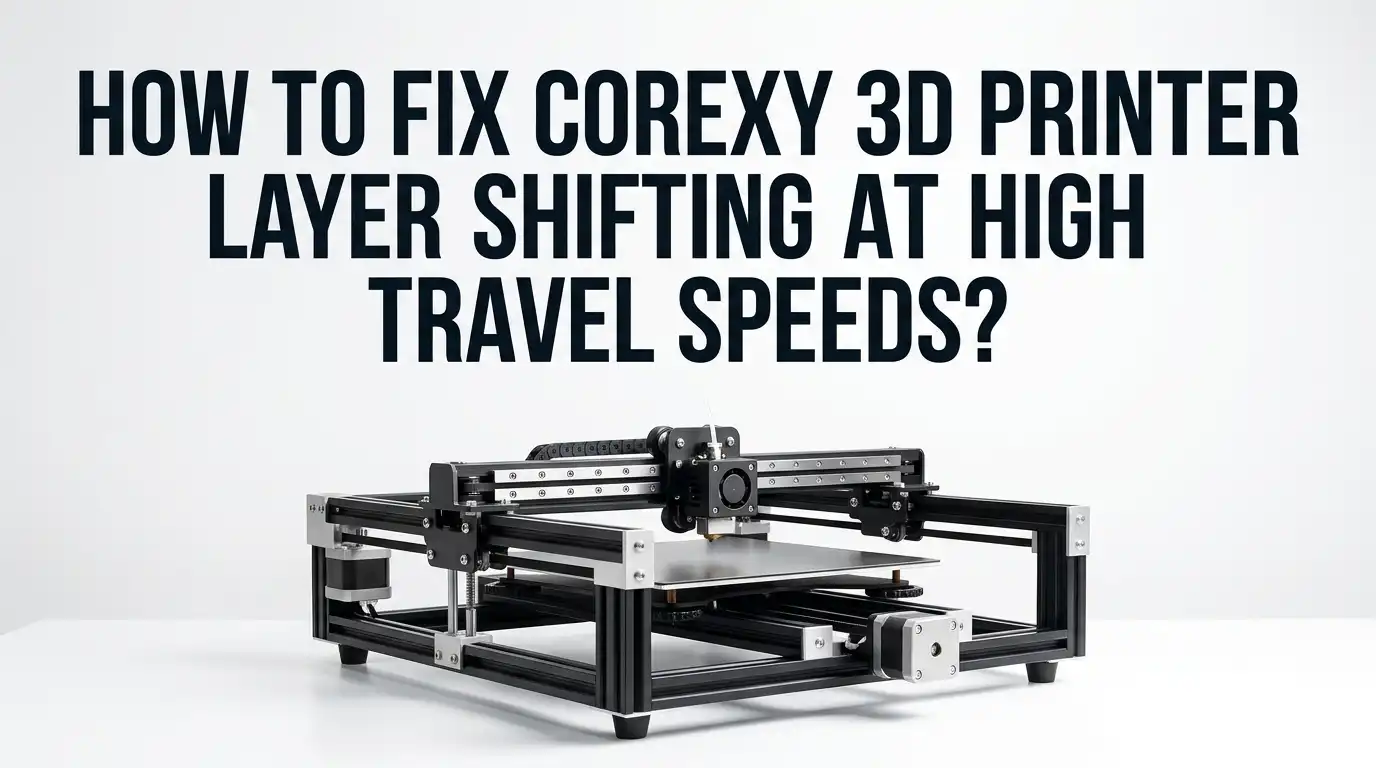
How To Fix CoreXY 3D Printer Layer Shifting At High Travel Speeds?
If your CoreXY printer looks perfect for the first few layers and then suddenly throws the whole print sideways, you are dealing with one of the most annoying failures in 3D printing.
Layer shifting at high travel speeds wastes time, filament, and trust in your machine. The good news is that this problem usually comes from a short list of causes. You can find it. You can fix it. In most cases, you do not need new parts.
This guide walks you through the real causes in a simple order. You will learn what to check first, what to change in firmware, and how to test your printer without guessing.
In a Nutshell
- Layer shifting means the printer lost position. On a CoreXY machine, that often points to skipped motor steps, slipping pulleys, uneven belt tension, or motion resistance. If the shift shows up at high travel speed, the machine is usually being pushed past its safe limit.
- Start with the easy mechanical checks first. Belts, pulleys, idlers, rails, and cable routing cause many layer shift problems. Firmware changes will not fix a loose set screw. A five minute inspection can save hours of random tuning.
- Lower acceleration before you slash travel speed. Many printers can handle fast travel moves, but they fail during the sudden start and stop of those moves. Acceleration is often the real load maker. A small reduction here can stop missed steps fast.
- Motor current matters, but more is not always better. Low current can reduce torque. High current can overheat the motor or driver and create the same problem later in the print. You want a safe middle zone, not the highest number you can set.
- Cooling and collisions are easy to miss. A motor driver that gets hot after thirty minutes can shift layers even if short tests look fine. A nozzle hit from a curled corner or bad cable path can do the same thing. Always test with a longer print after each fix.
- Build a profile with margin, not with pride. If your printer barely survives one fast test, that setting is too high for daily use. Back off a little and keep it reliable. A stable printer at high speed is far better than a fast printer that fails every third job.
Know What Layer Shifting Means On A CoreXY Printer
Layer shifting happens when the printer thinks the toolhead is in one place, but the toolhead is actually somewhere else. That mismatch stays in the rest of the print.
On a CoreXY printer, the motion system uses two motors and two belts together. So one small fault can create a strange shift that looks diagonal or random.
That detail matters. If a pulley slips, one motor misses steps, or one belt has more drag, the printer can lose position without any warning message. The machine keeps printing as if nothing went wrong.
Your first goal is to confirm that the issue is true layer shift and not ringing, wobble, or bad adhesion. Ringing repeats like ripples near corners. Layer shift moves the entire model over. Pros: identifying the exact fault pattern saves time. Cons: many print defects look similar at first glance, so you need a careful look before changing settings.
Run A Quick Test Print Before You Change Anything
Do not start by changing ten settings at once. Print a small test model with sharp corners and long travel moves. A simple box or tall tower works well. Set the travel speed close to the point where failures begin, then watch and listen.
If the toolhead makes a harsh click, shudder, or sudden snap, that often points to skipped steps or a collision. If the print finishes but shows one clean offset, you may have a pulley slip or a one time crash. If the shift gets worse over time, heat or drag may be building up.
Write down three things: when the shift starts, which direction it moves, and whether it happens on travel or while printing. That short note gives you a map. Pros: test prints are cheap and fast. Cons: very small tests may miss heat related faults that only appear in longer jobs.
Check Belt Tension Before You Touch Firmware
Belt tension is one of the first things to inspect on any CoreXY printer with high speed layer shifts. Belts that are too loose can skip or let the carriage lag. Belts that are too tight add load to bearings, idlers, and motors. Both cases can create missed motion.
Start by checking that both A and B belts feel even. They do not need to feel like guitar strings pulled to the limit. In fact, many builders overtighten belts by mistake. On some Voron style CoreXY setups, about 110 Hz on a 150 mm belt span is used as a safe starting point, but your printer may need slight changes.
Move the toolhead by hand with power off. It should feel smooth. Pros: belt checks are free and often solve the issue fast. Cons: belt tension is easy to overcorrect, and equal feel by hand is not always exact enough.
Make Sure Pulleys And Set Screws Cannot Slip
A loose pulley can act perfect for a while and then slip during one hard move. That one slip can shift the whole print. This is common on printers that run high acceleration and fast travel. CoreXY printers are very sensitive here because both motors work together for every XY move.
Inspect every motor pulley and idler path. Check that the set screw sits on the flat part of the motor shaft where possible. Then confirm the second screw is tight as well. Look for black dust, belt edge wear, or shiny marks on the shaft. Those are warning signs.
Do not trust a quick finger test. Use the right hex key and check every pulley on both motors. Pros: this fix is simple and often permanent. Cons: if you overtighten poor quality hardware, you can strip the screw or damage the pulley.
Remove Drag From Rails, Idlers, And Cable Routing
High travel speed exposes drag that slower printing can hide. A rail that feels only a little rough by hand can become a real load when the toolhead changes direction hard. The same is true for dry idlers, misaligned belt paths, and cable bundles that hit the frame near the edge of travel.
Power the printer off and move the carriage through the full XY range slowly. Then move it faster by hand. You are checking for tight spots, rubbing, or a sudden rise in resistance. Pay close attention near the corners. That is where belt angle and cable path problems often show up.
Look for twisted wiring, zip ties that hit the frame, and belts that do not run straight through the pulleys. Pros: fixing drag improves print quality and reliability together. Cons: finding the exact source can take time because several small friction points can stack up.
Lower Acceleration Before You Lower Travel Speed
Many users cut travel speed first, but acceleration is often the real cause of layer shifting. The printer may never even reach its top travel speed on short moves. What hurts the system is the force needed to start and stop fast. If acceleration is too high, the motor can skip even when the speed number looks reasonable.
Reduce travel acceleration first, then test again. If you use Marlin, review your motion limits such as M201 and M204. If you use Klipper, check max_accel and related travel values. A small drop can make a big difference. Try a reduction of 10 to 20 percent and retest.
This is often the highest value fix for high speed failures. Pros: fast to test and very effective. Cons: lower acceleration can add print time, especially on small parts with many short moves.
Tune Jerk Or Square Corner Velocity With Care
Cornering settings control how aggressively the printer changes direction. In Marlin, people often talk about jerk. In Klipper, square_corner_velocity is the common setting. If this value is too high, the printer can snap into direction changes harder than the motion system can handle. That snap can trigger skipped steps and layer shifts.
Start from a known safe value. Then make small changes. Do not jump from very low to very high in one move. Watch what happens at corners and during travel around islands. If the printer gets louder, harsher, or more violent, back off.
Lower cornering values usually smooth motion. The tradeoff is that very low values can slow prints and leave extra material at corners because the nozzle spends more time there. Pros: good for calming harsh motion. Cons: too low can create blobs, slowdowns, and soft corners.
Set Stepper Motor Current In The Safe Window
If motor current is too low, the motor may not have enough torque for hard accelerations. If current is too high, the motor and driver can run hot, and heat can trigger missed steps later. That is why simply turning the current up is not always the right answer.
Check your current settings for both XY motors. CoreXY printers need the two motors to work as a pair, so uneven current can create uneven behavior. Raise current in small steps only if you have evidence of skipped steps and the motors are not already very hot. Touch test with care. If a motor is too hot to touch for more than a moment, you are likely too high.
Stay inside the safe range for your motor and driver. Pros: correct current restores torque quickly. Cons: wrong current can hide the problem at first, then cause heat faults during long prints.
Keep Drivers And Motors Cool During Long Prints
Some printers pass every short test and still shift layers in the middle of a long job. Heat is often the hidden reason. A driver that warms up over thirty or forty minutes can reduce stability. A motor that runs too hot can lose torque or transfer more heat into nearby parts.
Check your electronics fan, airflow path, and driver temperatures if your board reports them. Make sure the fan is actually running during printing, not only when the hotend fan starts. Then look at the XY motors after a longer test print. Heat related faults need time to appear.
If your printer has a very quiet motor mode or silent mode, test normal motion mode for high speed work. Quiet settings can trade away some force on some machines. Pros: cooling fixes can improve reliability without slowing the printer. Cons: fans add noise, and cooling alone will not solve a bad mechanical setup.
Prevent Nozzle Crashes During Fast Travel
A nozzle crash can look exactly like a skipped step problem. The printer moves fast, clips a curled edge or raised seam, and loses position. Then the rest of the print is shifted. This is why mechanical motion is only half the story. The printed part itself can create the failure.
Watch for warped corners, tall seams, weak support tips, and overhangs that curl upward. Travel moves across open spaces are usually safer than travel moves over rough features. If your slicer allows safer travel planning, use it. You can also reduce travel speed only for moves that cross printed areas.
A clean nozzle helps too. A blob on the nozzle can catch the model and start the chain. This problem often shows up on larger prints with long print times. Pros: fixing collisions protects print quality. Cons: slicer changes may add some travel time or stringing.
Use Input Shaping For Vibration, But Know Its Limit
Input shaping is helpful for ringing and printer shake. It can make a fast CoreXY printer look much cleaner. But it is important to be honest about what it does. Input shaping does not directly fix true layer shifting. If the root cause is a loose pulley, bad belt path, or skipped motor steps, you still need to fix that first.
What input shaping can do is lower vibration and calm harsh motion. That can reduce stress on the machine and improve reliability at speed. Still, if acceleration is pushed too high, shaping can start to smooth details too much. You may trade one problem for another.
Use it after mechanical checks, not instead of them. Pros: better print surface and lower vibration. Cons: it can hide weak tuning and it cannot rescue a printer that is physically losing position.
Test One Change At A Time And Keep Safety Margin
This is the step most people skip. They tighten belts, raise current, lower acceleration, update slicer settings, and add cooling all in one session. Then the printer works once, and they never learn what actually fixed it. That makes the problem hard to solve when it returns.
Change one variable at a time. Then run the same test file again. If you find the point where the printer starts to fail, do not use that exact limit as your daily setting. Back off and keep some room. Many experienced tuners keep about 10 to 15 percent below the edge for reliable printing.
Think like a machine builder, not like a gambler. Pros: this method gives clear answers and stable results. Cons: it takes patience, and the process feels slower at the start.
Build A Reliable High Speed Profile For Daily Printing
Once the shifting stops, save the result as a stable profile. Do not rely on memory. Write down belt checks, current values, acceleration, cornering limits, fan behavior, and the test file you used. If a problem returns later, you will know what changed.
A good daily profile has margin. It should survive long prints, hot days, and a slightly heavier part cooling setup. Fast and reliable beats very fast and fragile every time. Create one profile for normal work and one for experiments. That simple split protects your everyday prints.
Your goal is repeatable speed, not one lucky bench test. Pros: profiles make future troubleshooting easier. Cons: the safest profile may be a little slower than the absolute maximum, but it will save far more time than failed prints ever could.
FAQs
Why does my CoreXY printer shift layers only at high travel speeds?
High travel speed usually exposes a limit that slow printing hides. The real cause is often acceleration, harsh direction changes, belt slip, motor current, or heat. The printer may look fine on small jobs, then fail on long moves or long prints when the load rises.
Should I lower travel speed or acceleration first?
Start with acceleration. Many travel moves are short, so the toolhead may never reach the top speed you set. The force of starting and stopping is often what makes the motor skip. Lower acceleration a little, test again, and then adjust travel speed only if needed.
Can loose belts really cause random diagonal shifts on a CoreXY printer?
Yes. CoreXY motion depends on both belts working together. If one belt is too loose, the carriage can lag or move unevenly. If one pulley slips, the shift can look diagonal or strange instead of moving in a simple X only or Y only direction.
Will increasing stepper current always fix layer shifting?
No. More current can add torque, but it also adds heat. Too much heat can create new skipped steps later in the print. The best fix is to set current in a safe range and solve any mechanical drag, belt issue, or motion setting that caused the overload in the first place.
Can input shaping fix true layer shifts?
No. Input shaping helps reduce ringing and shake. It can make motion smoother and may improve reliability, but it does not repair a loose pulley, a bad cable path, or a motor that is losing steps. Use it after the mechanical and motion checks are already in good shape.

Hi, I’m Lola Griffin 👩💻, the voice and creator behind ResizerBox. I’m a passionate tech enthusiast who loves exploring the latest gadgets, smart devices, and trending Amazon electronics. Through my reviews, I share honest insights, real-world testing experiences, and practical buying advice to help readers make confident tech choices.